

Keyboard shortcuts save time because you use a series of keys to perform a task quickly. This means that you can save time using these Google Slides keyboard shortcuts.


If you're preparing a Google Slides presentation but on a time crunch, there are some steps you can complete to get your presentation completed faster.
- Download a premium Google Slides template.
- Use keyboard shortcuts.
Fortunately, there are many keyboard shortcuts that work in Google Slides. The main focus of this article is Google Slides keyboard shortcuts.
Jump to content in this section:
Start With a Good Template


In this tutorial, we’ll showcase the Botany Google Slides Presentation. It’s a premium multipurpose template with a modern design. We're using it in our example shortcuts.
This template comes with 50 unique slides to which you can add information. It's got graphics and icons that'll add visual interest to your presentation. Add an image by dragging and dropping an image of your choice into the picture placeholder.
Save Time With These Useful and Easy Google Slides Keyboard Shortcuts
If you use Google Slides, there are some actions that you'll do every time you use the software. It can help you to accomplish tasks quickly if you learn Google Slides keyboard shortcuts. These shortcuts can help you save time as you accomplish tasks.
Presentation Creation Keyboard Shortcuts
Here are 19 Google shortcut keys that'll help you get common tasks done faster while you're editing or creating a presentation.
Some of these shortcuts include keyboard shortcuts like:
- duplicate slide shortcut
- undo action
- and more
|
Common Shortcuts |
Shortcut (MacOS) |
|
New Slide |
Control + m |
|
Duplicate Slide |
⌘ + d |
|
Undo |
⌘+ z |
|
Redo |
⌘ + y |
|
Copy |
⌘ + c |
|
Paste |
⌘ + v |
|
Insert or Edit Link |
⌘ + k |
|
Open Link |
Option + Enter |
|
Select All |
⌘ + a |
|
Select None |
⌘ + Shift + a |
|
Find |
⌘+ f |
|
|
⌘+ p |
|
Hide or Show Menus |
Control + Shift + f |
|
Turn on Captions While Presenting |
⌘ + Shift + c |
|
Add or Edit Alt Text |
⌘ + Option + y |
Here’s an example of how to use Google Slides shortcuts. Let's detail several Google Slides shortcuts on how to check word count on Google Slides and a duplicate slide shortcut.
1. How to Check Word Count on Google Slides
There isn’t a Google Slides keyboard word count shortcut, so I'll give you a workaround on how to check word count on Google Slides.
Since there's no keyboard Google Slides word count shortcut, this takes a little time. First, download the presentation you want to check the word count for as plain text. To do this, click File> Download >Plain Text (.txt).


After downloading the presentation as a .txt file, open it in a notepad program. Next, Copy the text from the notepad program.


Next, go to wordcounter.net. Paste the text from your presentation in the word counter. This site shows you your word count.


2. Duplicate Slide Shortcut
Sometimes you need to duplicate a slide. There's a quick way to do that.
Use the duplicate slide shortcut on your keyboard. For Google slides, the shortcut is ⌘ + D. First, open the slide that you want to duplicate. Next, click on the slide in the slide finder on the left side of the screen.


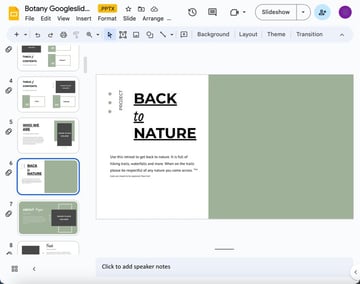
Next, use the duplicate slide shortcut. You've just duplicated a slide!


Presentation Action Shortcuts
While giving a presentation, you may need to do specific actions. Here are some Google Slides shortcuts that you can use while you're presenting:
|
Presentation Actions |
Shortcut (MacOS) |
|
Escape |
ESC |
|
Next Slide |
Right Arrow |
|
Previous Slide |
Left Arrow |
|
Go to a Specific Slide |
Number of Slide + Enter |
|
Go to the First Slide |
Home |
|
Go to the Last Slide |
End |
|
Open Speaker Notes |
s |
|
Open Audience Tools |
a |
|
Toggle Laser Pointer |
l |
|
Toggle Captions |
⌘ + Shift + c |
|
Toggle Full Screen |
⌘ + Shift + f |
|
Show a Blank Black Slide |
b |
|
Show a Blank White Slide |
w |
Text Formatting Shortcuts
Formatting text is essential. Here are some Google Slides text formatting shortcuts:
|
Text Formatting |
Shortcut (MacOS) |
|
Bold Text |
⌘ + b |
|
Italicize Text |
⌘ + i |
|
Underline Text |
⌘ + u |
|
Apply Strikethrough to Text |
⌘ + Shift + x |
|
Justify Text |
⌘ + Shift + j |
|
Increase Paragraph Indentation |
⌘ + ] |
|
Decrease Paragraph Indentation |
⌘ + [ |
|
Left Align the Text |
⌘+ Shift + l |
|
Center Align the Text |
⌘ + Shift + e |
|
Right Align the Text |
⌘ + Shift + r |
|
Insert a Numbered list |
⌘ + Shift + 7 |
|
Insert a Bulleted list |
⌘ + Shift + 8 |
|
Superscript |
⌘ + . |
Let's look at some specific examples of text editing shortcuts:
1. Bold Text
First, highlight the text on which you want to use the Google Slides keyboard shortcuts. After the text is highlighted, use the bold text Google shortcut keys. After pressing ⌘ +B on your keyboard, your chosen text should be bold.


2. Superscript Google Slides Shortcut
Before you learn about the superscript Google Slides shortcut, you should know what superscript is. According to Vocabulary.com,
“A superscript is a number or letter written slightly above another character.”
For the first step in the superscript Google Slides shortcut, click inside the textbox that you want to add the superscript to.
The superscript Google Slides shortcut is to press ⌘ + . simultaneously. When you do, a little cursor appears. This is the cursor that you can use to add superscript. Start typing, and you're done.


The Best Source for Google Slides Presentation Templates
Envato Elements is a top source where you can find Premium Google Slides Presentation templates. So, what's Envato Elements?
It's a subscription plan where you gain access to digital assets such as Google Slides templates, fonts, images, and more once you become a subscriber.


Every premium template is made by a professional to look impressive and stylish. This means that you’ll impress your audience with your presentation design. If you like to add customizations to your presentation, a professionally designed premium template is still easily customizable.
Not only do you have an impressively designed presentation template, but you start with a good base. A good template has slides labeled and ready for your text and images.
Download a Premium Google Slides Template Today
Before you need to use the Google shortcut keys, it can help to practice them. The more practice you have, the quicker you can complete the Google Slides shortcuts and the more time you’ll save.
Download a premium Google Slides template from Envato Elements to save time designing a premium template.
 By
By



