


Google Slides is a powerful web-based tool for building a presentation and it only gets stronger with Google Slides add-ons. Using add-ons can come in handy when you want to expand the functionality of Slides.
Let's learn more about Google Slides add-ons in this quick written tutorial with a short video.
Note: In this tutorial we use the Circles Google Slides template. You can find more awesome Google Slides templates on Envato Elements or GraphicRiver. Or look in the 20 Best Business Presentation Templates for Google Slides.
How to Find Google Slides Add-Ons Quickly
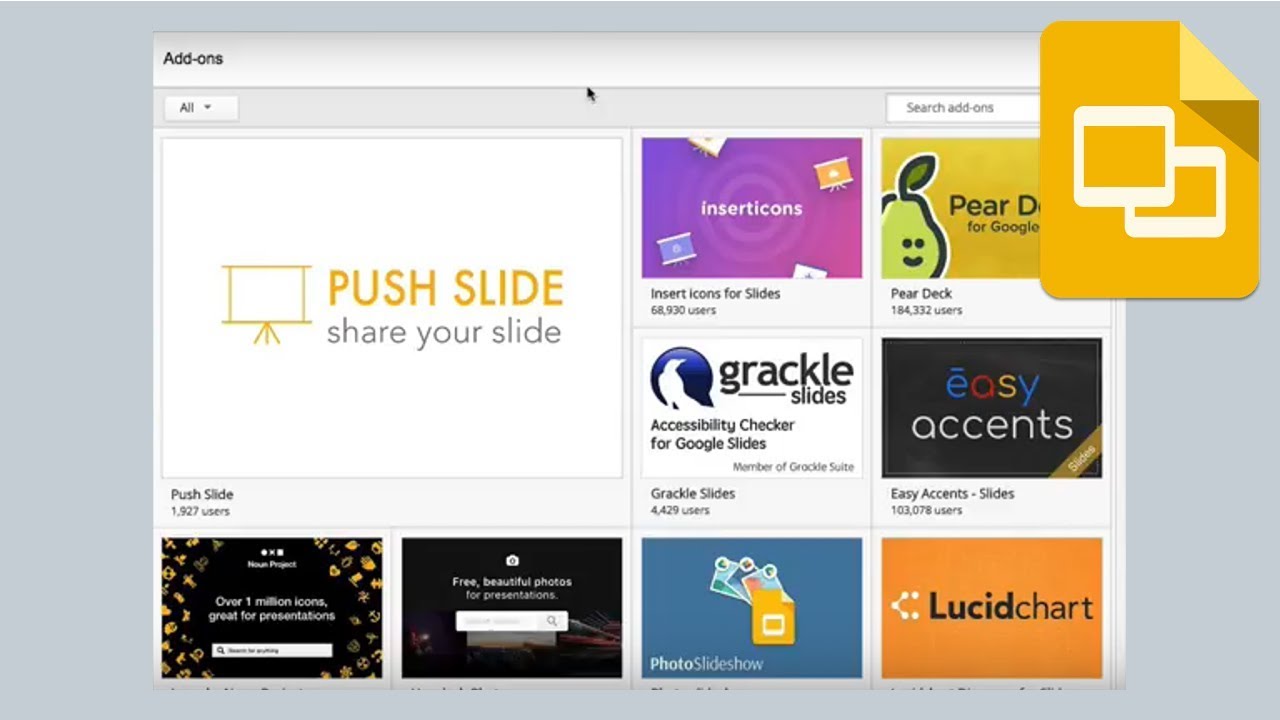
Note: Watch this short tutorial screencast or follow the quick steps below, that complement this video.
1. See Available Google Slides Add-ons
.jpg)
Let's go up to the Add-ons menu and choose Add-ons > Get add-ons. A screen opens showing the available Google Slides add-ons.
2. Browse for the Add-ons You Want
.jpg)
This is like a built-in app store that shows all of the add-ons that are available
3. Add a Google Slides Add-on
Add-ons add extra features to Slides. A great example of this is the Unsplash add-on, which is a free stock photo service. Let's go ahead and click to add it.
.jpg)
There are some cursory click throughs to connect to it and authorize it using our Google account. Make sure you trust the service before you authorize it.
4. Use the Add-on From Within Google Slides
.jpg)
Now that we've added it we can come up to the Add-ons menu and browse through the new menu that's added. The Unsplash add-on appears in the sidebar and we can simply click on an image to add it into our presentation. That's it.
Finishing Up!
This add-on is a great example of how much can be added to Google Slides. Each one is going to work a little differently, but the key here is that you know they exist and that they add functionality to Google Slides. Make sure to spend some time exploring and checking out all of the add-ons that are available to extend Slides.
More on Envato Tuts+ Google Slides Presentations
Learn more in our Google Slides tutorials and quick video tutorials on Envato Tuts+. We've got an assortment of Google Slides material to help you create better presentations.


.jpeg)
.jpg)
 By
By



