


Planning to use presentation quotes? Use quotes in your PowerPoint presentation to motivate your audience.


It can get them to see the topic in a completely new light. A quote slide is also an interesting way to introduce your topic. It can start your presentation in an engaging way.
But how do you design a great quote presentation slide? We’ll answer that question in this article. We'll also share the benefits of using quote slides. You'll also find tips for customizing a quote for a PowerPoint template.
Jump to content in this section:
- Benefits of Using Quote Slides
- Creative Ideas for Displaying Quotes in PowerPoint Slides
- How to Customize a Quote Slide Design in PowerPoint
- 5 Great Quotes Presentation Templates
- The Best Source for PowerPoint Templates (With Unlimited Use)
- Learn More About Microsoft PowerPoint
- Easily Find PowerPoint Templates
- Design a Great Quotes Slide for Your PowerPoint Presentation
Benefits of Using Quote Slides
As mentioned earlier, quote slides can be used to motivate your audience. They can introduce the topic you’re going to cover too. But there are a few other benefits to using quote slides in your PowerPoint presentation:
- A great quote adds credibility. Add a quote by an industry expert to back up the main points of your presentation.
- An interesting quote can help you create a more engaging presentation. It can spark conversation or makes the audience ask questions. A quote is a great way to shake things up and make your presentation memorable.
- Great quotes serve as a source of inspiration. What if your topic doesn't rely on data, charts, and information? Maybe it is meant to inform or encourage a change. An inspiring quote could be just what you need to get people to take action.
Creative Ideas for Displaying Quotes in PowerPoint Slides
With a little bit of creativity, you can display quotes in PowerPoint slides in many different ways:
1. Use a Full Color Background
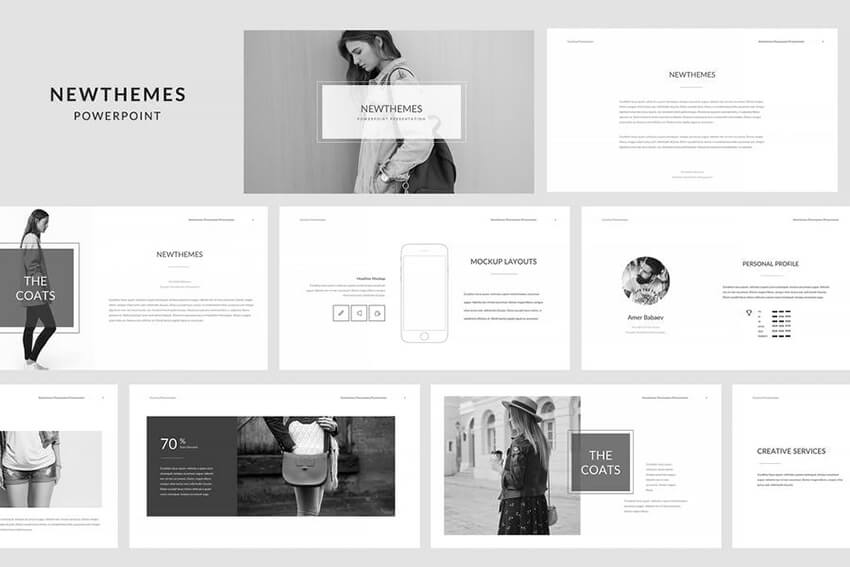
One of the easiest ways to display a quote in your presentation is to use a full color background. All you've got to do is change the background color of the slide. Then add text that uses a contrasting color.
For example, the this template has a solid white text slide. Change the color of the background and the text. It's an easy way to create a visually appealing PowerPoint quote slide.


2. Play With the Watercolor Effect
Here's another way to make your quote slide look visually appealing. Try adding a watercolor background behind the text. Take cues from this watercolor template on Envato Elements. Easily replace one of the statistic boxes with a quote of your own. Then, adjust the size of the watercolor background behind it.


3. Use a Photo With a Color Overlay
A solid color background will do the trick and make your PowerPoint quote stand out. But why not take it a step further?
Simply add a photo as the background for the slide. Then add a shape on top of the photo. Play with the opacity to get the image to show through. The last step is to add your quote and ensure it’s easy to read.
This PowerPoint template already has a slide with all the elements in place. So, all you’d need to do is add your own quote.


4. Sometimes Less is More
Check out these examples of presentation quotes. Don't they look dramatic?
Sometimes, less really is more. These quotes are on a high contrast background. They don't need any bells or whistles to get their message across.

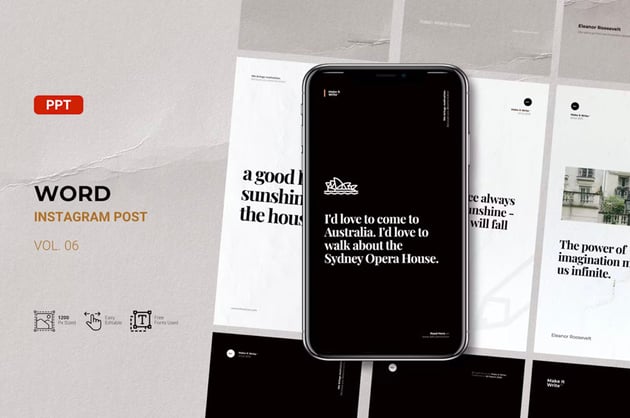

This design approach can be a particularly good idea with serious subject matter. Think about the tone that you want to convey.
If the quotes on the presentation are meant to be lighthearted, go colorful. If it's meant to have a more somber tone, keep it clean and simple.
5. Add a Shape to Create a Quote Box
This trick makes use of a couple of ideas shared earlier and combines them into one.
Add a photo as the background for the slide and then add a shape like before along with your quote. But this time leave the edges of the photo visible to create an interesting border around your quote box.


The WindWard PowerPoint template is a good example of how to achieve this effect.
6. Combine the Quote With the Author Photo
If you've got many quotes to include, you can include the photo of the quote author. You can use this idea in several ways:
- Use the photo of the author as the slide background and apply a color overlay, then add the quote on top.
- Use a split layout design and put the quote and the photo of the author side by side.
- Create three columns and use one for the actual quote. Use the second column for the photo of the author. The third column could be for a relevant statistic related to the topic or quote.
For example, you can create a slide like the one featured in the Hilo template:


7. Add Colored Borders
You can also play around with shapes and add a rectangle at the top and bottom of the slide. Change the colors of the rectangles and then add the quote in between. Take inspiration from the Melt PowerPoint template from Envato Elements.


8. Use a Ribbon Banner
If you don’t want to use a photo or a full colored background, a simple shape can be effective as well.
For example, you could use the built-in ribbon banner to display your quote. Check out this example.



Fun, banner like shapes can really draw extra attention to keywords and quotes.
It doesn't have to be a straight rectangle either. Notice how some simple rotation can add some whimsy. You can also try working with abstract shapes.
9. Use a Speech Bubble
Is your presentation is geared towards a younger audience? Or maybe you’re not dealing with a serious topic?
You could consider a speech bubble to display your quote. Luckily, PowerPoint comes with several callout shapes. You can use them to create a speech bubble. Try it next to a photo of the person you're quoting.
You can also dress the speech bubble concept up, if you're going for a more formal look. Take a look at this example. We have some implied speech bubble shapes. They're sleek, stylish, and worked into a classy, clean aesthetic.


10. Contrast Commands Attention
One of the best ways to catch the viewer's eye is with contrast.
Notice how placing white text on a black background, in this example, really stands out.


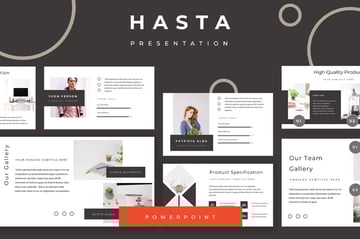
You can really experiment with this idea in many ways. For example, it can be an excellent way to draw emphasis to the person who said the quote. Or, if you want the quote itself to the focal point, you can use contrast in a similar way.
11. Use Text Size to Your Advantage
Check out this fun, stylish example. Notice the role that the font plays here. The larger the font, the more emphasis it commands.


If your quote is meant to be smaller and more supplemental, keep it smaller. If the quote is meant to be the focus of your slide, consider making it large.
Gauge the size based on the design and the length of the text. You may want supplemental text to be smaller. This would apply to things like the name of the person being quoted.
12. Color Can Also Craft an Experience
Check out this fun, colorful example. You can use color to make specific parts of your quote stand out.

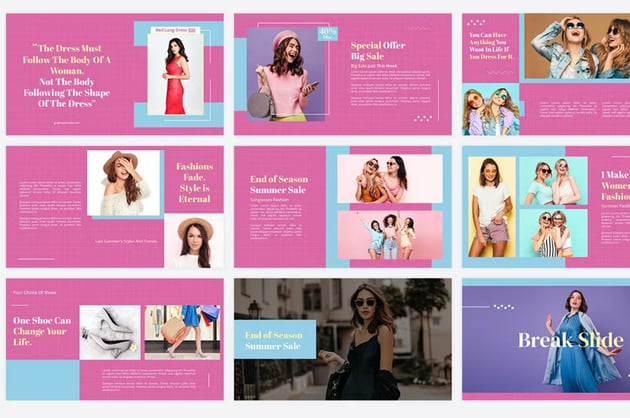

For example, maybe you want to draw attention to the end of a quote. Try doing so in a supplemental color. Think of it similarly to adding bolds or italics to your type.
Color can have a similar impact. Use it for inflection or use it to make a specific part more impactful. But make sure the color choices still make sense with the presentation overall branding and color scheme.
How to Customize a Quote Slide Design in PowerPoint
You’ve seen several creative ideas for presenting PowerPoint quote slides in PowerPoint. Next, let’s look at how you can customize a quote slide design with a premium PowerPoint template. For the purposes of this tutorial, I’ll be using the Monstera template from Envato Elements.


This template features a creative design. It comes with more than 90 slides. They are all are based on master slides. Let’s take a look at how you can quickly customize a quote slide in PowerPoint:
1. Choose Your Slide


The first step is to choose which slide you’re going to use for your quote slide. First, switch to the Slide Sorter view by clicking on the View tab so you can see all the different slide designs side by side. Then, select the slide design you want to use as a starting point. For example, I’ll use the slide #24 for this tutorial.
2. Add Your Quote


Double-click your chosen slide and PowerPoint will take you directly to it. As you can see, this slide has a photo on the left and plenty of space on the right to add the quote. To add your quote, double-click the text, press CTRL+A to select all the dummy text and then delete it. Then type in your quote as well as the author’s name.
3. Add the Author’s Photo


The next step is to add the author’s photo. All you've got to do is click the photo icon and then locate the photo on your computer. Click Insert and the photo is added to the placeholder.
4. Customize the Text


Once you’ve added the photo, you can further style and tweak your quote slide. Start by customizing the text of the quote. You can change the font as well as the size.
In this example, I’ve increased the size of the text and set it to italic. If you want to change the font, simply highlight the text. Then choose a different font from the drop-down menu on the Home tab.
5. Adjust Colors


Finally, you can also change the color of the background where your quote is. To do this, right-click on the background and select Format shape. Then under the Fill option, click on Solid Fill. Then choose a different color from the premade color scheme or enter your own hex color code.
5 Great Quotes Presentation Templates
Trying to find beautiful PowerPoint templates with versatile slides? Envato Elements should be your first stop. Envato Elements has a compelling offer. For a single monthly price, you get access to thousands of unlimited use PowerPoint templates. You also get access to graphic files, web templates, and more.
Take a look at some of the best PowerPoint quote templates from Envato Elements:
1. Vogue Monal PowerPoint Template


This PowerPoint quote template features a minimal and clean design. This template style is perfect for PowerPoint quote slides. The template comes with more than 150 unique slides. It also includes:
- five premade color schemes
- picture placeholders
- gallery and portfolio slides
- and more
2. Wixa PowerPoint Template


This template has an elegant design. It features several creative slide layouts. Use them to create a great quotes presentation slide. It also has five premade color schemes. Customizing this template is a breeze. You’ll find resizable vector graphics, image placeholders, and more than 150 unique slides.
3. Simple PowerPoint


This simple PowerPoint has a bold and colorful design. You’ll have no trouble designing an eye-catching quotes presentation slide. The template includes image placeholders. It also has light and a dark version. Even better, it has fully animated slides.
4. Luna PowerPoint Template


Here's another bold and colorful PowerPoint template. This presentation template can be used for any type of presentation. It features 150+ slides. The template includes five premade color schemes. You can just as easily use your own colors too.
Here's some of what you’ll find:
- image placeholders
- creative slide layouts
- resizable vector graphics
- slide animations
5. Orwell Presentation PowerPoint


If you prefer a minimal style, check out this template. It has a classic black and white look. Your quote presentation slides are sure to stand out. The template includes 50+ unique slides. You’ll also find image placeholders, easily editable charts, slide transitions, and more.
The Best Source for PowerPoint Templates (With Unlimited Use)
Envato Elements is the perfect choice for professionals from all walks of life. It offers so many benefits. Find the perfect template fast. You can also download all kinds of other assets for your project too. Sign up for Envato Elements now.


Envato Elements saves time and resources. Easily download and customize the perfect PowerPoint presentation.
Not sure what design would be perfect for your quotes slideshow? With Envato Elements, you get unlimited downloads. You can download as many presentations as you like, because they're all included for one price.
- Need stock photos? They're also included.
- This also includes fonts, graphics, illustrations, sound effects, and much more.
- Changed your mind? You can easily download another PowerPoint presentation without any additional cost.
Learn More About Microsoft PowerPoint
Want to learn more about PowerPoint? There's a wealth of free tutorials right here at Envato Tuts+. Learn even more creative ways to add quotes on presentation slides. Or pick up even more PowerPoint skills.

 What Is a Placeholder in PowerPoint? & How to Use Them


 How to Sequence Animation Order in PowerPoint


 How to Share PowerPoint Presentations in Zoom Webinar Meetings in 2024 (+Video)

 PowerPoint Online vs. Full PowerPoint on Your Desktop

 How to Design Logos in PowerPoint and Animate Them


 How to Add Color Gradient Fill to PowerPoint Backgrounds
Easily Find PowerPoint Templates
Looking for even more PowerPoint quote inspiration? Check out these stylish templates. They're perfect for adding quotes in PowerPoint. All of the designs are fully customizable. This means that adding presentation quotes is as simple as pasting in your desired content.

 35 Best Science & Technology PowerPoint Templates (High-Tech PPT Designs 2024)


 27 Best Mind Map PowerPoint PPT Templates for Creative Teams
.jpg)
.jpg)

 38 Awesome PowerPoint Templates (With Cool PPT Presentation Designs 2024)


 35 Clean PowerPoint Templates (PPTs) With Minimalist Designs (For 2024)


 32+ Top Professional PPT Templates and Business Presentation Examples (2024)

-
38 Awesome PowerPoint Templates (With Cool PPT Presentation Designs 2024)
Design a Great Quotes Slide for Your PowerPoint Presentation
Agreat PowerPoint quote slide can add visual interest to your presentation. It can really back up your topic. With the tips in this article, you’ll be well on your way!
Use these tips to design an attractive and impactful quotes slide. So, the only thing left to do is to get the perfect PowerPoint template. What quotes on PowerPoint would you add to your presentation?
Hop on over to Envato Elements and browse our collection of stunning PowerPoint quote templates if you need design assets on the regular. Happy designing!
Editorial Note: This tutorial was originally published in December 2020. It's been updated for accuracy and to share additional information by Daisy Ein.
 By
By



