


Email overload is a very real problem. According to Inc.com over 140,000 emails are sent every minute. And the number of emails each of us receives is increasing. A recent study from the Radicati Group projects that the average worker will receive nearly 129 emails a day in 2019—up from 112 emails per day in 2015.
One problem with having too much email in your inbox is that processing it can eat up a lot of time, causing you to be less productive. A study of a thousand workers from Adobe shows that most people spend between two and three hours a day on email-related tasks. That’s a big chunk of every day!
Yes, a cluttered email inbox can be a real nuisance. Yet, when your inbox is too full deleting or moving individual emails can seem like a daunting task. Fortunately, you can quickly remove more than one unwanted email at a time using MS Outlook. Deleting unwanted emails can help you to quickly gain control of your inbox.
When removing emails from Microsoft Outlook, you have a few choices:
- Delete the emails.
- Archive the emails.
- Use the Clean Up tool.
In this tutorial you'll learn how to do both. First, I'll explain how to delete emails in Outlook including how to delete all emails in a folder. I’ll also talk about how to permanently delete emails, which can increase the amount of available storage for your email inbox. Next, we'll examine how to archive in Outlook. Finally, I’ll touch upon the Outlook Clean Up tool, which can also help you to manage your inbox.
Now let's dive into learning how to archive and delete emails in Outlook.
How to Delete & Archive Emails in Outlook
Learn how to quickly delete and archive Outlook emails in
this short video:
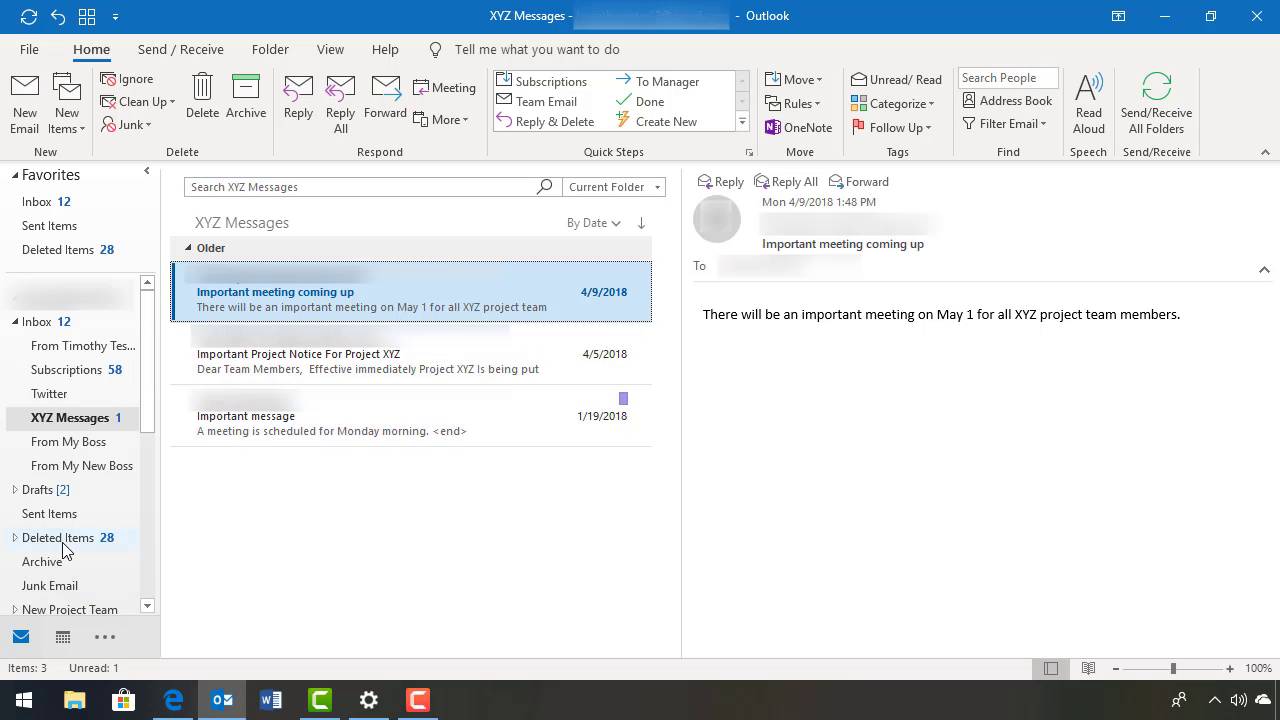
For more detailed instructions on how to remove messages from your Outlook email inbox, follow the written tutorial steps below:
How to Mass Delete Emails in Outlook
If you've got a lot of email messages, you probably want to mass delete them to save time. Mass deleting messages means you're deleting several email messages at once.
Note: If you're using Outlook with a Microsoft Exchange server you may have different options for deleting messages.
1. How to Delete Multiple Emails in Your Outlook Inbox
You can delete multiple emails right from your Outlook
inbox. Start with an open inbox:
.jpg)
Notice that I’ve got 16 messages in my inbox. It’s time to declutter my inbox and remove some of those messages.
Hold down the CTRL
key and click on each message you want to delete to select it. Each selected
message will be highlighted in gray:
.jpg)
Once you’ve selected all the messages you want to delete, simply press the Delete key on your keyboard. The messages you selected are removed from your inbox and moved to the Deleted Items folder.
Another way to mass delete the selected email
messages is to use the Delete icon
(it looks like a trash can) in the ribbon at the top of screen:
.jpg)
2. How to Delete All Emails in an Outlook Folder at Once
Another way to mass delete Outlook email
messages is by deleting all the messages in a folder. To do this, again start
with your Outlook inbox open:
.jpg)
Notice that I’ve got a lot of email messages in my Subscriptions folder. This would be a good folder to empty out.
Click on the folder you want to delete all messages from to
select it:
.jpg)
The folder you’ve selected will be highlighted in gray. The first message in the folder is also automatically selected and the Reading Pane appears to the far right.
Right-click on the folder you’ve selected. A drop-down menu
appears:
.jpg)
Select the Delete All
option from the drop-down menu. The messages in your selected folder are
removed to the Deleted Items folder.
Your selected folder is now empty:
.jpg)
3. How to Permanently Delete Your Emails in Outlook
Deleting a message using any of the methods above
doesn't automatically mean the message is gone. Rather, the deleted message
will be moved to a Deleted Items
folder where it can be recovered. To learn more about how to find and restore
email messages from the Deleted Items
folder, review this tutorial:
.jpg)

The previous tutorial also explains how to create an archive folder in Outlook.
To make sure your deleted messages are truly gone you need
to empty the Deleted Items folder.
Start with your MS Outlook inbox open:
.jpg)
Click on the Deleted
Items folder to select it. Then, right-click to bring up the drop-down
menu:
.jpg)
From the drop-down menu, click the Empty Folder selection. You'll see the prompt:
Everything in the
"Deleted Items" folder will be permanently deleted. Continue?
Click the Yes
button to continue. A prompt displays showing that the items are being deleted.
When the deletion is complete, your Deleted
Items folder will be empty.
.jpg)
Permanently deleting email messages also has the added benefit of reducing the amount of used storage in your email system.
How to Archive Emails in Outlook
What if you don’t want to delete a message, but you also don’t want it cluttering up your inbox or your email folders? Archiving the message is the best solution.
When you move a message to the Deleted Items folder, it’s a preliminary step you take before permanently removing it from your email. Once you permanently delete an email message you can no longer access it. Archiving, on the other hand, allows you to store a message indefinitely.
Note: Messages stored in an Archive folder will take up storage space.
To archive an email message or messages, start with an open
inbox. Open the folder that contains the message or messages that you want to
archive. In this example, I’ve opened the From
My New Boss folder:
.jpg)
Click on the message you wish to archive to select it. To
select multiple messages, use CTRL +
click. When you’ve finished selecting the messages you want to archive,
right-click to display the drop-down menu:
.jpg)
Select the Archive option to send your selected messages to the archive.
Another way to archive your email messages is to use the Archive icon (it looks like a file box)
in the ribbon at the top of the screen:
.jpg)
For more detailed information on Outlook’s Archive and Delete
features, review the following tutorial:
.jpg)
Use the Clean Up Option to Declutter Your Outlook Inbox
Another way to de-clutter your MS Outlook inbox is by using Clean Up tool to remove redundant messages—especially in email conversations. Unless you specify otherwise, when you use the Clean Up tool redundant messages are automatically sent to the Deleted Items folder.
An email conversation is all the related messages with the same subject line. For example, if you create a new email message, two people reply to it, and a third person replies to one of the replies—all those messages make up an email conversation. (If you’ve worked with other email tools, you may refer to email conversations as email threads.)
Redundant emails in Outlook are messages that are completely contained within another message. For example, if I send you an email and you reply to it including my original message in your reply, then my original message would be considered redundant. In long email conversations, there can be quite a few redundant messages and they can take up quite a bit of space.
Here’s how to use the Clean Up tool to delete redundant emails:
1. How to Clean Up a Conversation
Start with your inbox open. Select a
conversation thread that's got multiple replies:
.jpg)
In the ribbon, click the Clean Up icon. A drop-down menu appears:
.jpg)
From the drop-down menu, select Clean Up Conversation. The Clean Up Conversation prompt appears:
.jpg)
If you’ve never defined your Clean Up settings before, click the Settings option. The Outlook Options window appears:
.jpg)
Scroll down to the Conversation Clean Up section. To change the folder where they go, select a destination folder at the top of this section.
Use the checkboxes in this section to further define what types of messages should be cleaned up and what types should be saved.
When you’ve made your selections, click OK. To clean up a selected conversation, click the Clean Up button on the Clean Up Conversation prompt.
2. How to Clean Up a Folder (& Subfolders)
You can also clean up the contents of an entire folder (including your Outlook inbox). You can also choose to include messages in any subfolders of that folder.
Start with your inbox open. Click on a folder to select it.
Click the Clean Up icon. A drop-down
menu displays:
.jpg)
Choose one of the following options:
- To clean up the contents of the selected folder and the contents of any subfolders of that folder, choose the Clean Up Folder & Subfolders option.
- To clean up just the contents of the selected folder, select the Clean Up Folder option.
Learn More About How to Optimize Your Outlook Inbox
For even more tips on how to organize your
Outlook inbox efficiently, study this tutorial:
.jpg)
Keep Your Email Inbox Uncluttered
 By
By



