


Want to avoid creating another boring presentation? Well-designed presentations make a great first impression. A PowerPoint title slide sets the stage for your subsequent slides!

Your PowerPoint title slide is critical for a successful slide deck.
Half the battle is building excitement with a PowerPoint title page. Invest extra time to add design polish to your cover slide PowerPoint design. Build a bold PowerPoint title slide that shows your audience that you're excited to share!
In this tutorial, I'll show you how to build a PowerPoint title page. You'll see intro slide examples that spark success. Attention is everything, and presentation title pages help you get and keep it. It's quick, easy, and key to success in 2024!
How to Quickly Make Great PowerPoint Presentation Title Cover Slides (Video)
If you're making a PowerPoint title slide for your presentation, you need it to look good. Learn how to make a visually appealing PowerPoint title page quickly in the video below:
To learn even more about cover slides for PowerPoint, study the rest of the tutorial. You'll see real world examples of PowerPoint title pages. These presentation title page designs are tried-and-true options for great design.
Jump to instructions for the type of PowerPoint cover slide you're interested in:
- The Logo Slide
- The Big Question Slide
- The Introductory Slide
- The Roadmap Slide
- The Team Slide
- The Quote Slide
- The Challenge Slide
The Seven PowerPoint Cover Slides to Build
There's no limit to the directions that you can take your PowerPoint title slide. You can let your creativity run wild as you build title page in PPT designs.
But it's hard to disagree that the first slide is going to set the stage for the rest of your presentation. So, it's essential that your presentation gets off to a strong start. But what direction should you go with your presentation title page so that you grab and keep audience attention?
In this tutorial, you'll learn to build seven types of PowerPoint title slides. Here are the intro slide examples that I tend to think about when designing my PowerPoint title pages:
- The Logo Slide. Focus on the branding and brand image of your group with this PowerPoint title page! Start off by putting your logo and tagline front and center.
- The Big Question Slide. Most presentations work to inform. But it's also fun to flip the script and ask a question of your audience. It kickstarts the conversation.
- The Introductory Slide. This slide focuses on showcasing your credentials and background to establish authority.
- The Roadmap Slide. Chart the course for your presentation ahead by giving a sneak preview of the topics you'll cover.
- The Team Slide. Does your presentation focus on a group's effort? It's a great idea to start your presentation by showcasing all the minds behind the project.
- The Quote Slide. Sharing an inspirational or motivational quote is a fun way to engage your audience.
- The Challenge Slide. Many presentations strive to help solve problems. Set the stage by highlighting the big challenge immediately.
In this tutorial, we're going to build an example of each of these PowerPoint cover slides. We'll use pre-built templates to create impactful slide designs with ease. Let's dive in!
How to Make PowerPoint Title Slides
We're going to use an impressive template called the BePro PowerPoint Business template. This is one of the top PowerPoint templates for Envato Elements subscribers.
BePro has a litany of cover slide PowerPoint designs that you can use to create the perfect PowerPoint title page! It also includes several color schemes to make it easy to reuse on multiple presentation title pages.
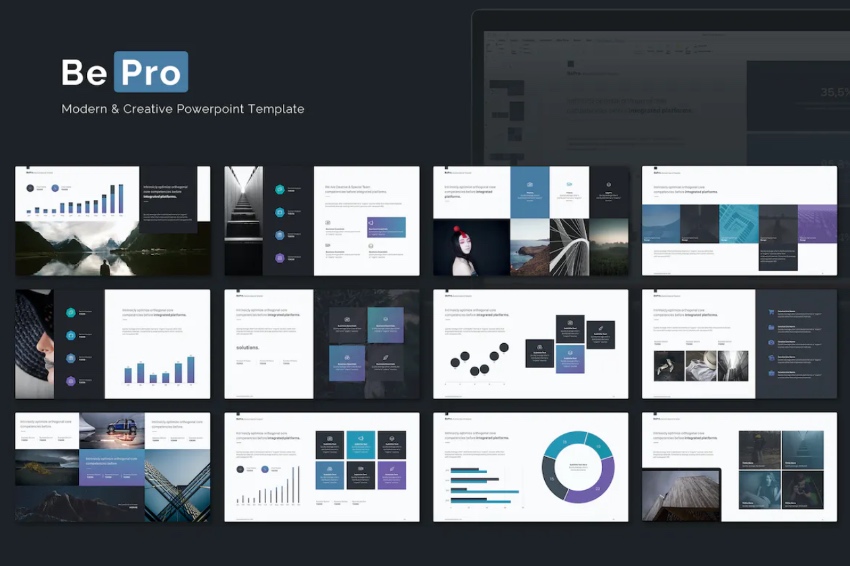
Envato Elements includes over 25,000 premium PowerPoint themes! You have countless title page in PPT options. With these, you can build amazing intro slide examples of your own. Start with this collection for more great ideas:
Now, you can learn about each of the seven types of title slides:
1. The Logo Slide
The Logo Slide focuses on your brand image and showcasing the logo of your company. Branding takes center stage with this title page in PPT concept. It's ideal to use a logo slide to show your branding on the PowerPoint title page when you're building brand awareness.
A good starting point for this slide is slide design three that's built into the BePro template. It's perfect for just adding a logo and background image. In the example below, I dropped in the logo on the slide. I also took the same logo and faded it into the background image placeholder.
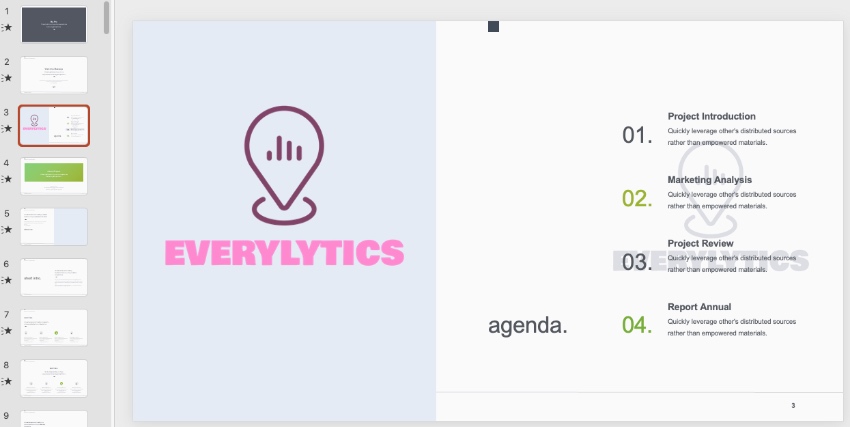
Make sure too that your version of the logo slide stays with the branding message. Adjust the colors of shapes and text to match the overall color scheme of your business. Presentation title pages should always fit with your overall brand style.
Building a logo slide as your title slide doesn't have to be complicated. A well-made logo slide shows your branding quickly. An alternate option for this slide is slide design 4, a simple slide with a dark color scheme. Just add your logo to that slide to create contrast.
2. The Big Question Slide
Your audience may be expecting you to impart knowledge on them. But you can flip the script by asking a question up front.
The "Big Question Slide" doesn't take much time to design. It helps you free up time that you can spend thinking about the rest of your content.
When you're writing a presentation, there should always be a goal or big idea. In the example below, I used the minimalist slide design 4 to ask a question of the audience. Over the course of the presentation, I'll answer this question for the audience.
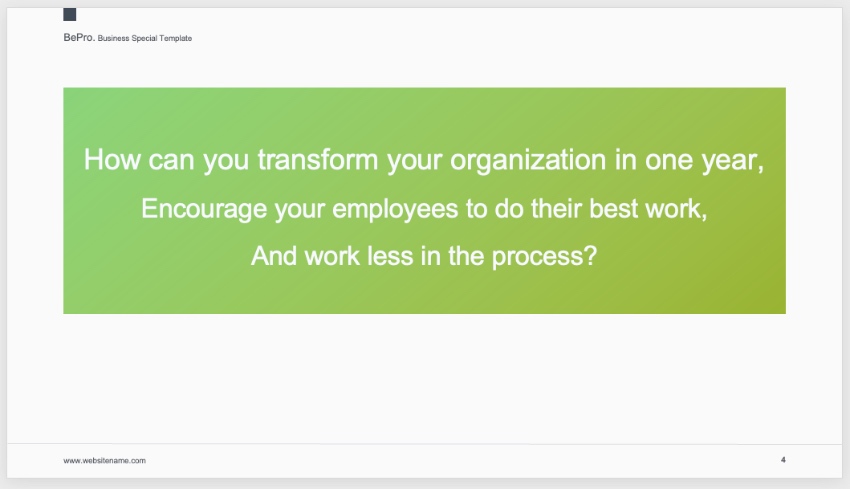
If you aren't answering a question or sharing an idea, it might be time to re-think the content.
3. The Introductory Slide
There's nothing wrong with getting a bit personal in your presentation. Set the stage by building your authority and expertise, and the audience will trust and follow you through the presentation.
BePro has many slide designs that work well for this, but I opted for slide 25. It's a clean and straightforward slide design. It's easy to add points that explain your expertise to the audience.
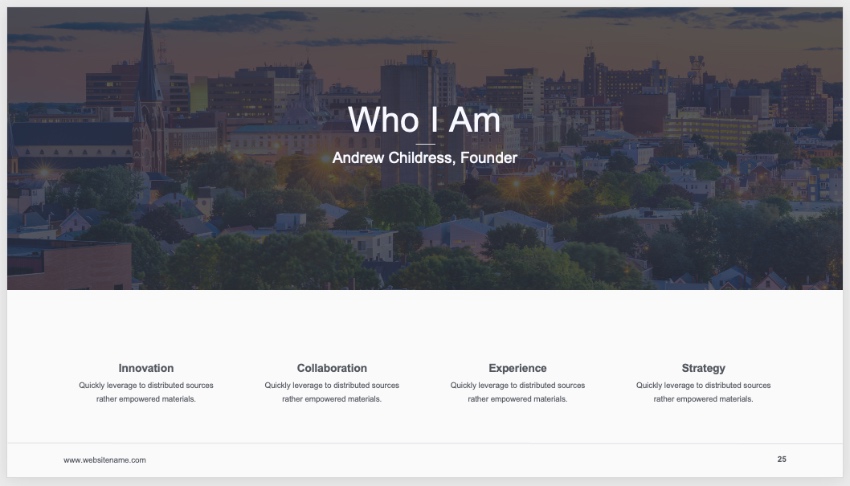
As you can see above, I also added a stock photo as the background image. Envato Elements features a ton of stock images as part of the subscription. They're ideal for sourcing a stock image for your presentation.
In my example slide, I grabbed a great photo and faded it into the background. It's a great reminder that Elements is a total solution for building presentations—not just for the PowerPoint templates.
4. The Roadmap Slide
The roadmap style slide is used to tell the story of where your presentation is headed. I've sat through many presentations that seemed to wander through the agenda and would've benefitted from a roadmap slide.
When you build a roadmap, you show the audience the direction that you'll take them on over the course of the presentation.
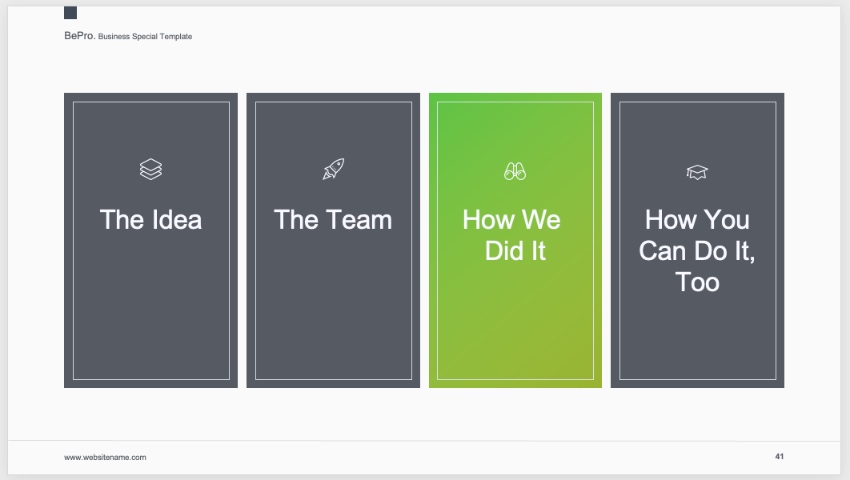
Slide design 41 might take a bit of customization, but I do think that it's the perfect choice for showcasing your roadmap for the presentation. Just update each of the four placeholder boxes with a key section of your presentation to architect the roadmap of your big speech.
5. The Team Slide
This type of slide is the perfect intro to showcasing a project that was a total team effort. If you're going to spend your presentation sharing how you built a big app, product, or project, it's only right that you share the credit with your team.
Slide 22 in BePro is the perfect choice to build a team slide of your own. It's tailor-made to drop in images and descriptions of your team members and see it come to life.
In my example below, I put a vital member of the project team in each of the image placeholders. Giving a brief background or description of their contribution to the project is a great way to set the stage.

I think the Team Slide approach is perfect when multiple speakers are involved. Some of my favorite presentations are when several different presenters will each take a part of the presentation. If this is the style of your presentation, use a team slide that introduces everyone's role and contributions.
6. The Quote Slide
Starting off with a quote is a great way to build a PowerPoint cover slide. Share a signature quote and you can inspire and engage with your audience! Quotes provide motivation and inspiration. They can be key to helping you convey your message.
Let’s use slide #9 in the BePro template. Over on the left, you’ll see a text placeholder. Here, you can quickly keyboard in a quote to share with your audience. Optionally, up at the top, you can add a title. Using this layout as your title slide makes for a fun and inspiring opener.
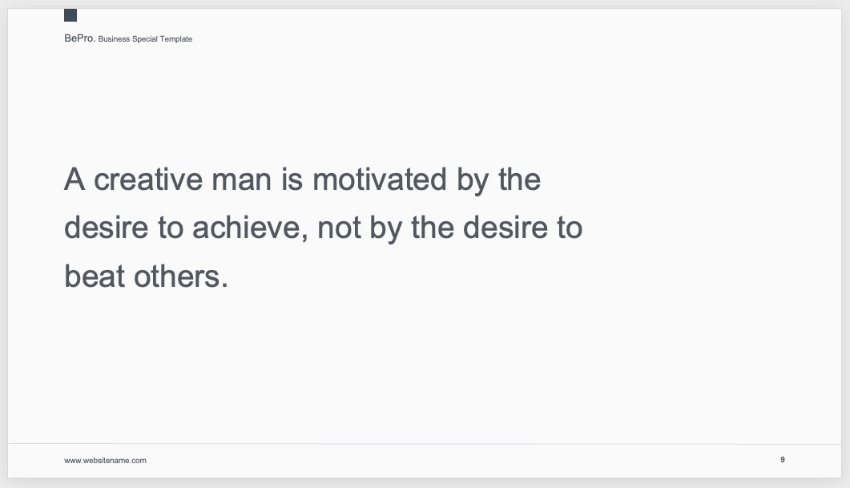
As you can see, it’s easy to add a quote to your cover slide PowerPoint design. This is a good way if you’re motivating your audience to take action. Sharing the inspiring words of others helps you inspire confidence and drive your audiences to act on your message.
7. The Challenge Slide
In PowerPoint, you’re often sharing the solution to a problem. Don’t waste time - address things head-on right away! To do that, consider PPT title slide examples that outline a challenge. After all, if you’re proposing solutions, you first must define the challenge.
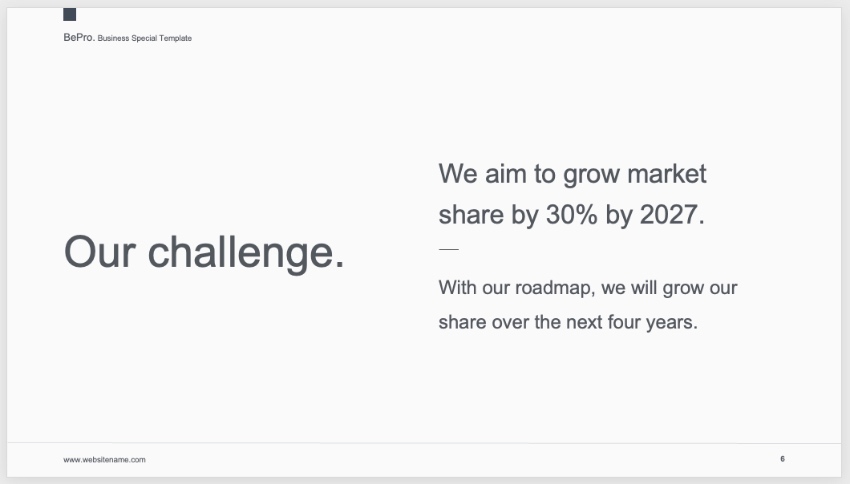
Above, I’ve used slide #6 to create a challenge slide. Once again, the process is quick and easy. Simply swap out the placeholder content with your own words and numbers. When you use layouts like this, there will be no confusion on the part of your audience. You can clearly show the challenge that must be accepted.
5 Quick PowerPoint Title Cover Slide Design Tips for 2024
We've looked at how to make a great PowerPoint cover slide. Soon, you can begin building amazing slides on your own.
Still need inspiration? These tips can serve as PPT title slide ideas. Let's check out five quick design tips that are sure to help you out:
1. Go Bold
Bold style is essential on your PowerPoint cover page. Remember, you've got one goal: capturing audience attention. Sharp, eye-catching design does exactly that on cover slide PowerPoint designs.

Premium templates built by creatives provide unmatched designs. They even help inspire you to do your very best work. I think of templates as a top source for PPT title slide ideas. And they're incredibly easy to customize, making you look like a PPT expert.
2. Create Your Own Layouts
PPT decks are really frameworks for your message. Inside the app, you've got the flexibility to customize every slide layout. That's never more important than on the first page of PPT presentations.
By adjusting layouts, you can show exactly what you want, where you want. It's the best way to create a memorable and unique PowerPoint cover page.
Ready to implement PPT title slide ideas of your own? Tweaking layouts helps you do just that. Learn how to customize PPT layouts with our quick tutorial:

3. Embrace Minimalism
Minimalism. It's a popular design aesthetic, and for good reason. It adds style without being overpowering or distracting. That's perfect for a PowerPoint cover page.

Try to build a cover showing only the essentials. These could be things like an image, the presentation title, a date, and your name. Be careful to avoid adding clutter: it's a quick way to lose your audience.
4. Add Kinetic Typography
You might not think of animated text. But it's actually a great way to grab attention and lock in audience focus on your title page in PPT. Thanks to PowerPoint, you can add these animations (called kinetic typography) easily.
Kinetic typography brings subtle, stylish text animation to any slide. It's ideal for the first page of PPT presentation layouts in need of a bit more energy.
Learn how to use kinetic typography in just 60 seconds here. It's yet another source of inspiration for PPT title slide ideas:
.jpg)
5. Use Industry-Specific PowerPoint Cover Slides
First impressions are key in a title page in PPT, and you'll make one with your PowerPoint cover page. So why use generic layouts if you can find something specifically suited to your needs?
My favorite PPT title slide ideas are situation specific. That means choosing PowerPoint title slides that match your purpose. Check out Pizzarena, for example. The designs are targeted at a pizza restaurant. That's far from the norm, but it will instantly resonate with your audience with eye-catching intro slide examples.

This might mean choosing a premium template built for your industry. Or, you might add your brand's colors, logos, and more. Either way, being specific and tailoring your cover slide to your needs is sure to impress.
5 Top PowerPoint Title Cover Slide Templates (For 2024 Presentations)
Premium templates from Envato Elements include stunning PowerPoint cover page designs. And remember, they're a top source for intro slide examples. Let's check out five of the very best PowerPoint templates with built-in PPT title slide examples:
1. VERA PowerPoint Template

Bold colors abound in this visually stunning PPT deck. With 55 unique slides, you're sure to find the perfect PowerPoint cover page. Also, inside is a custom icon set that's easy to work with. This title page in PowerPoint template is perfect for almost any project.
2. STYLE - Multipurpose PowerPoint Template V50

Style: it's in the name of this template, and for good reason. This is a perfect example of a sleek, minimalist PowerPoint cover page. Customize it in seconds, and with 4,000 slides to choose from, your options are almost unlimited. You're sure to find outstanding options for title page in PowerPoint designs!
3. IPSUM - PowerPoint
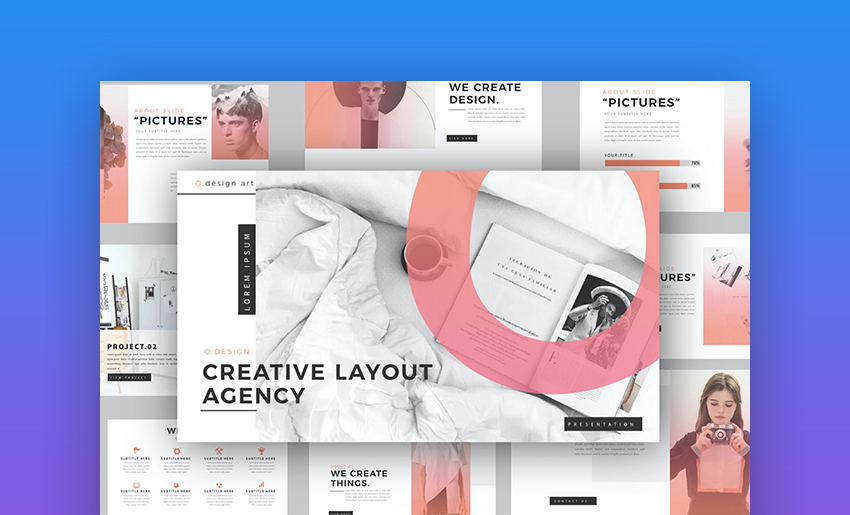
IPSUM offers a key part of a successful PowerPoint cover page. That's creative flexibility. Over 50 layouts are built into the pack. You can use those pre-built designs as PPT title slide examples! You'll also see custom infographics, icons, and more. Each slide element is completely editable.
4. Livy PowerPoint

Searching for a timeless, retro inspired PPT cover page? Livy has you covered. With 50 slides and resizable graphics, it's easy to adapt to your project needs. The included gallery slide makes for a perfect mosaic cover layout. It's yet another great example with PowerPoint title slide examples.
5. Conference PowerPoint Presentation Template

Last but not least is Conference, a modern PowerPoint cover page deck. Choose between multiple color themes and quickly add in your content. Plus, slides are pre-animated, saving you precious time as you build a title page in PowerPoint! Each slide is in full HD, helping them look great on large screens.
More Top PowerPoint Templates
PowerPoint templates give you a tremendous advantage when creating a presentation. Many of them even give you pre-built title page in PowerPoint designs. You've already seen options for PowerPoint cover pages in this tutorial, but these just scratch the surface.
Check out more of the top templates below. Many of these templates give you even more options for PowerPoint title slide examples:
 35 Best Science & Technology PowerPoint Templates (High-Tech PPT Designs 2025)
 38 Awesome PowerPoint Templates (With Cool PPT Presentation Designs 2025)
 32+ Top Professional PPT Templates and Business Presentation Examples (2025)
Learn More About How to Use PowerPoint
PowerPoint is a fantastic app because it's easy to learn. But it also has many advanced features that you can use to build beautiful slides. The title slide designs and the template we used to build them are a great example of how easy it can be.
Still want to learn more about PowerPoint? One of the best resources for learning the app is our article, Ultimate Guide to the Best PPT. That guide and the tutorials below will help you build competence and present confidently.
.jpg) How to Create Organizational Charts in PowerPoint With PPT Templates (+Video)
How to Create Organizational Charts in PowerPoint With PPT Templates (+Video)
 How to Make Infographics in PowerPoint Using Infographic Templates + Video
 What Is a PowerPoint Slide Deck? (PPT Presentations for 2025 + Video)
The Top Source for the Best PowerPoint Cover Slide Templates (With Unlimited Downloads)
As we've shown, the title page of your PowerPoint presentation sets the tone. But you need to make sure that the rest of your presentation looks good too.
The best way to build a presentation is to use pre-built templates from Envato Elements. Elements has a massive library of PowerPoint presentation designs you can use. Each template has starter slides that you can just drop your own content into! The PowerPoint cover slides we feature are the fastest way to design.
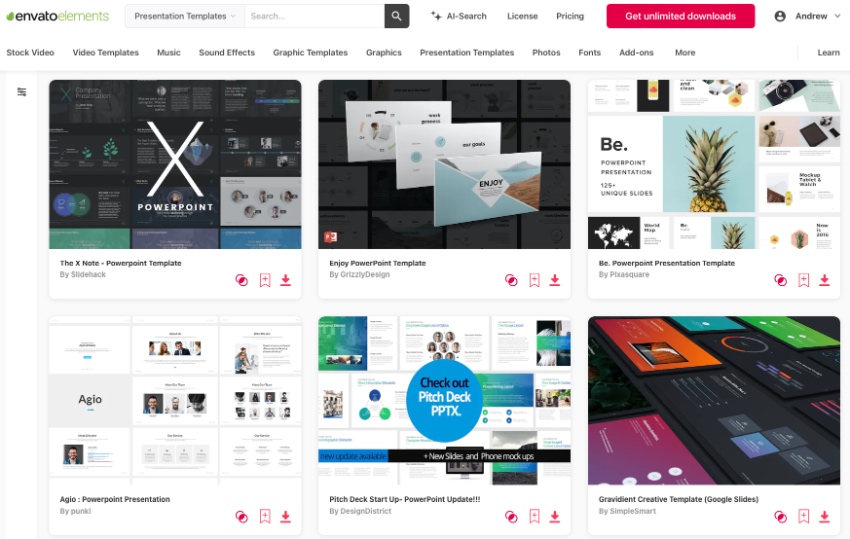
The best part of Elements? It's an all-you-can-download creative buffet. With a single subscription, you've got access to all that Elements offers. It includes thousands of PowerPoint designs plus millions of total creative assets. That includes:
- stock photos
- graphics
- audio
- so much more!

With Elements, finding the perfect assets is easier than ever. Use the tool to find PowerPoint title slide examples, and so much more with a bit of AI-assisted help. Elements now includes a powerful AI search tool! With it, you can simply describe your own project needs.
With this prompt, Elements will deliver a curated list of assets from the vast library! It's an amazing way to save time and find the perfect content for your title page in PowerPoint. Join Elements and try it today!
Start Using PowerPoint Cover Pages Today
In this tutorial, you saw some of the best options for PowerPoint cover pages inside of premium templates. These files set the tone with the help of the first page of PPT presentations, presented perfectly. Choose one of these templates and get started now.
When you use these PPT title slide examples, you’re sure to wow your audience. You’ll kick off every presentation with a strong start! You’ll capture attention and keep everyone engaged. Try it today!
Editorial Note: This tutorial was originally published in August of 2019. It's been revised to make it current, accurate, and up to date by our staff—with special help from Andrew Childress.
 By
By



