


Are you looking for a cool effect to help your presentation stand out? PowerPoint allows you to create all kinds of cool effects to make your slides stand out.

Cool effects for PowerPoint include letting your photos appear like they're fading into the background.
You can fade a photo in PowerPoint to be partially transparent with a couple of tricks. Let's learn how in this quick tutorial. And while you're learning this effect, don't miss out on another way to help your presentations stand out: high-quality premium templates from Envato Elements.
How to Create a PowerPoint Transparent Picture (Quick Start Video)
Watch and learn! We've created a video tutorial so you can learn how to make a picture transparent in PowerPoint. Check out the screencast below.
Jump to content in this section:
- How to Create a PowerPoint Transparent Picture (Quick Start Video)
- How to Make a Shape With Photo Fill Transparent in PowerPoint
- How to Make an Image Transparent in PowerPoint
- Use PowerPoint to Make a Transparent Background
- Learn More About PowerPoint
- Most Frequently Asked Questions About PowerPoint
- Make Great Presentations (Free PDF eBook Download)
Make Better Presentations With This Free Guide
How to Make a Shape With Photo Fill Transparent in PowerPoint
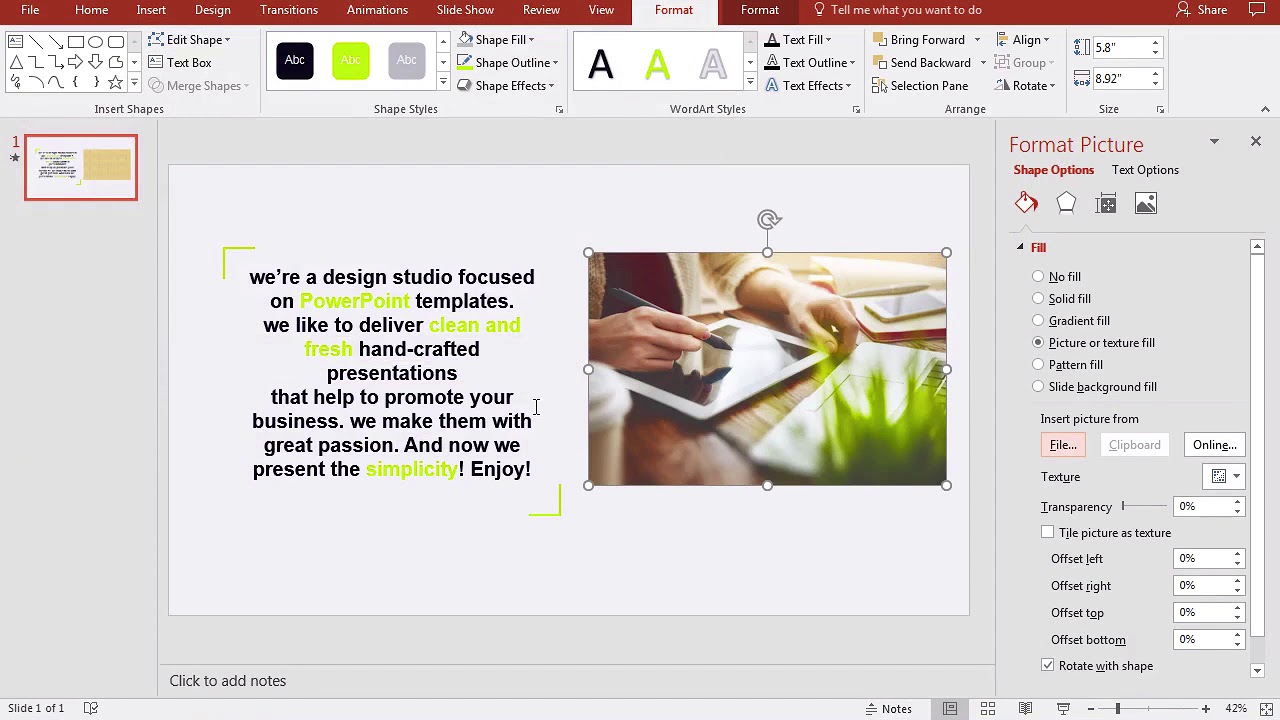
Need to learn how to make a shape and image transparent in PowerPoint? Follow along with this step-by-step tutorial. It's an easy skill to pick up that you'll be using time and time again.
1. Draw a Shape
.jpg)
Instead of just inserting an image, let's start off by drawing a shape on the Insert tab. Click on Shapes. I'll grab a rectangle shape. Click and drag the shape onto the slide.
2. Choose a Fill for Your Image
Now click on the shape and choose Shape Format. Then choose the Format Pane option.
In the Format Pane, make sure the Shape Options tab is selected.
.jpg)
Now we'll go ahead and choose Picture or texture fill here. This fills the box with an image of our choice.
3. Insert the Image
I'll click on Insert... and then browse for the image that I want to use as the background.
.jpg)
I'll click to insert the image. Now, our shape is replaced with the image. If your picture is stretched or doesn't fit the square properly, you could tick this box that says Tile picture as texture.
4. Make a Photo Transparent in PowerPoint
Finally, let's add the transparency effect. Just pull the transparency effect slider to the right to fade the image into the background.
.jpg)
You could pull the image further to the right for more transparency when needed. It takes a bit of a trick, but you can add image transparency right inside of PowerPoint.
How to Make an Image Transparent in PowerPoint
The above steps are great when working with shapes and photos in PowerPoint. But if you just want to insert an image without a shape, you can still make it transparent. Let's take a look at how to make a picture transparent in PowerPoint.
We're using the Be. PowerPoint template for this part of the tutorial. You can follow along if you have an Envato Elements subscription.

1. Insert an Image
The first step in PowerPoint to making a picture transparent is adding a photo. Click the Insert tab then select Pictures. Here you'll have four options for adding images. In the Be. template, you can click the image placeholder. You can also drop the image directly into the image placeholder.

2. Format the PowerPoint Picture Transparency
Now that you have your photo, let's see how to make the image transparent in PowerPoint. With your picture highlighted, select the Picture Format tab.
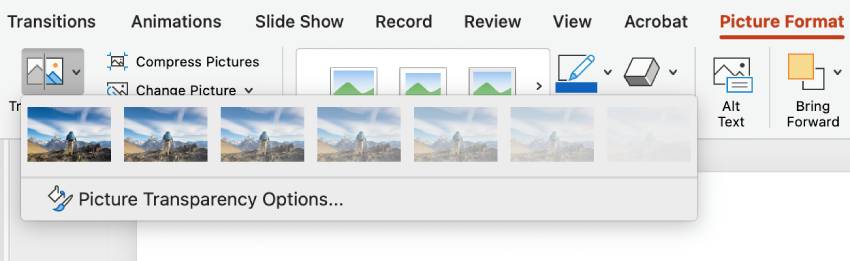
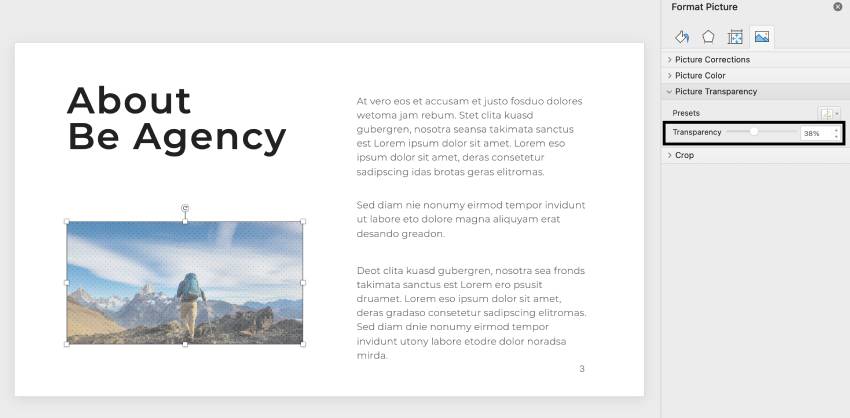
From the Format Picture pane, select the Picture Transparency option. To use one of the seven preset options for PowerPoint picture transparency, click the icon in the upper right of the Picture Transparency drop-down.
Click Picture Transparency Options... to fine tune your transparency with a slider.
Use PowerPoint to Make a Transparent Background
PowerPoint's picture transparency features extend to backgrounds, too. Here's how to customize your slideshow's background.
1. Format Your Background
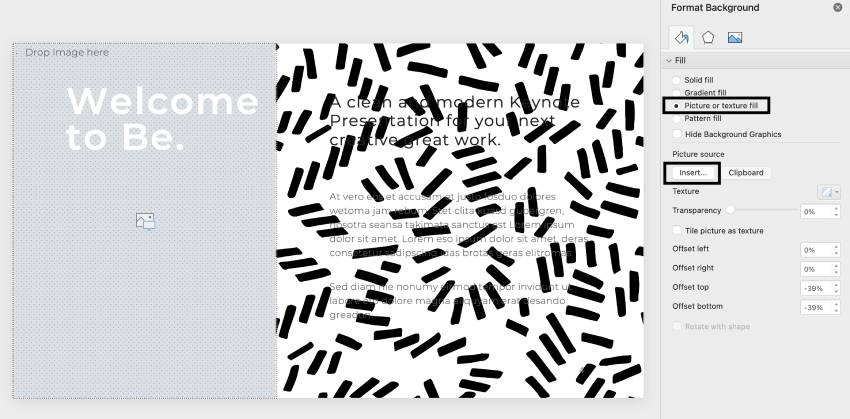
Open any of your slides, then right click on the background. Select Format Background... from the now open context menu.
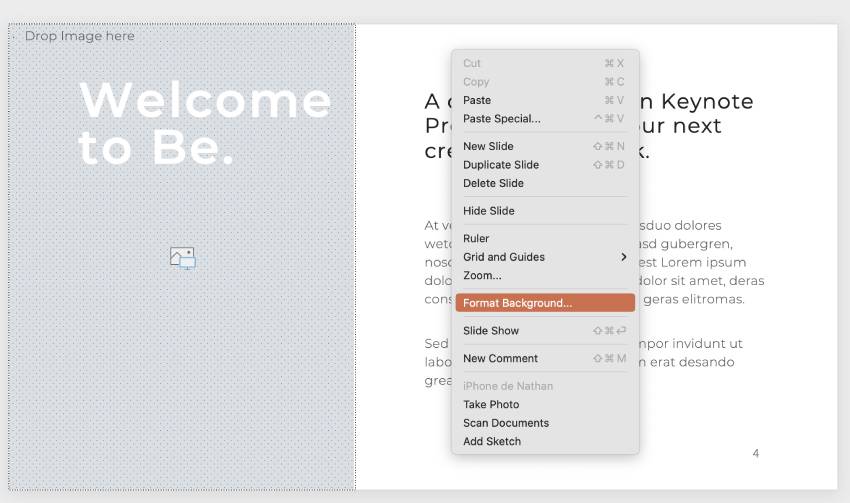
2. Insert Your Background Image
Under the Fill menu, choose the Picture or texture fill option. You can now click Insert.. in the Picture source section. Now you can select what image you'd like to use for your background.
3. Adjust PowerPoint Picture Transparency
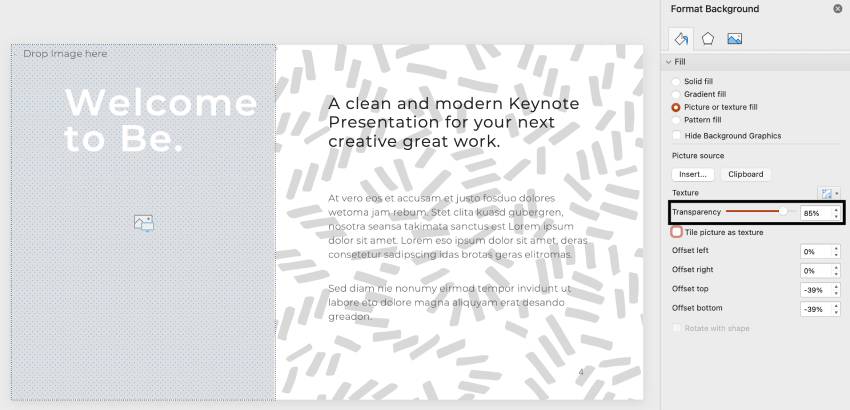
I like this pattern, but it's hard to see the text on the slide. Let's see how we can use PowerPoint to make a transparent background.
From the same Format Background... menu, we're going to change the Transparency slider. I want to make my PowerPoint transparent background faint, but still visible. For this specific background, 85% transparency is perfect.
Learn More About PowerPoint
Using PowerPoint for making pictures transparent is a good skill to have. Learn more skills in our PowerPoint tutorials and quick video tutorials on Envato Tuts+. We have an assortment of PowerPoint material to help you make better presentations:
 How to Make Business Proposal Presentations in PowerPoint (+ Video)
 How to Merge Shapes in PowerPoint
 How to Use PowerPoint for Project Management: Detailed Guide
Most Frequently Asked Questions About PowerPoint
'How to make a shape transparent in PowerPoint' isn't the only question people ask. But those questions have answers too. That's why we're going to take on some common PowerPoint questions you might have and answer them here.
1. Is PowerPoint Available for Free?
It depends on the version of PowerPoint you want to use. If you'd like to download PowerPoint to your device, then you'll need to pay for a monthly or annual subscription.
There is a free, online-only version of PowerPoint. It's part of Office 365 and has the functionality of the paid version. Just remember it only works while you're connected to the Internet.
2. Can I Use PowerPoint on a Mac?
PowerPoint is made by Microsoft, but that doesn't mean that it only works on Windows. If you use a Mac, you can still use PowerPoint. You can download and purchase it from Microsoft or from the Mac App Store.
3. How Do I Make PowerPoint Slides Automatic?
You can easily adjust how long slides stay on screen for before transitioning. First select all of your slides, then click on the Transitions tab. In the Timing group, check the box next to After, and enter the time you'd like slides to stay on screen for.
You can also learn how to loop your slides from this quick tutorial:

4. Can PowerPoint Open Google Slides Files?
The Google Slides file format is not natively compatible with PowerPoint. But there is a workaround!
Just download your Google Slides presentation as a Microsoft PowerPoint file. Then you can open your downloaded PowerPoint file in any version of PowerPoint.
5. Will PowerPoint Play Videos?
Surprisingly, the answer to this question is yes. You can embed videos in your slides via the Insert tab. You can select a video file from your device or from around the web.
These videos can also be set up to play automatically. Learn more about that from this tutorial here:

Start Using Your PowerPoint Picture Transparency Skills
Learning how to make a picture transparent in PowerPoint is pretty easy. It's also a good way to add a bit of design flair to your presentation. Add a sense of style to your next presentation by using transparent images.
You can add even more flair with great PowerPoint presentation templates with premium designs on Envato Elements. Or, browse through our selection of the best Microsoft PowerPoint designs:


Editorial Note: This tutorial was originally published in 2017 by Andrew Childress. It's been completely reviewed for accuracy and relevancy by Nathan Umoh.
 By
By



