


I once took a spreadsheet course in which the first step was unplugging my keyboard. It was painful to learn to use the app without a mouse, but it paid off. I quickly learned many Google Sheets keyboard shortcuts that have saved me hours of work!
Even though the app lives in a web browser, Google Sheets has many helpful keyboard shortcuts that make your work more efficient. You'll be able to maneuver and work in the data easily and quickly.
In this tutorial, I'm going to showcase some of those Google Sheets keyboard shortcuts. As I do, I'll help you think about how to use them. If you pick up even a few of the shortcuts in this tutorial, you'll save yourself a lot of time while working.
Timesaving Google Sheets Shortcuts (Quickstart Video)
Do you want to jump right into the best keyboard shortcuts for Google Sheets? We show you how to use them in the quickstart video below:

To learn even more about Google Sheets shortcuts, keep reading the written tutorial.
Jump to content in this section:
7 Top Google Sheets Shortcuts
The keystrokes will vary based on the operating system that you use. I've listed those shortcuts for both Windows and Mac for each of the Google Sheets shortcuts below:
1. How to Move in the Spreadsheet
Not familiar with how spreadsheets work? A key to the format is the seemingly endless sets of rows and columns. When rows and columns meet, cells are formed, and this is where we can store data.
One key tip to move around inside of a spreadsheet is to use the arrow keys on your keyboard to move between cells. Press the respective up, left, right, or down arrows to move between active cells.
This really gives you a more efficient workflow. Instead of clicking from one cell to another, you can seamlessly navigate with the arrows. The natural position for using a spreadsheet is to keep your hands on the arrow keys. It's more comfortable, and helps you work faster and more efficiently.
Jump to Edges
Here's one of the most important Google Sheets shortcuts that I know: jumping to the end of a row or column. When you're working in a large spreadsheet, it helps if you can quickly jump to the edge of the data.
To do this, hold Ctrl on Windows or Cmd on Mac, and press one of the arrow keys to move in a selected direction. This takes you to the edge of the data in the direction of the key you hit.
In the example below, I've got a lengthy list of data that is almost 2000 rows. Instead of grabbing my mouse and scrolling through it, I simply held Cmd on Mac and pressed the down arrow to jump to the bottom of the text.
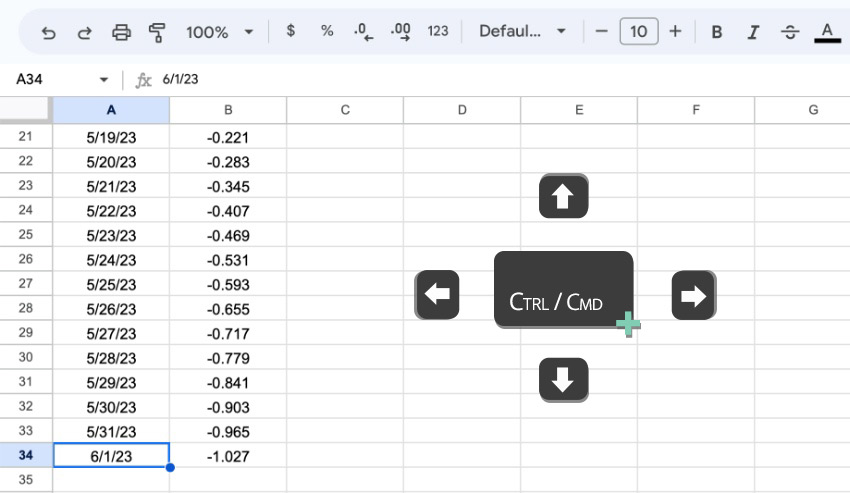
To jump to the bottom of a dataset, you could hold Ctrl / Cmd on your keyboard, and press the down arrow. Sheets will take you to the bottom of the data range. You could jump to the rightmost cell by holding Ctrl / Cmd and pressing the right arrow key.
This is one of the most important Google Sheets shortcuts because it's significantly faster than scrolling through the dataset. By using these Google Sheets shortcuts, you don't have to hunt through the data to find the edge of the block.
2. How to Format Cells
Cell formats change the way that a cell appears. This could mean applying style to the text in cells. Or, you can add styles like shading and borders to set off those cells from the crowd.
You can't apply every type of format from the keyboard. But you can apply some of the text formats you're probably familiar with, like bold, italic, and underline styles. Here are the shortcuts that you can use for each of those:
| Format | Windows Shortcut | Mac Shortcut |
|---|---|---|
| Bold | Ctrl + B | Cmd + B |
| Italic | Ctrl + I | Cmd + I |
| Underline | Ctrl + U | Cmd + U |
These Google Sheets shortcuts might seem familiar. That's because they work in almost any app that you use to edit text.
As always, applying formatting is about adding meaning to those cells. Here are a few examples of how you could use those formats to add meaning to a spreadsheet. Then, you'll see an example of a styled spreadsheet.
- Bold cells imply that the cell is meaningful in some way and should stand out from the rest of the dataset.
- Italic cells feel a bit understated, and are ideal for leaving notes in your spreadsheet.
- Underlining a cell is perfect for a header, or a subtotal.
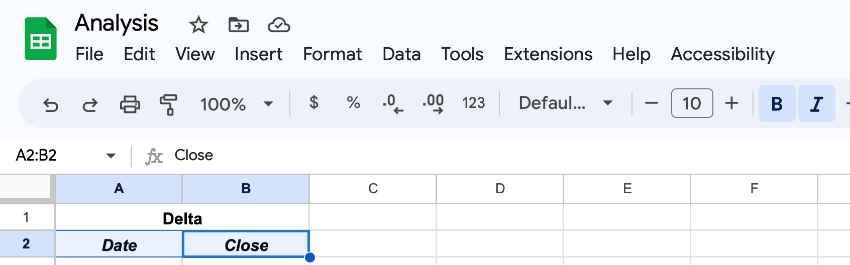
These aren't the only formatting shortcuts that you can access from the keyboard. Check out these alignment shortcuts to help you change the look of a spreadsheet. And you can do it without reaching for the mouse.
| Cell Alignment | Windows Shortcut | Mac Shortcut |
|---|---|---|
| Centered | Ctrl + Shift + E | Cmd + Shift + E |
| Left-align | Ctrl + Shift + L | Cmd + Shift + L |
| Right-align | Ctrl + Shift + R | Cmd + Shift + R |
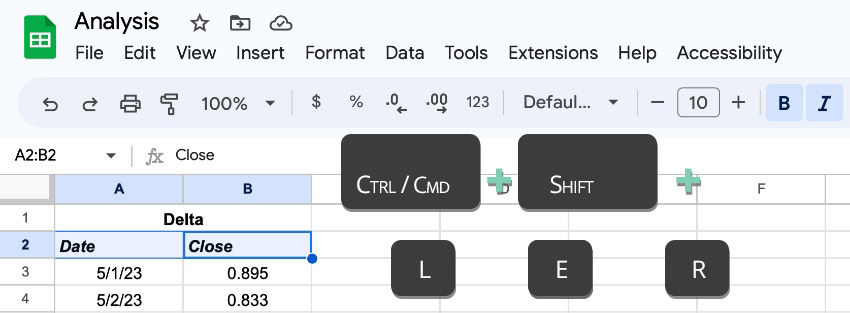
These alignment shortcuts are some of my favorites. That's because they're pretty easy to remember. Left and right align go along with corresponding letter keys (L and R). All you need to remember is that E centers text up.
3. How to Use Date & Time Data Google Sheets Shortcuts
Here's a fun set of Google Sheets shortcuts that's useful when you're working in a spreadsheet. If you want to insert the current date, time, or both, these shortcuts are the perfect way to do it.
In the past, I've used these shortcuts to leave breadcrumbs in my spreadsheet to remind myself of when I've made an update to the spreadsheet. Quickly strike the date and time shortcut just to remind yourself of when you last made an update.
| Data to Insert | Windows Shortcut | Mac Shortcut: |
|---|---|---|
| Insert time | Ctrl + Shift + ; | Cmd + Shift + ; |
| Insert date | Ctrl + ; | Cmd + ; |
| Insert date and time | Ctrl + Alt + Shift + ; | Cmd + Option + Shift + ; |

After you've used these shortcuts a few times, the keystroke is going to feel natural. You could even use this as a timesheet to remind yourself of when you're off and on the clock.
4. How to Use Selection Shortcuts
Before you reach for the mouse to click on or highlight cells, keep in mind that you can use your keyboard to select cells as well. It's one of my favorite Google Sheets shortcuts.
To select cells while moving around in the spreadsheet, hold the Shift button while using the arrow keys. You'll select all cells in the range while holding it down.
Select Ranges While Jumping
Here's a bonus tip for you: remember when we used the Control or Command key to jump to the edge of a row or column? Let's say that you want to select all of the cells in that range as we jump around.
To do that, make sure that you hold Shift at the same time. Basically, the commands are:
- Windows: Ctrl + Shift + an arrow key - to select all continuous cells in a given direction
- Mac: Cmd + Shift + an arrow key - to select all continuous cells in a given direction
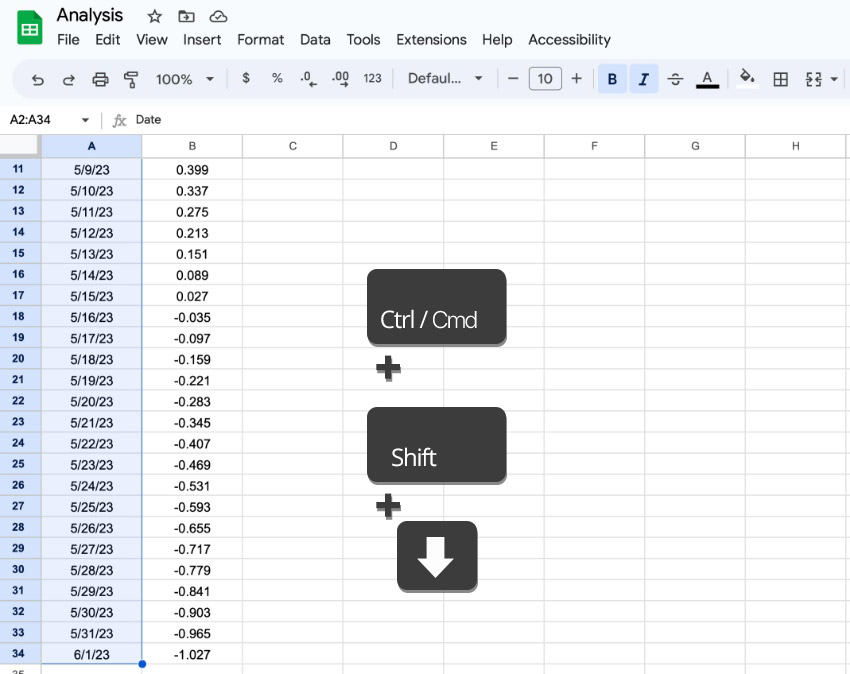
The advantage to this is that as you jump in the spreadsheet, you've got all the cells selected in the range.
With the full range of cells selected, you can apply transformations to all of the cells in the selection. For example, you can use the bold, italic, underline shortcuts. They are Google Sheet shortcuts that add more meaning.
Effectively, this is the same as clicking and dragging and highlighting a sequence of cells. As always, the Google Sheet shortcut is much faster than the point-and-click alternative.
5. How to Show All Formulas
Here's a simple shortcut for working in Google Sheets. It's extremely useful when you're trying to understand a spreadsheet. Have you ever been handed a spreadsheet and needed to understand it quickly? Or maybe you forgot how you built it yourself?
It helps me to view all formulas in a spreadsheet when this is the case. You can hit a quick keyboard shortcut to view all the formulas in a spreadsheet quickly.
Toggle this feature on by pressing Ctrl + ` on your keyboard. That character that looks like a dust spot on your screen is actually called a grave. You'll typically find it in the upper left corner of the keyboard. This shortcut is actually the same on both Windows and Mac.

One important part of working in a spreadsheet is auditing it on occasion. This helps you to ensure that the formulas are consistent and correct. These Google Sheet shortcuts is very helpful for those audits.
6. Google Sheets Insert Row Shortcut / Insert Column Shortcut
We’ve all been here. We’re working with a dataset and find that we need to add data to the middle of a given range. Similarly, you might want to delete certain rows and columns from your Google Sheets files. This is amazingly easy, thanks to Google Sheets keyboard shortcuts.
There are Google Sheet shortcuts for just this purpose. Keep a simple rule in mind. For these to work, you’ll need to select as many columns or rows as you want to add or delete.
Let's cover the Google Sheets inert row shortcut.
For example, if you want to add three rows, select three rows below where you want to make the add. Similarly, select four columns to the right of where you want to add four new columns. The key idea is to make the selection before using the Google Sheets insert row or column shortcut.
| Insert | Windows Shortcut | Mac Shortcut |
| Rows above | Ctrl + Alt + Shift + = | Cmd + Option + = |
| Columns left | Ctrl + Alt + Shift + = | Cmd + Option + = |
Notice that the Google Sheets insert row shortcut is actually the same whether you add rows or columns.
With these shortcuts, it’s a breeze to add or delete rows and columns in Google Sheets. Use them any time you want to change the shape and scope of your dataset in Google Sheets.
7. How to Show Google Spreadsheet Keyboard Shortcuts
In this tutorial, I focused on several Google Sheets keyboard shortcuts. In reality, practically everything in Sheets can be automated with a keyboard shortcut. There's a complete list of keyboard shortcuts you can use to automate every process.
Use the Ctrl + / (Windows) or Cmd + / (Mac) to toggle this window on. It shows the total list of Google Sheets shortcuts. Check out the Google Sheets delete row shortcut as an example of one you can use.
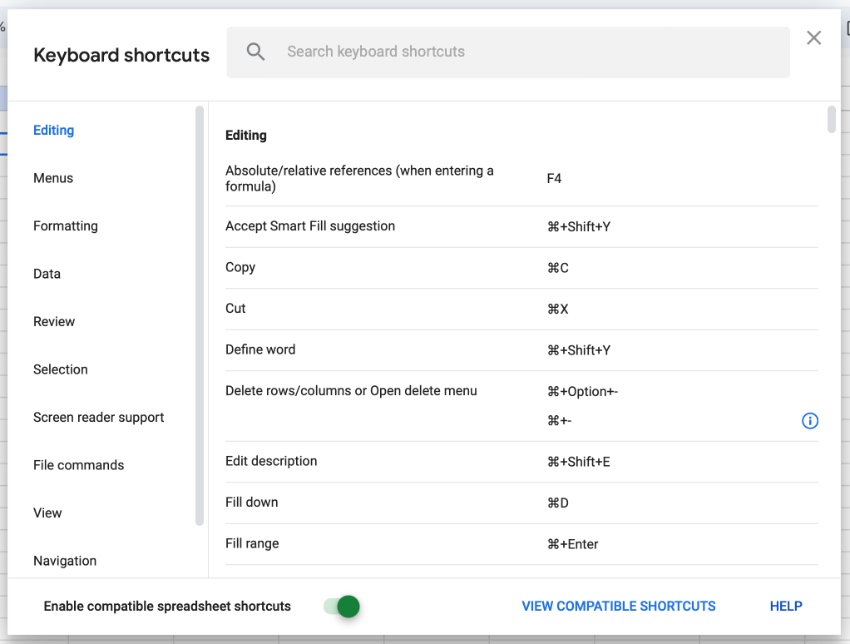
Turn this window on to reference and find new Google Sheets keyboard shortcuts.
Learn More About Google Sheets
As you can see, Google Sheets shortcuts are powerful time-savers. They’re easy to use, and they really streamline your workflow in new and creative ways. With them, you’ll do your best work faster than ever.
But Google Sheet shortcuts aren’t the only way to work more efficiently. In fact, the app is packed with helpful tools that let you work better. Check out these helpful tutorials to learn even more great Google Slides skills now:
 Google Sheets to Excel: How to Move Back & Forth Between Spreadsheets
 How to Quickly Convert Excel Spreadsheets to Google Sheets
 How to Use Pivot Tables in Google Sheets (Ultimate Guide)
 How to Track Stock Data in Google Sheets - With GOOGLEFINANCE Function
Google Sheets Keyboard Shortcuts: Your Top Time-Savers for 2023 and Beyond
Spreadsheets are amazing tools for productivity. So, it only makes sense to find as many time-saving techniques as possible! Using a few Google Drive keyboard shortcuts will save time and help you keep working. And you can do it without constantly switching gears between mouse and keyboard.
I showcased some of the most useful Google Sheets shortcuts for 2023. These are easy to remember, but this is far from the full list of key commands that can save time. Check out Google's complete list of Sheets shortcuts here.
Was this your first exposure to Google Sheets shortcuts? I hope that you saw the power that lives inside of a web-based spreadsheet tool. It's a cool modern way to work more efficiently from anywhere.
Ready to get started? Think of how to use Google Sheets keyboard shortcuts in your own work! Then, give them a try. As you get used to using them, you'll find that your work gets faster and more efficient. It's a powerful way to save time and effort in 2023. Get to work today and enjoy the benefits of Google Slide shortcuts!
Editor Note: This post was originally published in March of 2018. It's been updated for accuracy and relevancy and a video has been added by Andrew Childress.
 By
By



