


A hyperlink can be used in PowerPoint to help your viewer jump to another slide or even a page on the Internet. In this quick lesson, I'll show you to change the color of a hyperlink.
Note: You can also get great PPT presentation templates on Envato Elements or GraphicRiver.
How to Quickly Hyperlink Color in PowerPoint
Note: Watch this short tutorial screencast or follow the quick steps below, that complement this video.
1. Insert a Hyperlink
Let's start off by inserting a hyperlink. Let's highlight some text that we have on a slide, and now let's switch to the Insert tab on PowerPoint's ribbon.
.jpg)
Just as normal, you can link up with a website or external file. I'll type in a URL down here, in the Address box, and then press OK.
2. Change Hyperlink Color
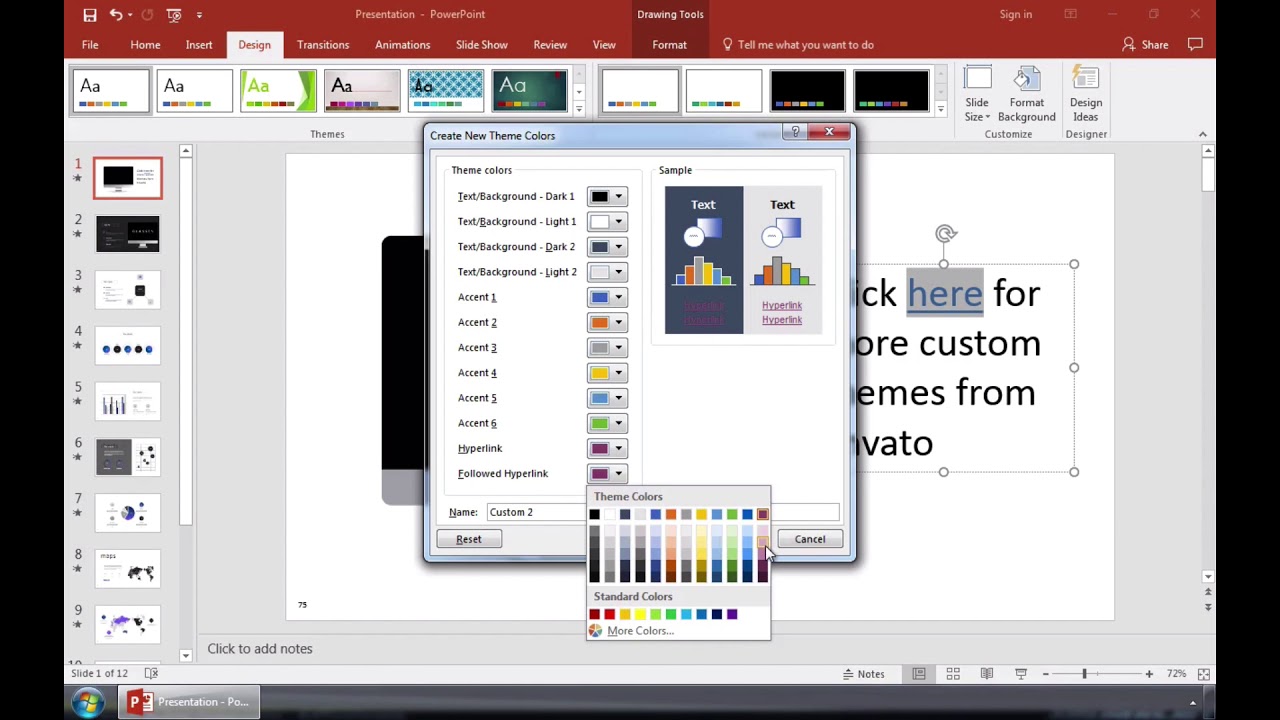
Let's go to the Design tab and click this double drop-down arrow, here, in the lower right corner of the Variants section, and choose Colors > Customize Colors.
.jpg)
This is the easiest way to change hyperlink colors. Down here, at the bottom, we can change the hyperlink and followed hyperlink colors, as you're seeing me do here. I'll select a color and press Save.
.jpg)
And when we return to the slide, you can see that it's updated. The best thing about doing it this way is that it changes all of the hyperlinks in your presentation at the same time.
As long as you keep using the same color variant that we changed, this will work well for overhauling your hyperlink colors all at the same time.
Finishing Up!
You're not locked into a particular color for the hyperlinks you use in PowerPoint. We just learned how to change hyperlink color in PowerPoint. This can be useful if you'd like the hyperlink colors to match your presentation design.
Learn more in our PowerPoint tutorials and quick video tutorials on Envato Tuts+. We have an assortment of PowerPoint material to help you use videos in your presentations better:


.jpg)

 By
By



