


You receive dozens, maybe even hundreds, of email messages each day. But not all those email messages are helpful or even wanted. Learn how to filter and block unwanted emails in Gmail.
Fortunately, Gmail has a pretty good spam management system. Even so, there are still times that you'll receive messages you don't want.
- It could be that you're still on an email list from a former project, despite asking to be removed.
- It could be that someone you know has been sending you distracting messages.
- Or maybe, you've subscribed to an email newsletter you no longer want to receive.
- Perhaps, the unwanted messages are spam—messages from a complete stranger.
No matter what the circumstances, there are steps you can take to manage or even eliminate unwanted messages. In this tutorial, I'll explain how to block spam and filter emails in Gmail.
Free eBook on Email Inbox Organization
Your Quick Start Guide to Filter & Block Unwanted Emails (Spam) in Gmail (Video)
Are you ready to learn more about filtering and blocking spam messages in Gmail? Watch this quick screencast to learn all about how to manage unwanted messages.

Or, read the complete written tutorial below. It'll teach you how to block emails from someone on Gmail, how to mark an email as spam, and a lot more.
- Why You Get Unwanted Messages
- How to Filter Messages From a Certain Sender
- How to Block Unwanted Group Emails
- How to Report Spam Messages
- How to Report Scams and Phishing Messages
- FAQ Questions About Gmail Spam
- Learn More About Gmail
- Create Emails for Business With Envato Elements
- Become an Email Guru With Our Free eBook
Why You Get Unwanted Messages
There are basically two sources of unwanted messages:
- contacts you know (or knew)
- contacts you don't know
Unwanted messages from people you know (or knew) can happen when you leave a job or project. Often, your email address stays on mailing lists associated with that job or project. For example, after I left a corporate job I still received emails related to that job.
A year after leaving the job I was surprised to receive an email invite to their annual trade show. They didn't really want me to attend, but I had gone the year before as an employee. The people putting the trade show together still had my name on their email list.
Sometimes, you receive unwanted emails from people you don't know. Spammers can get your email address through various methods. Here are just a few:
- Guessing. They may use an algorithm to generate variations of an email. They then send the same spam message to every email address generated.
- Hacking. Occasionally secure lists are hacked and details are leaked, including email addresses.
- Purchase. Some companies sell lists of email addresses. Often these lists are created when you respond to a free offer.
- Scraping. Spammers may use a tool to search the web for email addresses posted online. They then send spam messages to the addresses they've found.
Gmail already has some pretty strong spam filters in place. Also, by using the techniques below, you further reduce your chances of receiving an unwanted message.
What About Cyberbullying?
This section wouldn't be complete without a brief mention of cyberbullying. Here are three steps to take if you receive a threatening email:
- Save the Evidence. If you receive a threatening email, don't delete it. You need to save the message as evidence of what is going on. Create a folder or label and store the message there.
- Report the Message. Cyberbullying should be reported to your online service provider. If the sender is using Gmail, you can report them through their link. Also, if threats are being made then do involve law enforcement.
- Block the Sender. If they're on your contact list, remove them. Block future messages from them.
To learn more about cyberbullying, what it is and how to prevent it, go to the U.S. Department of Health & Human Services site, StopBullying.gov.
1. How to Filter Messages From a Certain Sender
It's not hard to learn how to filter emails in Gmail or block certain emails. You can keep a specific user from sending messages to you. You can block their messages or send their messages straight to a folder. Here's how to block an email address in Gmail.
Method 1. How to Block an Email Address in Gmail
Now we'll review how to create a filter to block a Gmail email address or address from other email services. Start by opening an email from the sender you want to block. In this case, I no longer want to receive these status reports.
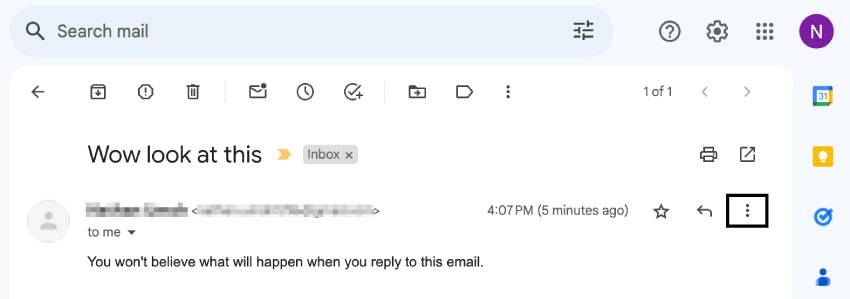
To learn how to block someone on Gmail, you first have to click the three dots next to the Reply option. A drop-down menu displays.
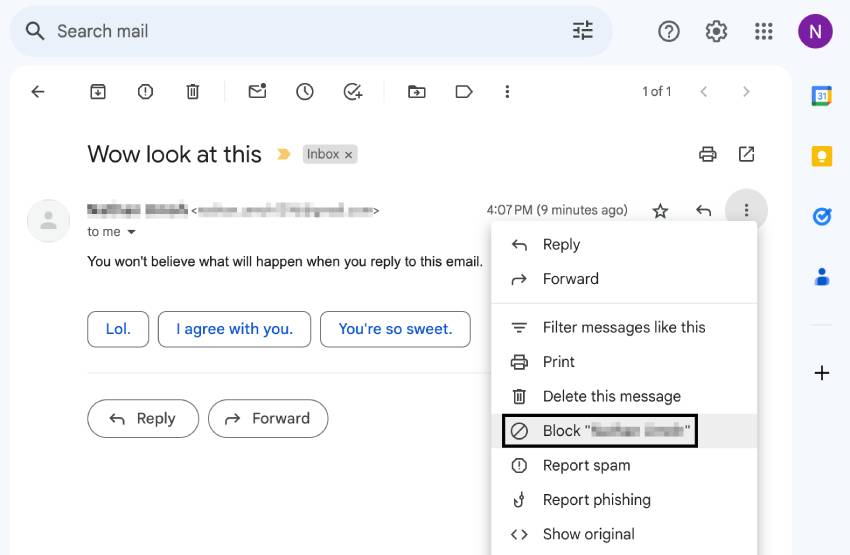
Select the Block "Sender Name" option. A confirmation message displays indicating that future messages from this sender will be marked as spam. They'll be sent to your Spam folder. Click the Block button in the confirmation message.
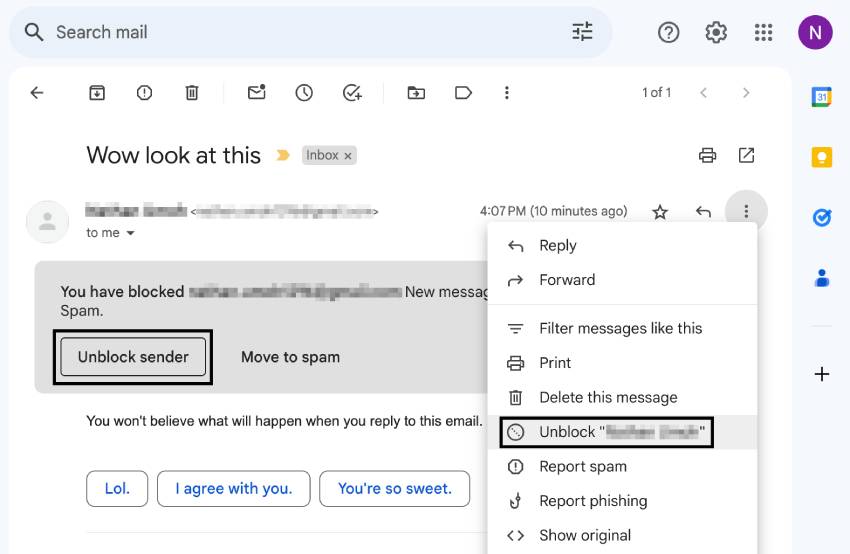
To unblock a sender, re-open the drop-down menu.
This time the menu option reads Unblock "Sender Name." Select the Unblock "Sender Name" option. A confirmation message displays indicating that future messages from this sender will appear in your inbox. Click the Unblock button in the confirmation message.
Method 2. Automatically Filter Out Messages From a Certain Sender
You now know how to block emails from someone on Gmail. To automate the process, you can filter and delete unwanted emails using inbox cleaning tools like Clean Email, which groups messages by sender by default. Another option is to use Gmail filters to send messages from a specific sender directly to a designated label (folder).
For example, perhaps I want to filter all messages from a former employee so that they automatically go to a certain label. Here's how to do it.
Start with your Gmail open. Click the slider icon on the right of the Gmail search bar to display the Advanced Gmail search box.
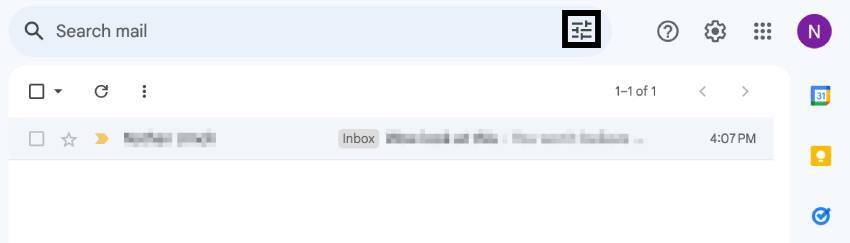
Type the name of the sender whose messages you want to filter into the From field. You can be more specific with your filter by specifying more information in the other fields.
When you're done entering information, click the Create filter link. The Create filter box appears.
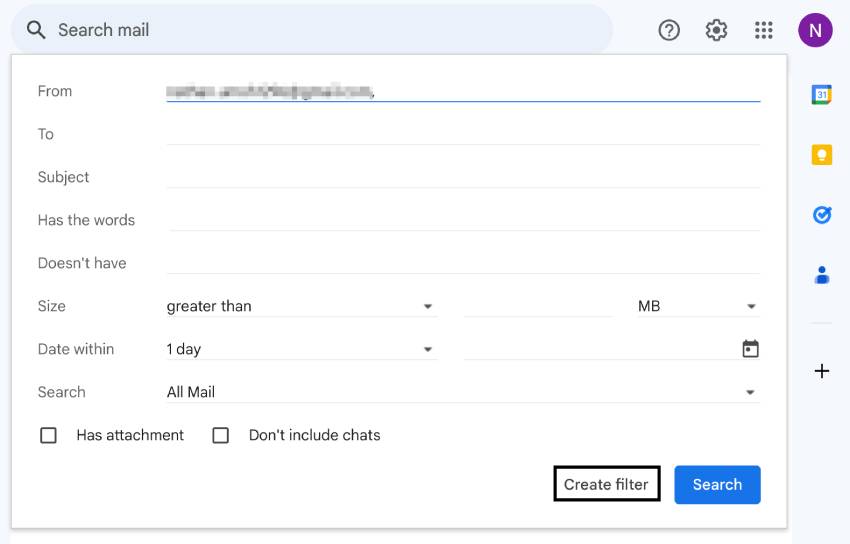
This box asks you what you want to do with every message that meets the criteria you defined in the Advanced Gmail search box.
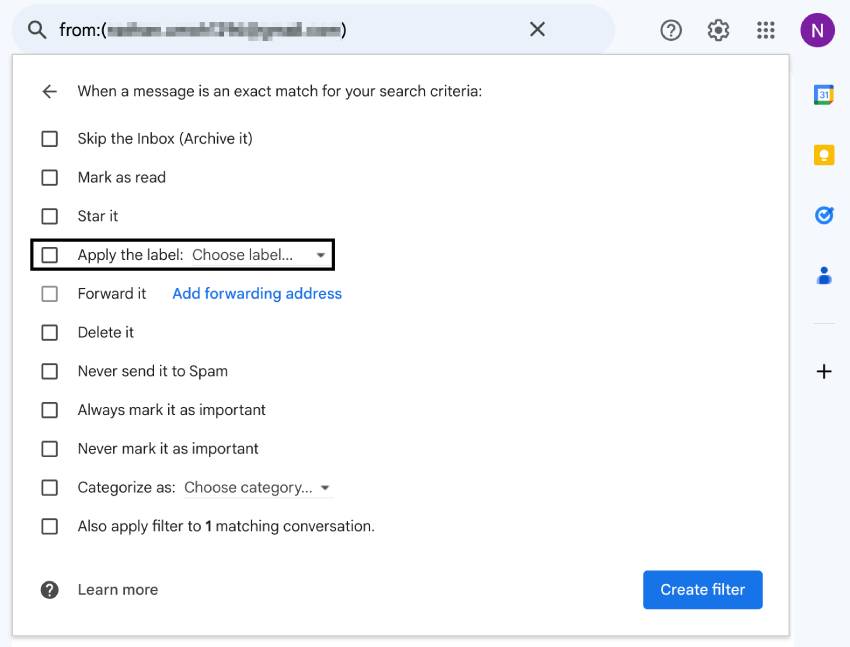
Today we're going to choose to send the specified messages to a label I created called Former Employees.
Check the box next to the Apply the label option. Click the arrows in the Choose label box. A drop-down menu displays showing the available labels.
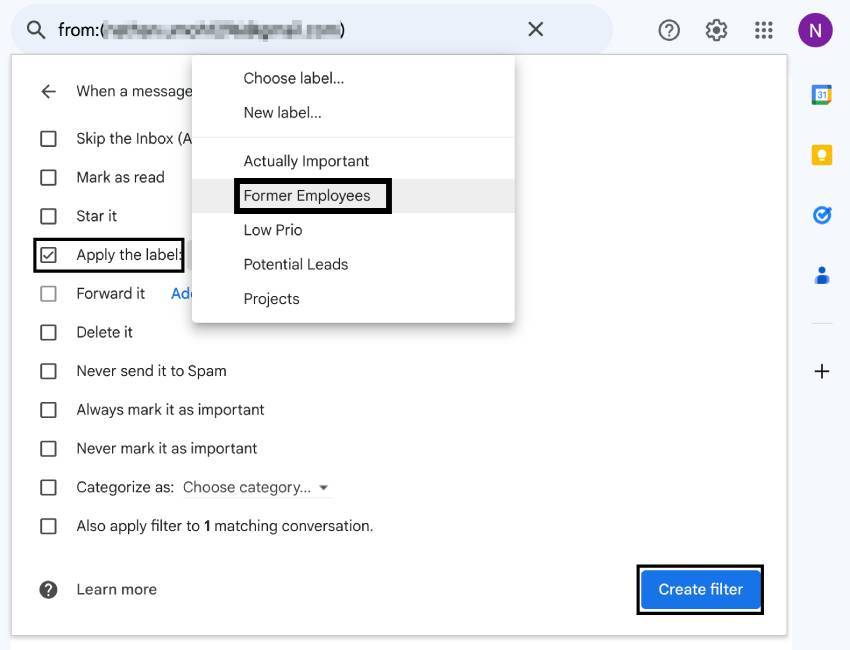
Click the label where you want to file messages from a particular sender, in this case Former Employees. Click Create filter to create the filter. A message displays at the bottom left of your screen saying Your Filter was created. Learn more.
All messages from the specified sender will now be labeled and easy to see. Use the Move To icon (it looks like a folder) to remove these messages from your Primary tab so you don't have to see them.
To find out more about using the Gmail search utility, review this tutorial:

2. How to Block Unwanted Group Emails
As a small business owner, you may find yourself on an email list that you no longer wish to be on. Fortunately, most countries have anti-spam laws in place that require the sender to provide a way for recipients to opt out of future emails. But you can also learn how to block emails from an address in Gmail that's sending you too many messages.
Step 1. How to Find Subscriptions Using Search
It can be hard to find messages that are subscriptions. That's because they're likely spread over several folders or labels. You can use Gmail's search feature to find all messages with unsubscribe links.
Open your Gmail inbox. Type "unsubscribe" in the Search box at the top of the screen, then press Enter or Return on your keyboard.
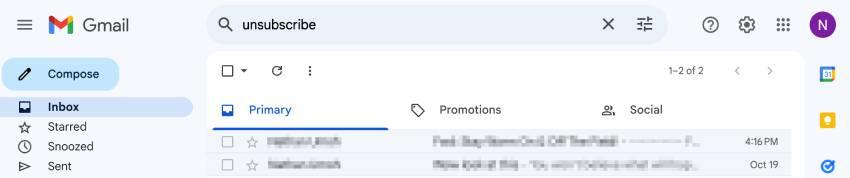
A list of all messages that contain an unsubscribe link appears.
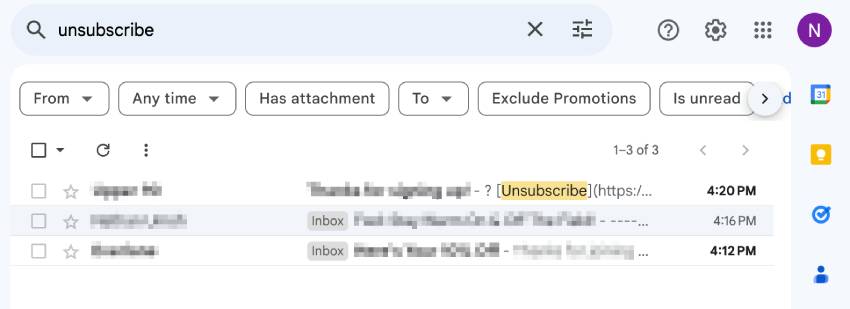
You're now ready to begin unsubscribing from messages.
Step 2. How to Unsubscribe From a Message
In Gmail, you've several methods for unsubscribing to newsletters and other mailing lists:
- Use the Unsubscribe Email Link. You can still scroll to the bottom of the email and click the unsubscribe link. (This works on other email platforms as well.) The downside to this approach is that it forces you to scroll through the message to find the link.
- Use Gmail's Unsubscribe Feature. Gmail detects when an email has an unsubscribe link. An unsubscribe link displays at the top of the Gmail message, next to the sender's name.
Let's examine each of these methods:
Method 1. Find Unsubscribe Link
In most emails the unsubscribe link is at the bottom of the email. Here's the unsubscribe link at the bottom of an email newsletter I receive from Envato.
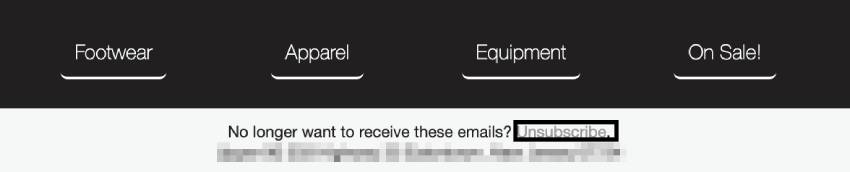
Once you locate the unsubscribe link on the email you wish to discontinue, click it and follow the prompts.
Method 2. Use Gmail's Unsubscribe Feature
Gmail can detect an unsubscribe button at the bottom of an email. When this occurs, it displays an unsubscribe link at the top of the email next to the sender's email address. Here's how Gmail's unsubscribe feature appears on the email we examined above.

To unsubscribe from the email, click the Unsubscribe link. Follow the prompts, which ask you to confirm your decision.
3. How to Report Spam Messages
Gmail has sophisticated algorithms in place to send some messages straight to your spam folder. Here are some examples of types of messages that go directly to your spam folder:
- messages with no content
- messages with misleading email addresses that appear to be from a well-known company, but aren't
- messages that appear to be phishing for your personal or financial information (more on this later)
Google has a complete list of email types they consider to be spam on their support page. To enhance email authentication and reduce the chances of phishing emails bypassing these filters, implementing DMARC Gmail can provide an additional layer of security.
Now let's see how to mark an email as spam in Gmail.
Step 1. How to Mark Email as Spam in Gmail
You can flag an unwanted message as spam. Doing this helps Gmail to "learn" what types of emails you consider to be spam. Here's how to flag a message as spam.
Start with your Gmail inbox open. Don't open the suspected spam email. Instead, click the checkbox next to the message. Then click the Report Spam icon above your messages.
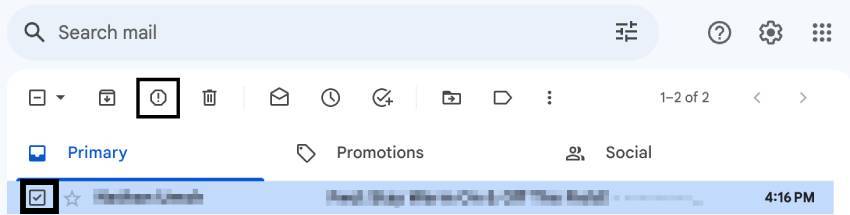
The message is sent to your spam folder. Your action also provides feedback for the overall Gmail spam filter.
Step 2. Retrieve a Message From the Spam Folder
If you'd like to retrieve a message from your spam folder that you accidentally sent there, here's how to do it.
Start with your Gmail open. Click on the Spam folder in the list of folders on the left.
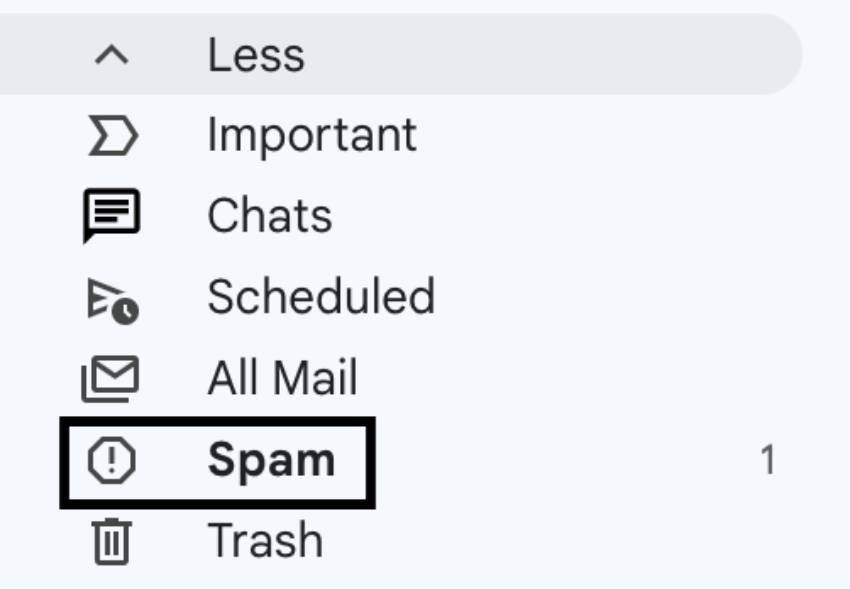
With the Spam folder open, find the message you wish to retrieve. Click the checkbox next to the message. Click the Not spam button above the messages.
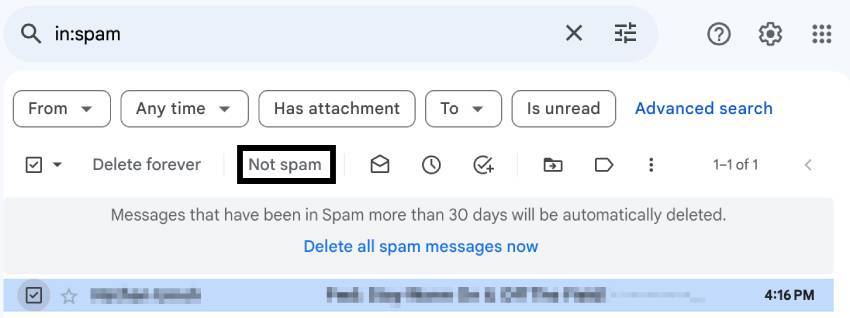
A message displays confirming that the message has been unmarked as spam and moved to the inbox.
4. How to Report Scams and Phishing Messages
It's good to know how to create a spam filter in Gmail. But there's a special category of spam messages that are particularly harmful. These are scam and phishing messages.
A scam message contains an offer that's false. A phishing message goes one step further. It uses the email to gather your personal or financial information.
An example of a scam message is a message that claims to be selling a product. If you buy the product through a link in the message and never receive it (or receive something other than what was promised) the message may be a scam.
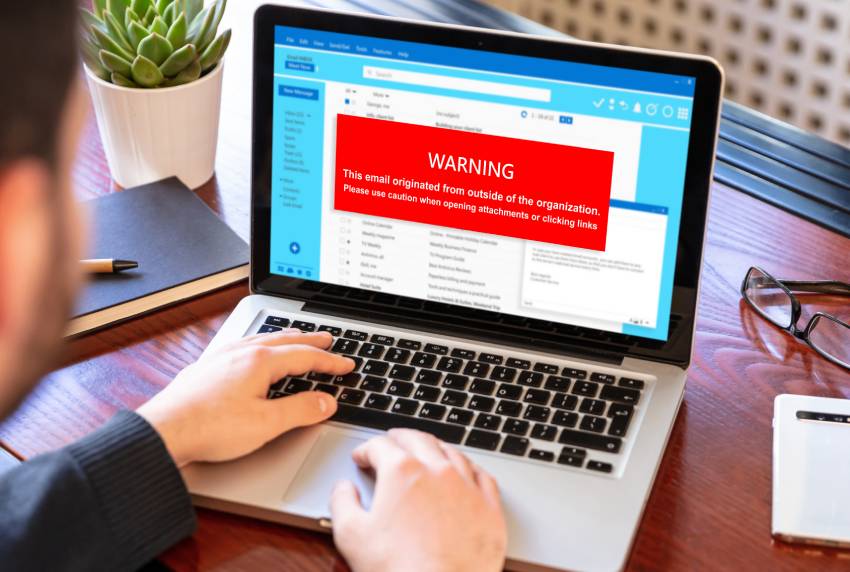
Phishing messages often appear to come from a reputable source such as a government agency or a financial institution. An example is a message that claims to be from your bank asking you to click a link and enter your account number.
In most countries, email fraud is illegal. It's also a violation of most internet provider's terms of service and of Google's policies. You can report a fraudulent message to Gmail using this form.
You should also report email fraud to the proper authorities. Reporting fraud prevents other people from becoming victims. In the United States, you can contact the Federal Trade Commission (FTC) using the FTC Complaint Assistant. In the United Kingdom, use the links on this website.
FAQ Questions About Gmail Spam
You've learned a lot about how to block a Gmail email address and how to send emails to spam. But there's even more to know about emails and spam in your inbox. That's why I've answered a few questions that you might have for you.
1. Why Do I Get So Many Spam Emails?
There could be a number of reasons for getting too many spam emails. A lot of the time, it's because your name has ended up in someone's mailing list. This could be because of something you've signed up for and forgotten.
Your email could also have been obtained through a scraping tool that combs through purchasing data and social media for potential clients. Use your knowledge of how to send emails to spam to clean up your inbox. And unsubscribe and block email addresses to try and prevent future spam.

2. Do I Need to Know How to Create a Spam Filter in Gmail?
Not necessarily. Gmail already comes with a pretty advanced filter for spam. Most of the heavy lifting for spam messages will be done by Gmail. You just need to remember how to mark an email as spam in Gmail for the messages the algorithm misses.
3. What Happens if I Open a Spam Email in Gmail?
Simply opening a spam email is relatively harmless, so don't stress too much if you did. But do try to avoid opening any in the future as hackers can still gather information about you.
Whatever you do, make sure you never open an attachment or link from a spam email. Also avoid replying to these types of emails. It's best to ignore them completely.

4. Will Emails I Send be Detected as Spam by Gmail?
If you've a mailing list for your business or just want to reach out to a friend, there's always a small chance your email could be detected as spam. There are ways to make sure this doesn't happen to you though:
- Authenticate your business email.
- Remove inactive email addresses from your mailing list.
- Don't leave subject line and body blank.
- Follow your local laws around email marketing.
5. Can I Permanently Stop Spam Emails in Gmail?
Unfortunately, there's no permanent fix to completely stopping spam emails. Spammers will always find new ways to work their way into people's inboxes.
But it's not all bad news! Gmail continues to track and update their spam detection to help limit what you get in your inbox. As spammers get more advanced, so does Gmail. Remember to report spam and suspected scams to Gmail to help them in their efforts.
Learn More About Gmail
You now know how to block emails and addresses on Gmail. Would like to learn more about how to work with Gmail? Then jump into our multi-part Ultimate Beginner Guide to Gmail. We also have helpful articles and tutorials like this one here on Envato Tuts+:
 How to Combine All Your Email Accounts Into One Gmail Account
 30+ Quick Gmail Tips, Tricks, and Important Secrets (+ Video)
.jpg) How to Organize Your Gmail Inbox to Be More Effective (+Video)
How to Organize Your Gmail Inbox to Be More Effective (+Video)
Create Emails for Business With Envato Elements
Business owners around the world rave about Envato Elements. That's because they're able to download unlimited Gmail templates, PowerPoint presentations, and more for a low monthly fee. With no download caps or hidden fees, they're able to download and create what they need to help promote their business.
You can too by joining Envato Elements. Sign up today and get started downloading professional newsletter templates, email signatures, and sales flyers that you can customize to fit your work.
Become an Email Guru With Our Free eBook
Start Blocking Emails on Gmail and Free Your Inbox
As a small business owner, you shouldn't have to worry about unwanted emails.
You can reduce the number of unwanted messages because you now know how to block and filter a Gmail email address. You can also reduce the number of dangerous scam and phishing emails that you receive, if you know what to do.
Knowing how to send emails to spam in Gmail and how to filter or block other unwanted messages is an important part of making your Gmail more secure. It also helps keep your Gmail inbox organized, so you can work productively in Gmail.
We hope you've learned more ways to control your inbox, so you respond only to the email messages that you want.
Note: This tutorial was originally published in November 2016. A video was added by Sergio Sala. It's been reviewed for accuracy and relevancy by Nathan Umoh.
 By
By



