1. Business
  2. Presentations

How to Make Animated PowerPoint Presentations With PPT Templates

Learn how to use animation effects in PowerPoint in this tutorial, including advanced animations and transitions with premium presentation templates.
Scroll to top

In this tutorial, we'll look at how to make animated PowerPoint presentation designs from a template. This includes how to create animated slides in PowerPoint, as well as other animation in PowerPoint presentation designs. 
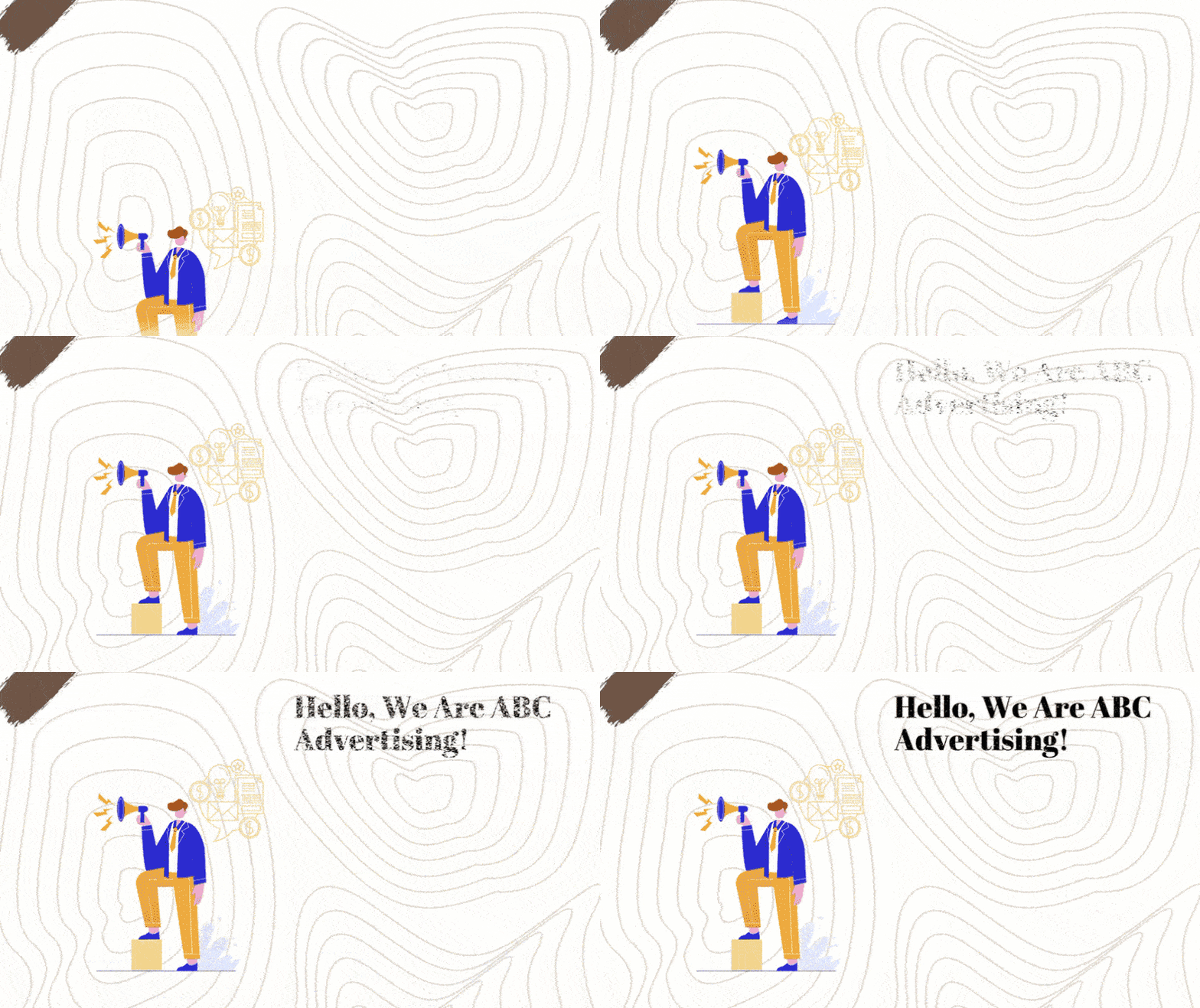
You can easily add animations to your premium template slide.You can easily add animations to your premium template slide.You can easily add animations to your premium template slide.
You can easily add animations to your premium template slide.

Animations in PowerPoint can really draw your audience's attention to elements of a presentation. You don't have to use separate apps to create animation effects. PowerPoint offers some of the easiest, point and click tools to add animation to your presentations.

There are two key types of animation in Microsoft PowerPoint that you'll learn to use in this tutorial:

  1. Object animations, which are individual items like, text or shapes going in motion on a slide.
  2. Animated transitions, the effects that play when you move from one slide to the next in PowerPoint.

In this tutorial, we'll learn how to create an animated PowerPoint presentation with a template. You'll learn how to add both key types of animations to a presentation. We'll also look at how to make animated slides in PowerPoint from a template.  

You can find more great animated PowerPoint templates on Envato Elements. Or browse through this curated selection:  

Inspiration: Working With the Best Animated PowerPoint Templates (Video)

It's important to use PowerPoint animations the right way in your presentation. In this video, learn how to use pro templates to add powerful animated slide designs to PowerPoint quickly.  Also, see some premium animated PowerPoint templates from Envato Elements in action. 
Guide to Making Great Presentations (Free eBook Download)

Also, before you read on, be sure to grab our free eBook: The Complete Guide to Making Great Presentations. It will help you master the presentation process, from: initial idea, through to writing, design, and delivering with impact.

Free eBook PDF Download Make a Great Presentation Free eBook PDF Download Make a Great Presentation Free eBook PDF Download Make a Great Presentation
Learn how to create animation in PowerPoint, presentations, and more with this free eBook.

Now let's get into how to create an animated PowerPoint presentation, beginning with helpful tips: 

Tips and Tricks for Making Animations in PowerPoint

Not sure which animations are best for your project? When making animations in PowerPoint, it's important to know when to add them and when to keep it simple. Check out these simple tips and tricks for your next PowerPoint presentation.

Now let's talk about even more tips for how to make animations in PowerPoint.

1. General Tips for Using Animation in PowerPoint

Just because you can animate everything in PowerPoint doesn't mean that you should. We've all sat through presentations with distracting animations. When making animations in PowerPoint, be strategic.

Animations serve to complement the content and draw the user's eye to key elements. The PowerPoint animation effects shouldn't be the focus of a slide. Your content should be. Here are key tips to add animations to your PowerPoint presentations tastefully:

  • Limit yourself to one to two key PowerPoint animations on each slide to avoid distracting the audience.
  • Use animations to draw attention to key points on the slide instead of applying them to random elements.
  • Use simple PowerPoint animation effects like fade or dissolve animations that are less distracting than flashier options.

With that in mind, let's dive into adding PowerPoint animations in a presentation:

2. Add PowerPoint Object Animations

Object animations bring elements onto or off a PowerPoint slide. They're a big part of making animations in PowerPoint. You can use these effects to reveal key points or draw attention to a specific part of the slide. Imagine leaving the conclusion for each slide hidden until you press a button on your remote, for example.

Let's explore how to make animated PPT presentation designs stand out with object animations.

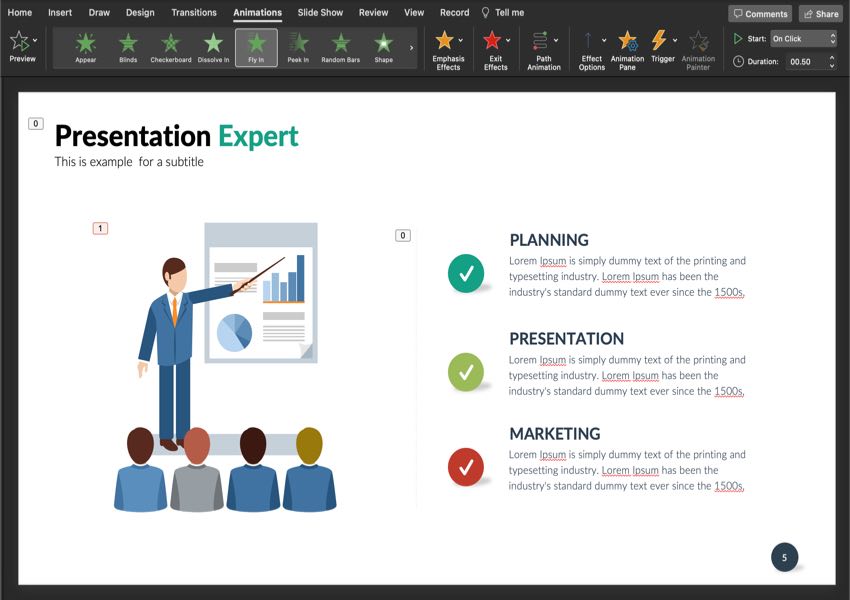
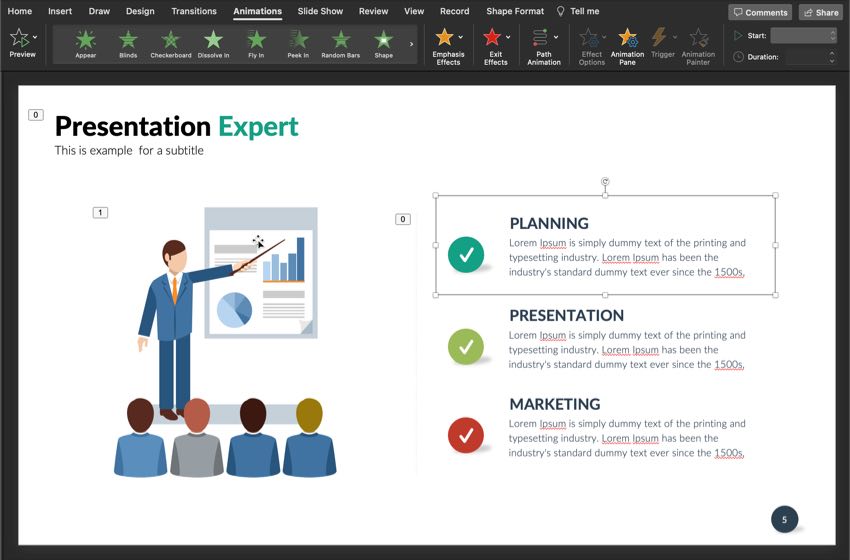
Object animation in PowerPoint exampleObject animation in PowerPoint exampleObject animation in PowerPoint example
This screenshot is an example of the "Fly In" animation, one of many ways how to create animated PPT elements.

To experiment with how to create animated PPT object animations, we'll use this PowerPoint template. Download it now if you'd like to follow along. Otherwise, these steps will apply to any existing PowerPoint presentation or template.

powerpoint templatepowerpoint templatepowerpoint template
Explore how to make animated PowerPoint presentation designs with this professionally designed template.

To get started with object animations, start off by clicking on an element on your slide. You can choose an element like a text box, image, or even a shape you've drawn on the slide.

Now, click on the Animations tab. This menu makes it easy to choose an animation to add to an object.

On the Animations tab, you can simply click on one of the animation thumbnails to apply it to a selected object. Download this PowerPoint Design template on Envato Elements.On the Animations tab, you can simply click on one of the animation thumbnails to apply it to a selected object. Download this PowerPoint Design template on Envato Elements.On the Animations tab, you can simply click on one of the animation thumbnails to apply it to a selected object. Download this PowerPoint Design template on Envato Elements.
On the Animations tab, you can simply click on one of the animation thumbnails to apply it to a selected object. Download this PowerPoint Design template on Envato Elements.

Click on the part of the slide that you want to animate. Again, this could be a text box, image, chart, or any object that you can select on the slide.

Once you've got an object selected, simply click on one of the animation thumbnails. PowerPoint will play a preview of the selected animation and you'll see the object come onto the slide.

In this screenshot, you can see that I've selected a text box, in this PowerPoint template and chosen the Fly In effect to add to the text box.In this screenshot, you can see that I've selected a text box, in this PowerPoint template and chosen the Fly In effect to add to the text box.In this screenshot, you can see that I've selected a text box, in this PowerPoint template and chosen the Fly In effect to add to the text box.
In this screenshot, you can see that I've selected a text box, in this PowerPoint template and chosen the Fly In effect to add to the text box.

Now, simply click on the PowerPoint animation that you want to add to an object. I recommend choosing a simple animation effect like Fade or Appear. Keeping an animation simple will bring it onto a slide naturally and not distract the audience.

3. Sequence Object Animations in PowerPoint

If you've added many PowerPoint animations to the same slide, you might want to re-order the object animations. For instance, your images might come onto a slide before the title appears.

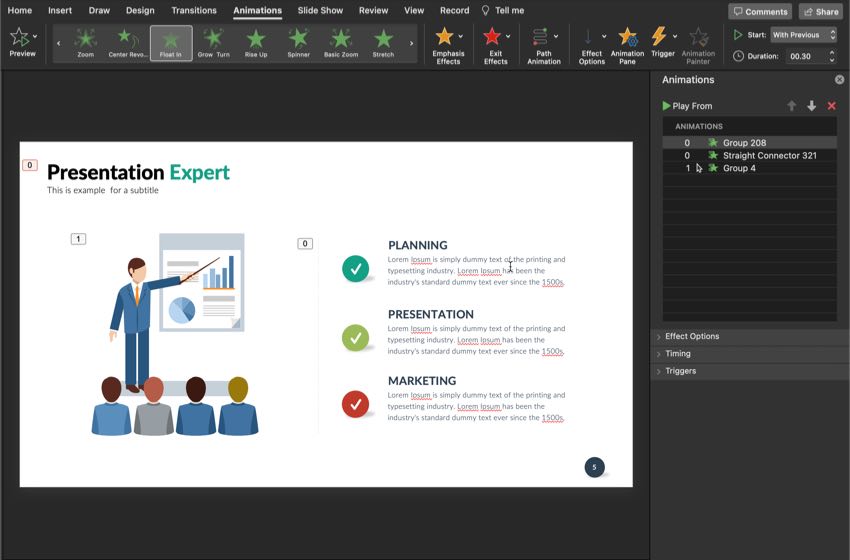
In this case, it helps to resequence animations. To reorder animations, switch to the Animations tab on PowerPoint's ribbon. Then, find the Animation Pane button and click on it to open a panel that shows all the animations on the slide.

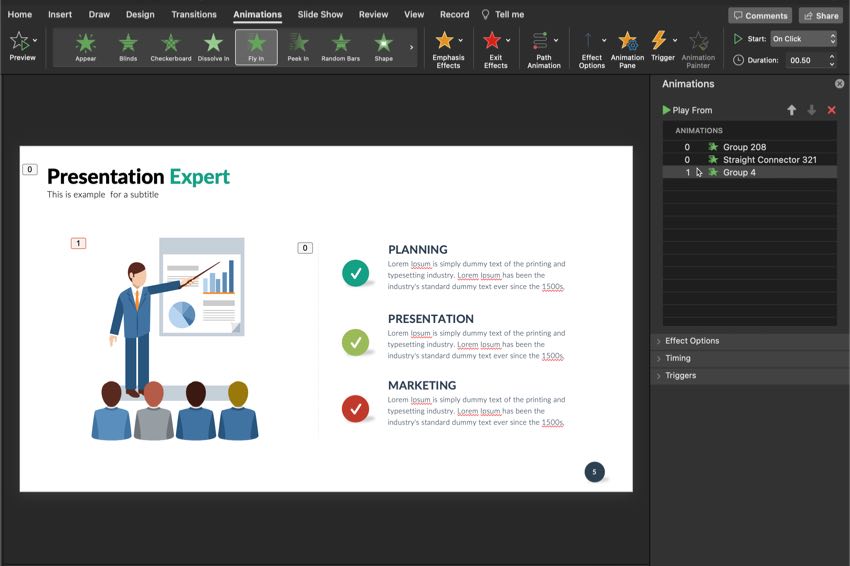
On the right side, you'll see the Animation Pane open. In it you'll see a list of animations that'll play on the slide.

In the example below, you can see two animations on the side, each of which represents an object's animation.

The numbers next to objects represent the order that the animations will play in this PowerPoint slide design.The numbers next to objects represent the order that the animations will play in this PowerPoint slide design.The numbers next to objects represent the order that the animations will play in this PowerPoint slide design.
The numbers next to objects represent the order that the animations will play in this PowerPoint slide design.

To reorder the animations, simply drag and drop them in the list on the Animation Pane. Click Play All to preview the animations once they're reordered.

4. Add PowerPoint Slide Transitions

Now, let's talk about how to create animated slides in PowerPoint. Slide transitions show as effects when you move from one slide to the next. These are another form of PowerPoint animation you can apply with relative ease. 

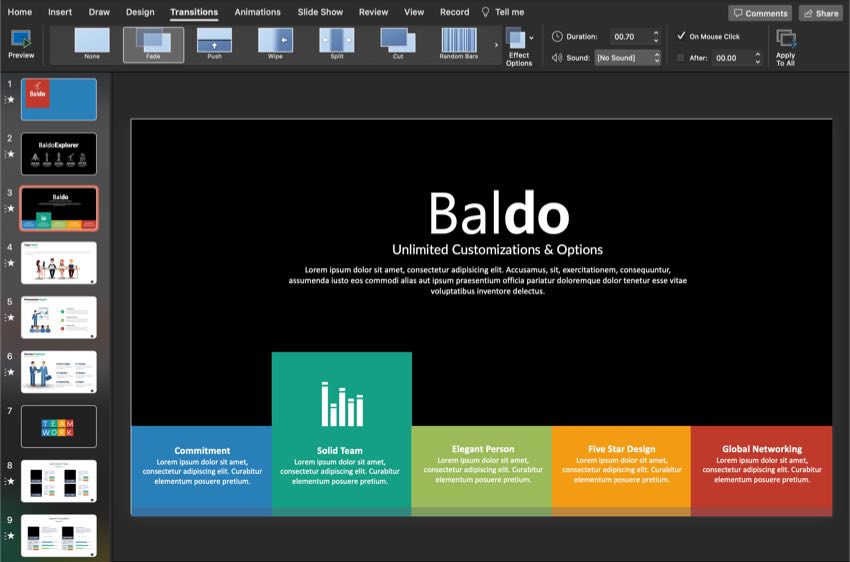
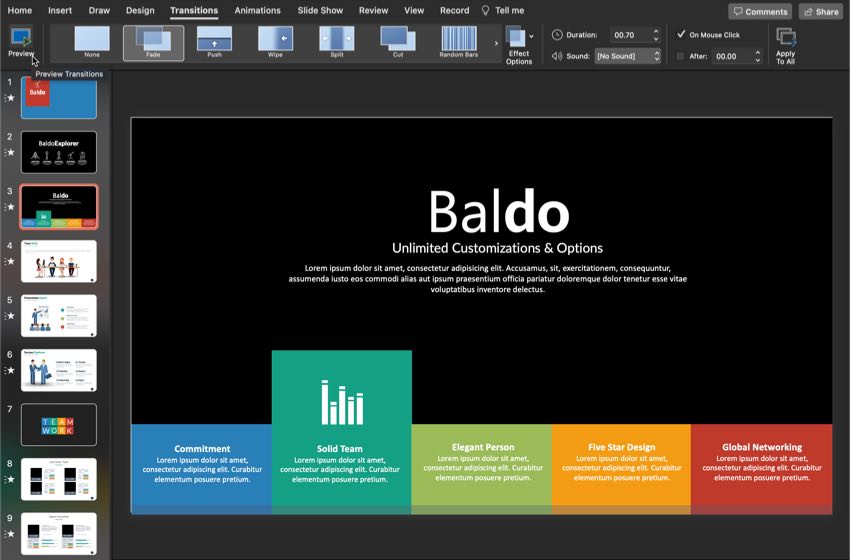
To apply a slide transition, start off by selecting a slide and clicking on Transitions on PowerPoint's ribbon. With a slide selected, simply click on one of the animation thumbnails on the ribbon to apply it to the current slide. You'll see a preview of the active transition animation play. 

The star icon next to the slide thumbnail shows slides in this PowerPoint template that have transition effects applied.The star icon next to the slide thumbnail shows slides in this PowerPoint template that have transition effects applied.The star icon next to the slide thumbnail shows slides in this PowerPoint template that have transition effects applied.
The star icon next to the slide thumbnail shows slides in this PowerPoint template that have transition effects applied.

Notice that slides that have animations show a small icon in the sidebar. So, you can easily identify the slides that you've applied transitions to.

Click the Preview button to play the animation on the active slide. This is a quick and easy way to preview animation in PowerPoint presentation designs.
On the Transitions tab on PowerPoint's ribbon, simply click on the thumbnail for an animation to apply it to a slide, as shown in this PowerPoint design template.On the Transitions tab on PowerPoint's ribbon, simply click on the thumbnail for an animation to apply it to a slide, as shown in this PowerPoint design template.On the Transitions tab on PowerPoint's ribbon, simply click on the thumbnail for an animation to apply it to a slide, as shown in this PowerPoint design template.
On the Transitions tab on PowerPoint's ribbon, click on the thumbnail for an animation to apply it to a slide.

There are three other key options that you can set on the ribbon for each slide's transition: 

  1. Sound. Choose a drop-down option to play a sound when the slide advances. 
  2. Duration. This describes the duration (speed) that the animation plays. You can set a longer duration in seconds for the animation to play more slowly or shorten it for a faster transition. 
  3. Advance Slide. Instead of advancing the slide by clicking through the presentation, tick the After option to automatically change slides after a certain amount of time. 

The principles of limiting PowerPoint animation and effects are the same for slide transitions. Use them sparingly and stick to the simple dissolve or fade effects.

Remember, PowerPoint presentations are just an aid to showcase your content and shouldn't distract from the content itself.

How to Remove Animation From PowerPoint

Now that you’ve learned how to add animation in PowerPoint let’s learn how to remove animation from PowerPoint:

1. Open the Animation Pane

Click on the animation tab.Click on the animation tab.Click on the animation tab.
Click on the Animation tab.

The first step in how to remove all animations from PowerPoint is to open the Animation Pane. First, click on the Animations tab. Next, click on the Animation Pane button in the toolbar.

2. Animation Pane

Click on the X button to remove animation.Click on the X button to remove animation.Click on the X button to remove animation.
Click on the X button to remove animation.

You’ll see a list of your current animations in the animation pane under the Animations section. Click on one of your animations and press the red X button above the list.

After you click the X button, you’ll have removed the animation from your slide. Keep repeating this step until you’ve deleted all the animations you want to remove.

3. Remove All Animations from Your Presentation at Once

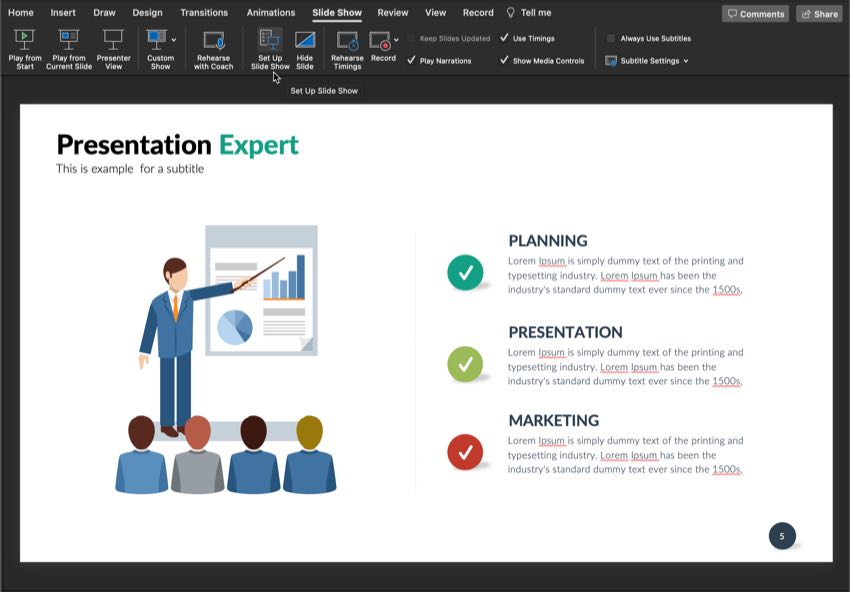
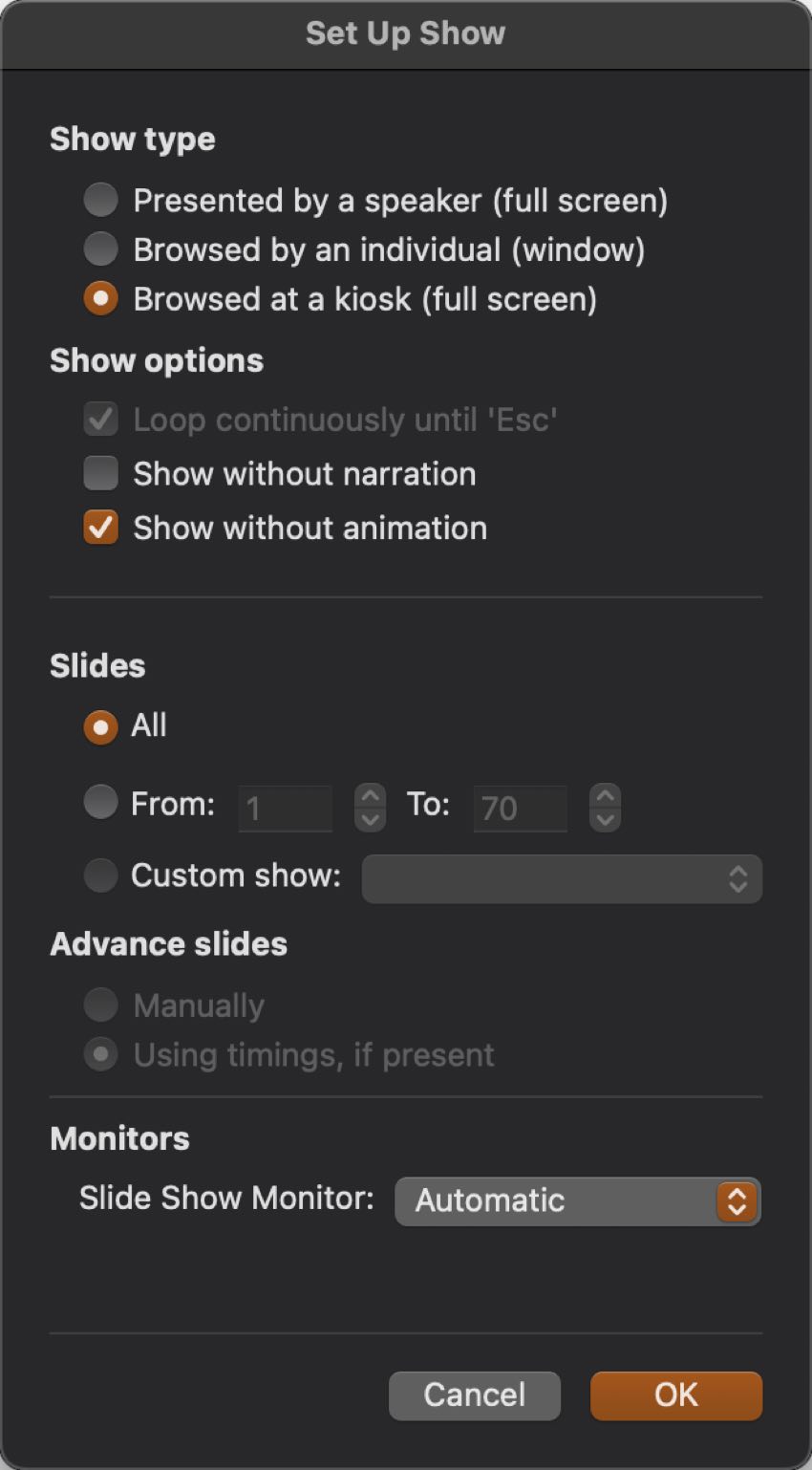
Click on the Set Up Slide Show to remove all animations.Click on the Set Up Slide Show to remove all animations.Click on the Set Up Slide Show to remove all animations.
Click on the Set Up Slide Show to remove all animations at one time.

Here’s how to quickly remove all animations from PowerPoint.

  1. Click on the Slide Show tab in the menu bar.
  2. Click on the Set Up Slide Show button.

4. Set Up Show Window

In the Set Up Show window check the box show without animation to remove all animation.In the Set Up Show window check the box show without animation to remove all animation.In the Set Up Show window check the box show without animation to remove all animation.
In the Set Up Show window check the box show without animation to remove all animation.

A Set Up Show window appear once you click on the Set Up Slide Show button. This window is how to remove all animations from PowerPoint.

Under the Show Options, click on the box next to the Show without animation option. Next, click on the OK button in the bottom right corner.

Make Better PowerPoint Animations and Presentations

So far, we've tackled the basics of PowerPoint animation and how to create animated PPT elements. Let's take these ideas and explore them in a customizable PowerPoint presentation. Here's the template design we'll use in this walkthrough:

stylish PowerPoint slide designstylish PowerPoint slide designstylish PowerPoint slide design
Download this stylish PowerPoint design template on Envato Elements.

You can download this template and follow along. Or apply these techniques to any PowerPoint template design you prefer. 

1. Start With a Strong Introduction

Above all, you'll want to start off by showcasing your organization. For example, if you're going to recruit employees to join your company, it helps to give them background on what it is that you do. Trying to sell an idea to investors? They'll need to know what you're about and why to trust you.

Take a look at this sample slide from this professional PowerPoint design template. Where do you think animation would be an appropriate addition? 

A simple fade in could be a classy addition here. Think about this in contrast to something overly busy, like every element here flying in from a different direction. That would be really distracting!
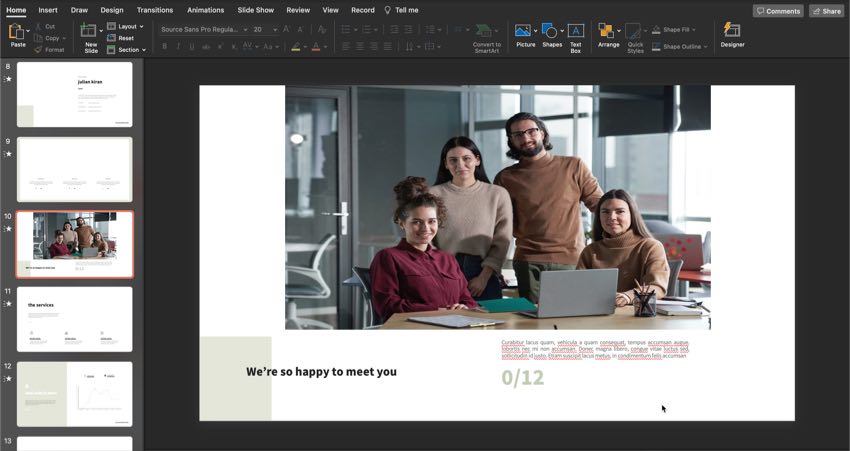
Start your PowerPoint presentation with a strong introduction. Stock photo from Envato Elements.Start your PowerPoint presentation with a strong introduction. Stock photo from Envato Elements.Start your PowerPoint presentation with a strong introduction. Stock photo from Envato Elements.
Start your PowerPoint presentation with a strong introduction. (Stock photo from Envato Elements.)

2. Introduce Your Topic Clearly and Concisely

Organization and clarity often go hand in hand. When considering how to make animated PowerPoint presentation designs, start with a simple layout. Less is often more. Once your content has been laid out in a clear and easy to understand way, you can consider making animations in PowerPoint.

Here's another example slide from this PowerPoint presentation. We could try some object animations here. For example, perhaps each of the three points here could fade or pan in, one by one. That could make sense and support the idea of progression here. 
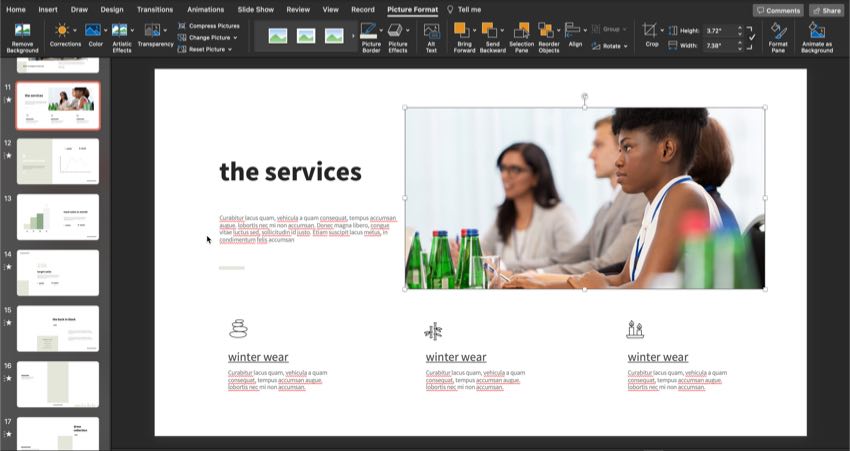
Keep things organized in your PowerPoint design and introduce your topic clearly. Stock photo from Envato Elements.Keep things organized in your PowerPoint design and introduce your topic clearly. Stock photo from Envato Elements.Keep things organized in your PowerPoint design and introduce your topic clearly. Stock photo from Envato Elements.
Keep things organized in your PowerPoint design and introduce your topic clearly. (Stock photo from Envato Elements.)

3. Describe Your Progress Visually

Visuals can be very communicative. Consider trying an infographic or other visual element to help convey ideas.

For example, a 50% increase sounds like a big deal, but it's going to visually look like a big deal when we see a visualization of this information.

So, how about making animations in PowerPoint for this scenario?

We could use animations to reinforce the infographic, for example. Or maybe we could have the percentages fade in last, to emphasize their importance. When in doubt, pick one part to emphasize. Less is usually more.
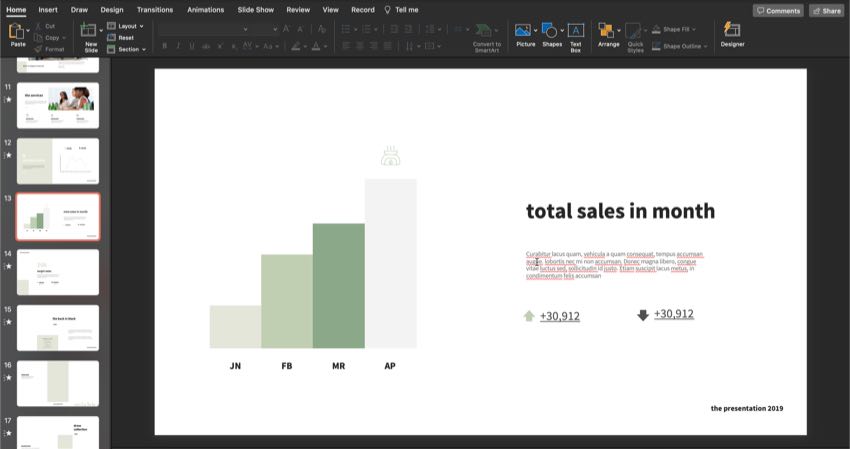
Infographics and other visual aids can help visually communicate topics in your PowerPoint presentation.Infographics and other visual aids can help visually communicate topics in your PowerPoint presentation.Infographics and other visual aids can help visually communicate topics in your PowerPoint presentation.
Infographics and other visual aids can help visually communicate topics in your PowerPoint presentation.

4. Remember to List Your Contact Details

A strong PowerPoint presentation is typically designed to inform and engage an audience. We want our audience to connect with us, so make sure they're clear on how to do so. It's great to take questions during or after your presentation, but what about later? 

Again, when thinking about making animations in PowerPoint, keep these tips in mind:

  • Where do you want to add emphasis? Use animation to enhance, not distract.
  • Not sure? Then keep it simple with a clean transition into the slide.

So, in this slide, we could stick to a simple fade in, that could work just fine. No need to keep viewers waiting on any information here. 
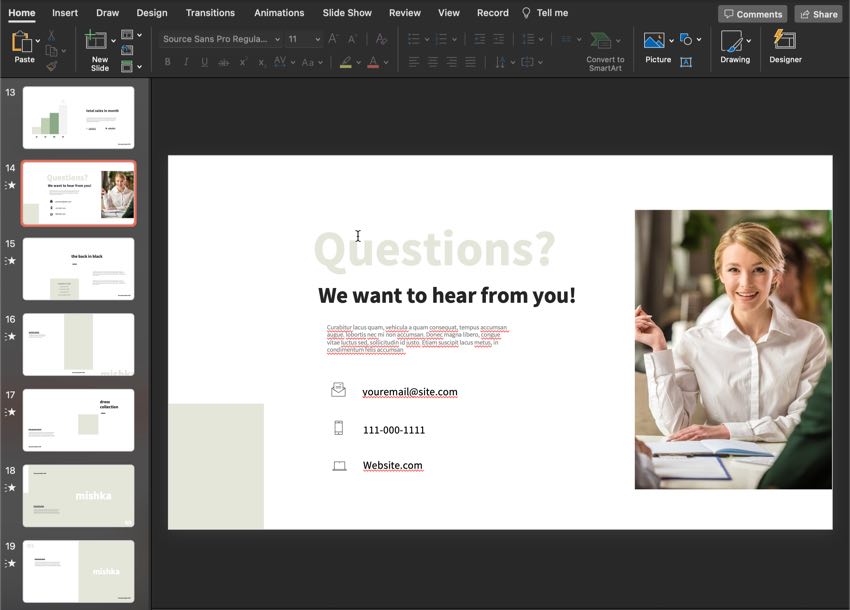
Make sure your PowerPoint presentation tells the viewer how to get in touch. Stock photo from Envato Elements.Make sure your PowerPoint presentation tells the viewer how to get in touch. Stock photo from Envato Elements.Make sure your PowerPoint presentation tells the viewer how to get in touch. Stock photo from Envato Elements.
Make sure your PowerPoint presentation tells the viewer how to get in touch. Stock photo from Envato Elements.

You'll notice that not all these slide examples contain complex animations. When each slide is loaded with many animated objects, your audience is likely to become distracted and tune out. This is why we recommend that you be selective with including animations in your PowerPoint presentations.

To try out other premium PowerPoint templates, check out Envato Elements popular PowerPoint themes. Subscribe to Elements and download unlimited creative files.

5. Tips on How to Create Animation in PowerPoint

Looking for a run through of some of the basics of how to make animated PPT presentation designs? Check out this helpful, free tutorial. It's a great primer for how to create animation in PowerPoint.
Download Customizable PowerPoint Templates (With Unlimited Use)

A PowerPoint template can help you get your project done quickly and efficiently. Remember, you can put animation in PowerPoint presentation design templates too. They're fully customizable.

So, what if you could have access to thousands of PowerPoint templates for one low price? Sounds like an awesome deal, right? Well, that's exactly what you get with Envato Elements.

Find PowerPoint Templates

envato elementsenvato elementsenvato elements
Enjoy unlimited downloads from a library of thousands of PowerPoint presentation templates on Envato Elements.

And you also get access to a library of fonts, graphics, illustrations, audio, and much more too! Download a new business card template or even a template for your website. It's an ultimate resource for creative professionals. 

Check out some of the awesome PowerPoint design templates you can download right now, on Envato Elements. They're all included with unlimited downloads. Enjoy the design inspiration, or consider customizing one today:

1. Reyna PowerPoint Template

Reyna Powerpoint TemplateReyna Powerpoint TemplateReyna Powerpoint Template

This template is clean and trendy, with fun pops of color. Prefer a different color scheme? This PowerPoint template is completely customizable. Try it out with any colors you prefer.

2. Hurley PowerPoint Template

Hurley Powerpoint TemplateHurley Powerpoint TemplateHurley Powerpoint Template

A dark PowerPoint theme, like this one, can give your presentation an entirely different mood. It's got a lot of contrast too. Try this one out with your photos and content.

3. Process PowerPoint & Google Slides Template

Process Powerpoint & Google Slides TemplateProcess Powerpoint & Google Slides TemplateProcess Powerpoint & Google Slides Template

Check out the fun, custom shaped used in this PowerPoint template design. Easily customize the content, add your own photos, and more. This one also comes with support for Google Slides.

4. Kemal – Business PowerPoint Template

Kemal – Business PowerPoint TemplateKemal – Business PowerPoint TemplateKemal – Business PowerPoint Template

Isn't this design classy? Sticking with a black and white aesthetic, as your overall look, can make for a classy design. This one could be a great choice for showcasing eye-catching photos. 

5. Clover Fashion - PowerPoint Design Template

Clover Fashion - PowerPointClover Fashion - PowerPointClover Fashion - PowerPoint

A blocky look like this one could be pushed in so many directions. Love it colorful? Then simply insert your content. Prefer something softer? Jump right in and edit this PowerPoint presentation. It's yours to mix up as you like. 

Looking for Even More PowerPoint Templates?

There's even more design inspiration to check out on Envato Tuts+. If you're looking for more PowerPoint template designs, check out these collections. There are many different aesthetics and even some freebies to download right now:
Keep Learning More About PowerPoint & Making Great Presentations

This tutorial showcased how easy it is to add animations in Microsoft PowerPoint. Whether you use the built-in object animations or opt for a top PowerPoint presentation template, animation can draw attention at the right moment to your key points.

For a more comprehensive guide to building presentations, make sure and check out our Ultimate Guide to the Best PPT round-up.

Also, don't miss out on these specific Microsoft PowerPoint tutorials that'll help you learn animation in PowerPoint:

Need More Help? Grab Our Making Great Presentations eBook (Free)

We've got the perfect complement to this tutorial. You can find more information in our eBook on making great presentations. Download this PDF eBook now for FREE with your subscription to the Tuts+ Business Newsletter. 

How to Make a Great Presentation Free PDF eBookHow to Make a Great Presentation Free PDF eBookHow to Make a Great Presentation Free PDF eBook

It'll help you master the presentation process from initial creative ideas, through to writing, design, and delivering with impact.

Download a Template to Use Animation in Your Next PowerPoint Presentation

Now that you know how to make animated PowerPoint (PPT) presentations, download your favorite template. You can start making animations in PowerPoint today

Remember, many premium PowerPoint templates already have built-in animation effects.

Editorial Note: This post was originally published in October of 2017. It's been comprehensively updated with special help from Daisy Ein and Sarah Joy.