


Wondering how to make aesthetic Google Slides? Or maybe you're looking for Google Slides design ideas. In this article, we'll look at how to make your Google Slides look aesthetic with Google Slides ideas, for your inspiration.


There are many ways how to make cute Google Slides. We’ve put together a collection of creative Google Slides presentation design ideas for 2024. This includes plenty of cute Google Slide ideas.
Did you know that PPT templates are easily converted to Google Slides? It's simple to do and means there's even more content you can use for your presentations. Want to learn how? Check out this free resource:


30 Creative Google Slides Design Ideas for 2024 Presentations
Find the perfect aesthetic Google Slides idea in this list! Get all the Google Slides ideas for aesthetic presentations.
Here are 30 creative Google Slides design ideas to use in 2024 and beyond:
1. Add Borders Around Elements
Borders are a great way to make a visual distinction between different points on the slide. It creates a visual hierarchy that’s easy to follow. Learn from the Notuns Creative Presentation template how to do it.
These are some simple but effective cute Google Slide ideas.


2. Make a Splash With Break Slides
Your break slides are just as important as other slides. Include an image and a brief statement that highlights what’s coming up in the presentation.
The Rubilo Creative Presentation is a good example of beautiful break slides.


3. Use Mockups
If you need to show off a particular project, design, or concept, use mockups. Plenty of premium presentation templates come with mockup slides. So, be sure to take advantage of them.
The Creathink **template has excellent mockup slides you can use. These are Google Slides design ideas that can help further visualize your concepts.


4. Leave Some Breathing Room
Empty space can be a wonderful addition to any composition. Sometimes, less is more. It's not a great idea to tightly pack every slide. Leaving some free, open space can help make your presentation feel open and airy.


5. Use a Consistent Motif
A consistent motif throughout your presentation enforces your message. For example, a brand icon or a part of your logo on every slide builds brand recognition. You’re only limited by your imagination here. For example, use:
- a consistent shape
- the same image crop
- your brand icon
- an alternate version of your logo
Take cues from the Creativiti Google Slides template below:


6. Play With Color Blocking
Color blocking refers to using color in large sections or in contrasting tones. It makes a better distinction between text and visuals or different parts of your text. The Value Google Slides template is a good example of using color blocking to your advantage.


7. Be Bold With Fonts
The Asoka template is a perfect choice of how to use fonts to draw attention to your presentation. Simply by increasing the font size, you can add more visual interest to an individual slide. Another way to use fonts is to use bold font for slide titles or different presentation sections.


You can also overlay text over photos or other imagery in the slide. This will instantly draw the eye towards that part of the slide. So, it’s a handy technique to use when you want your audience to remember a certain point.
8. Make a Statement With Presentation Cover Slide
Your cover slide sets the tone for the entire presentation. It’s the perfect opportunity to give a clue of what your presentation will cover and to show off your brand. So, your presentation cover needs to intrigue the audience and pique their interest.
Choose a high-quality image and incorporate your brand elements. Use your logo or add a color strip in your main brand color like in the Creva template.


9. Use Creative Image Crops
In most presentations, images will be cropped into a square or rectangular format. Break the convention and make your presentation stand out with creative image shapes. Use a circle or more abstract shapes like in the Healthcare Template below.


10. Spice Up Presentations With Icons
Images, graphs, and charts aren't the only way to make your presentation more visual. If you don’t have any data to share, consider using icons. Use them to signify when a new presentation section is coming up. Or use them on individual slides to emphasize certain points.
The Rule template makes excellent use of icons throughout various slides.


11. Contrast Can Create Emphasis
Think of contrast as the difference between light and dark. White text on a black background would be high contrast. Dark gray text on a black background would have low contrast, and be harder to see. This is because the two would rather "blend in".
You can use this idea to help create focal points in your design. You can also use this idea to help make parts more supplemental too.


12. Alternate Slide Layouts
Consider using a variety of slide layouts to make your presentation more interesting. Experiment with text and photos and use a pure text slide followed by an image slide.
You can also add slides with infographic elements when you need to present data. A template like ABHE showcases this well.


13. Opt for a Vertical Template
A horizontal layout is pretty standard when it comes to presentations. But that doesn’t mean you can’t break the rule and opt for a vertical Google Slides template. This is a great way to share your presentation in a new way and keep your audience engaged at the same time.
Looking for Google Slides ideas for aesthetic presentations? Take inspiration from the Lora Google Slides template.


14. Use Maps When Discussing Locations
Map slides are absolutely crucial when it comes to presentations involving locations. Use them to show a planned expansion into new markets. Or, to show existing market share of your company or products.
The Shinning template has several map slides to choose from. It's a good example of how you can use maps to your advantage.


15. Experiment With Neon Accents
Neon or bright accents help draw attention to important parts of your presentation. It also makes the presentation stand out. This is useful if you’re creating a business pitch or proposal presentation.


16. Have Fun With Duotone Color Schemes
Duotone color schemes are very trendy right now. So, if you want your presentation to follow current design trends, use this to your advantage.
Use the duotone color scheme on the cover slide or as an overlay for images in the presentation. The Vibrant Google Slides template makes creative use of the duotone trend.


17. Use Illustrations
Another creative presentation design idea is to use illustrations in your presentation. This can be a great way to make your presentation truly custom and to reinforce your brand. Use them in place of images or only on some slides — the choice is yours.
Look at how the Moujive template adds illustration elements to different slides.


18. Try a Color Split
Consider using two different colors on the same slide. This is sure to capture the attention of your audience and make a statement. For this to work effectively, use complementary colors such as red and green or blue and yellow.
The Divergent template is a bold Google Slides presentation template with a color split.


19. Draw Attention With a Dark Background
Use a dark Google Slides template for a more dramatic presentation. They can look quite elegant, so a dark Google Slides template is a good choice for a fashion or luxury brand. Keep in mind that you’ll need to use a vibrant color as your call to action color to ensure your message gets across.
Draw inspiration from the Vannie Google Slides template to pull this off effectively.


20. Use Video And Music
Don’t be afraid to add video or music to your presentation. Use music to open up your presentation. Add videos where you need a lengthy explanation of a particular topic. Or use this tip for any type of presentation.
It works well with any Google Slides template, including Aura.


21. Try an Abstract Look
Abstract shapes are another design trend that’s all over social media networks. Add it to your presentation with a Google Slides template with an abstract design, much like the Foww template.
If you’re making a portfolio presentation to show off your creativity, the abstract elements come in handy. They work well for presentation slide backgrounds. You can also use abstract elements on slide breaks and on the cover of your presentation.
22. Shake Things Up With Animation
Animation and slide transitions add more visual interest to your presentation. But you've got to be careful not to overdo it. Save the animations for announcing a new idea in your presentation or for the key slides.
There's no shortage of Google Slides templates for creatives that are already animated like the MARKET template below. So, all you've got to do is add your content in.


23. Get Inspired By Retro And Pop Art Design
Retro design is another trend that’s pretty popular right now. Use it as an inspiration when designing your Google Slides presentation. You can also use pop art as an inspiration for your presentation design. Use those vibrant and bold colors to make a statement.
The Memphis Google Slides template is a good example of a template influenced by retro design trends.


24. Go Full Color
Your presentations don’t always have to be black and white with colored accents. Why not use a full, solid color background throughout your presentation? This works really well for creative presentations such as portfolios.
Use a template like Circle Creative to implement these Google Slides ideas.


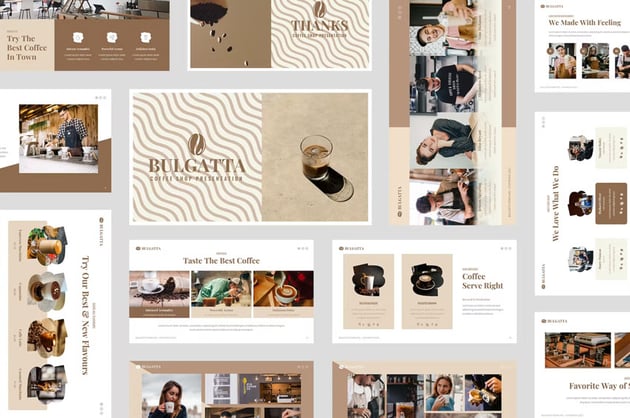
25. More Images Less Text
Here’s another idea for portfolio, creative, and product-based presentations: focus on images. Let visuals speak for them and use minimal text on your presentation slides. The Bulgatta Creative Agency template is a good example of a Google Slides template that focuses on imagery. This can be a very aesthetic google slides idea, if your photography is on point.

26. Make It Personal
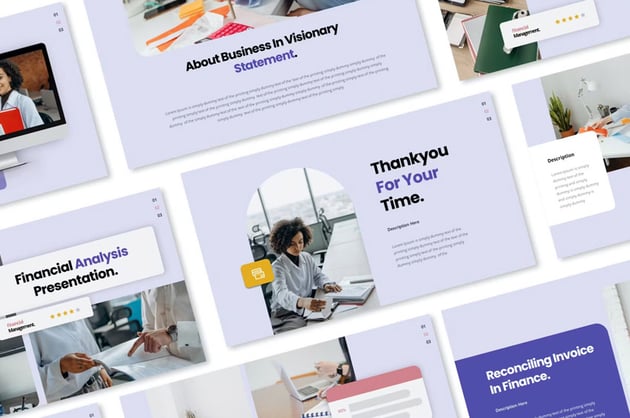
A presentation is more than talking to your audience. You are interacting and connecting with your audience. Keep this in mind, when designing your slides.
Include content that encourages connection with them. This could be anything from thanking them for their time. You could connecting with them via social media. You could also encourage questions. Cute Google slide ideas could include a "hello" or "goodbye" slide.


27. Be Aware of Visual Movement
Movement is a design principle that describes how the viewer's eyes navigate through a design. Think about how your presentation flows. This applies not only to the entire presentation, but to each slide, too.
If you add in Google Slide decorations, make sure they help the flow of the slide. Even a slide decoration can help guide the user's eyes.
28. Color Communicates Volumes
If you're looking for google slides ideas, aesthetic preferences should mean a lot. Be aware of your target audience, as this can impact how your design choices resonate.
For example, if you want to convey an energetic feelings, try using vibrant colors. If you want the tone of your presentation to be peaceful or assuring, you may want to use softer tones.
29. Be Strategic with Emphasis
Emphasis is another design principle. It refers to your focal point, and that is very important. Think of it as the very first place the viewer looks on your slide. This is often well placed on a title or on a key image. It should hook the audience and then the rest of the composition should supplement it.

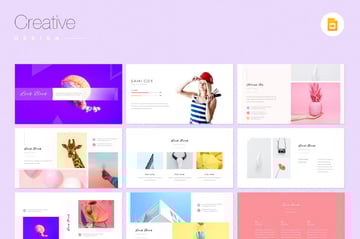
30. Reinforce a Message with Visual Rhythm
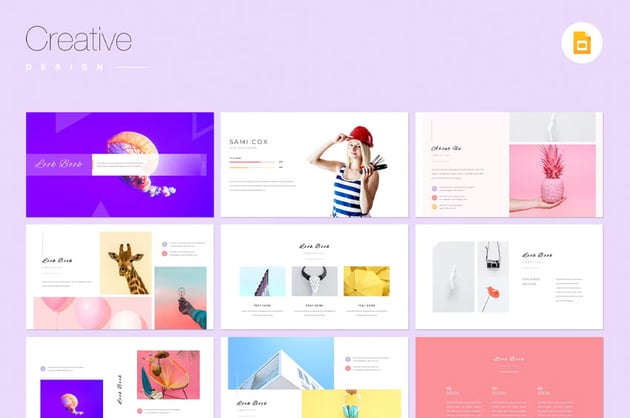
Rhythm, in design, is a lot like rhythm in music. You can think of it like a pattern. When we see things in a visual pattern, it often starts to feel familiar. This is one of the reasons why branding is so effective. We see it more than once and we start to make a familiar association.
You can do this on a smaller level in your presentation designs too. For example, perhaps a key symbol is a reminder of an earlier concept.

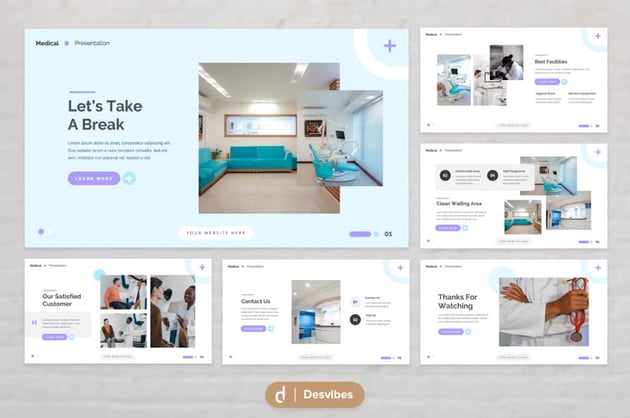

How to Create an Aesthetic Google Slides Presentation
Let's discuss how to make aesthetic Google Slides. Start by grabbing a premium Google Slides template. Then start customizing it with your content.
You can take professional Google Slides design ideas and customize it for your own needs.
For this example, we'll customize the premium template, Alevera. You'll find it over on Envato Elements. Download the template to follow along or use your own favorite template.


You'll quickly learn how to make your Google Slides look aesthetic. Let's get started!
1. Select Your Slides
Before you even begin to customize the template, you'll want to choose the slides that to use. Make sure to choose an aesthetic google slides idea that works for your project.
Alevera comes with many different slide layouts. But not all of them are going to fit our particular presentation. Pick the slides that you want to use and delete the rest.


2. Add in Images
Our template has many gray blocked image placeholders where we can add our images for each slide. The template makes it incredibly easy. All you've got to do is click on the gray placeholder and right click.
From there, choose the menu option, Replace Image. Then choose the image that you want to appear in that particular placeholder.


3. Choose Your Color Scheme
Our template comes with a nice-looking color scheme. But we can change it to fit our presentation better. To change the color scheme, go to the top menu header and choose the View > Master options. You'll be brought to the master slides editor where you can then select the Color button on the top header.
From there, select the Choose Colors Theme drop down menu. Edit the colors of the template how you see fit.


4. Add in Your Content Via Dictation
When it comes time to filling in the slides with your content, the obvious option is to type in the content. But Google Slides gives you the option to convert speech into text, so you don't have to type in the text. To add your text via dictation, select Tools > Voice type speaker notes.
The Microphone icon now appears on your screen. To start recording your voice, click the Microphone icon and begin speaking. You'll see the text show up on your screen. When you're done recording, just click the Microphone icon again.


5. Add Animations
Animations are a great way to add interest to your presentation. When used in a subtle way, they create a professional feel to the presentation.
To add animations to your slides, choose the Insert > Animation menu option. A right-hand menu will pop up where you can choose the specific animation and other details.


Now let's have a look at the top five design tips for your aesthetic Google Slides templates.
Top 5 Design Tips for Creative & Aesthetic Google Slides Presentations
When you're brain storming Google Slides ideas, aesthetic choices mean a lot! What Google Slide decorations should you use? What Google Slides ideas are best for your project? We all want to create the best Google Slides presentations. Let's go over five design tips that can make your presentations look their best:
1. Try Cursive Fonts
Cursive fonts can give a more elegant and sophisticated look to your presentations. The best place to add a cursive font is in your titles on your various slides. Let the body of the slide have a normal font. This adds that creative touch that's sure to make an impression on your audience. This can be a way to add slide decoration without overpowering, too.


2. Use Colorful Graphics
Creative and aesthetic looking presentations benefit from adding colorful looking graphics. This coupled with white backgrounds really make the slides pop. It may be tempting to add a lot of Google Slides decorations. Make sure to include graphics that fit in with the content that you're presenting.
3. Use Dynamic Layouts
The layout in your Google Slides will show whether your presentation is a creative one or not.
Using abstract shapes and layering elements on top is a great way to create a dynamic layout. It instantly tells your audience that you're delivering a creative presentation. They are also more visually appealing than standard layouts.


4. Keep It Minimal
Don't overcrowd your designs with too much text or too many images. Add only the essential elements to your pages and let the spacious layout do the talking.
5. Use a Black & White Color Scheme
Black & white color schemes give your presentation a classic but creative look. This works especially well when you've got photos that are black and white.
Add a bit more creative flare to your black and white scheme. Use a highlight color such as yellow.


Let's now have a look at even more Google Slides templates. You can use them for your creative presentations.
Find More Creative Google Slides Templates
Want even more gorgeous Google Slides templates? We've got plenty of roundups that you can check out. Get inspired by these Google Slides template collections:

 30+ Cool Google Slides Themes (With Aesthetic Slide Design Ideas for 2024)


 25+ Free Minimalist Google Slides Themes (for 2024)


 20 Best Google Slides Presentation Themes (Premium Templates to Download in 2024)
If you’re ready to create your presentation with Google Slides, head on over to Envato Elements. Sign up so you can start downloading as many Google Slides templates as you want.
Common Google Slides Questions Answered (FAQ)
If you use Google Slides for your presentations, you'll most likely have a few questions about it. We've collected five of the most frequently asked Google Slides questions and answers:
1. I'm New to Google Slides. Where Should I Start?
Google Slides is presentation software that can create any type of presentation. While the software can be complex, it's also very user-friendly. You can create professional-looking presentations in no time.
Check out this quick start guide below for more information:


2. Can You Change Theme Colors?
Absolutely! You can change your theme colors easily in Google Slides even if a template has a premade color scheme. To find out how to do this, check out the article below:


3. Is Google Slides Good for Making Pitch Decks?
Google Slides is ideal for making pitch decks. You've got all the tools necessary to create a stunning pitch deck that your audience will love. To find out how to harness the power of Google Slides to create your next pitch deck, study the tutorial below:


4. Can You Create a Timeline?
Timelines are absolutely doable on Google Slides. You can create any style of timeline in your slides. Find out how to create a timeline in this article:
.jpg)
.jpg)
5. Can You Create Your Own Templates?
Google Slides is a very flexible piece of software that allows you to create a template that you can reuse. Find out how to create your own template below:


Need even more help with navigating the Google Slides software? Check out the next section where we go over even more helpful resources.
Learn More About Google Slides
Google Slides makes it easy to create a presentation and collaborate with others on it at the same time. But there's more to learn about Google Slides. We've got plenty of tutorials to get you started:

 How to Create Professional Google Slideshows for Business Presentations


 12+ Google Slides Presentation Tools: To Learn How to Use (Now)
.jpg)
.jpg) How to Add Text & Bullet Points in Google Slides Presentations
How to Add Text & Bullet Points in Google Slides Presentations
Find Creative Google Slides Templates on Envato Elements
Before we dive into the actual design ideas for Google Slides, one thing is certain. You’ll need a Google Slides template to use as a starting point.
One of the best places to find creative Google Slides templates is Envato Elements. It's a subscription-based marketplace with thousands of Google Slides templates.
You'll also find other design assets for a low monthly fee. That’s a pretty compelling offer.

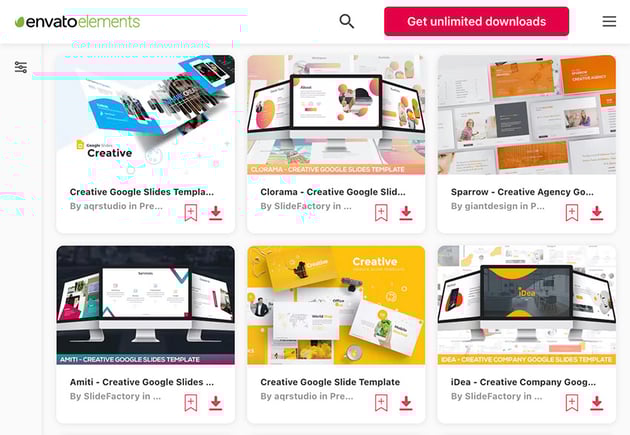
Download unlimited Google Slides templates, web mockups, stock photos, and other design assets. Customize them to your needs and use them in an unlimited number of projects.
There are additional creative Google Slides themes for you to explore on Envato Tuts+ as well!
Design a Creative and Aesthetic Google Slides Presentation Right Now
Study various creative Google Slides presentation ideas. You’ll be able to design a stunning presentation. Start with a professional Google Slides template to save a ton of time.
Looking for a creative and aesthetic Google Slides template? Head over to Envato Elements. This is the best choice if you need other design assets on a regular basis. Happy designing!
Editorial Note: This post has been updated with contributions from Daniel Strongin and Brenda Barron. Daniel and Brenda are freelance instructors for Envato Tuts+.
 By
By


