


Google Slides affords a lot of creative license. If you're not familiar with it, you'll want to learn its features. For example, you can easily change text color in Google Slides.
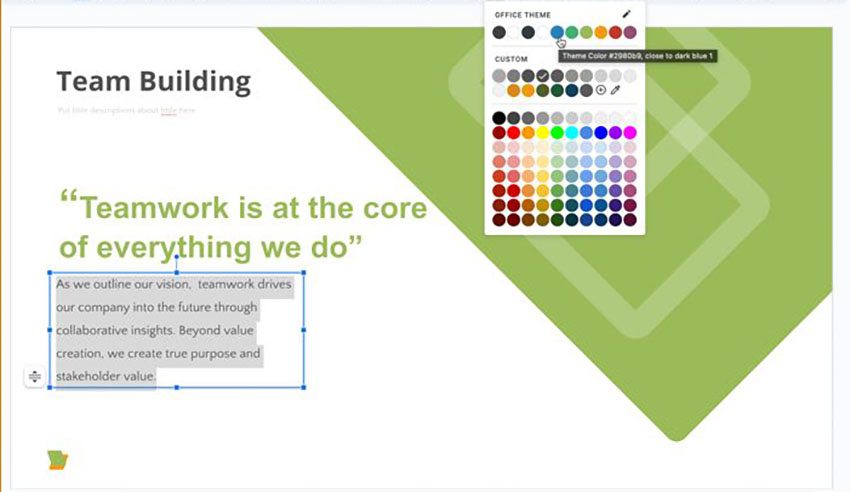
One easy way to add creative styling is to change the color of your text. It’s quick to do and lets you dial in to exactly match your branding.
You'll want to start with a premium Google Slides template from Envato Elements so that you get the best slide designs and a built-in color scheme.
Note: In this tutorial we use the professionally designed Balaga Google Slides Template. You can find more great Google Slides templates on Envato Elements.
How to Change Text Color in Google Slides (Quickstart Video)
Do you need to know how to change text color on Google Slides? The short video below will give you a head start.

To learn more, follow the quick steps below that complement this video.
How to Change Google Slides Text Color
Here's how to change text color in Google Slides:
1. Use a Template

Before you learn how to change font color on Google Slides, download a premium template and create your presentation.
Premium templates come with predesigned presentations. The premium template used in this tutorial is the Balaga Google Slides Template. It comes with:
- 25 unique slides with each template
- 3 built-in color schemes that you can choose from
- a dark theme and a light theme
- and more
Now let’s learn how to change the color of the text on Google Slides.
2. Use Pre-Built Color Swatches
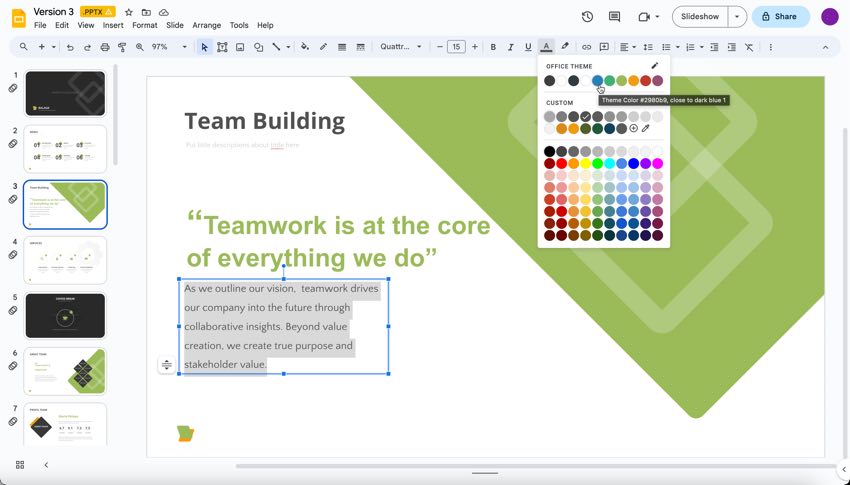
Google Slides includes an array of pre-built color swatches to change the color and theme of your text. To apply one, first be sure your text is highlighted and selected.
Then move over to the text options at the top of the screen. This is the area where you would change the font, text size, and apply bold, italic, or underlined formatting.
To the right you’ll see the Text color icon (it looks like an A with an underline). Click on this.
The Color Chooser menu pops up. You'll see the distinct pre-built colors that are available. Simply click one to apply to your selected text.
3. Apply Different Colors to Text
If you've got several areas of text and want to show them in different colors, follow the process above. Select each individual part of the text and recolor it using the color chooser. You can have different colors for each letter, word, sentence, or paragraph.
4. Apply Custom Colors to Text
Sometimes, choosing from the pre-built swatches isn’t enough. This is especially true if you’re developing marketing materials. Many companies actually publish detailed branding guides, complete with hex codes for their unique colors.
Think about the world’s great brands, and chances are a vivid color will come to mind. This is no accident, and this level of customization can be attained in Google Slides, too.
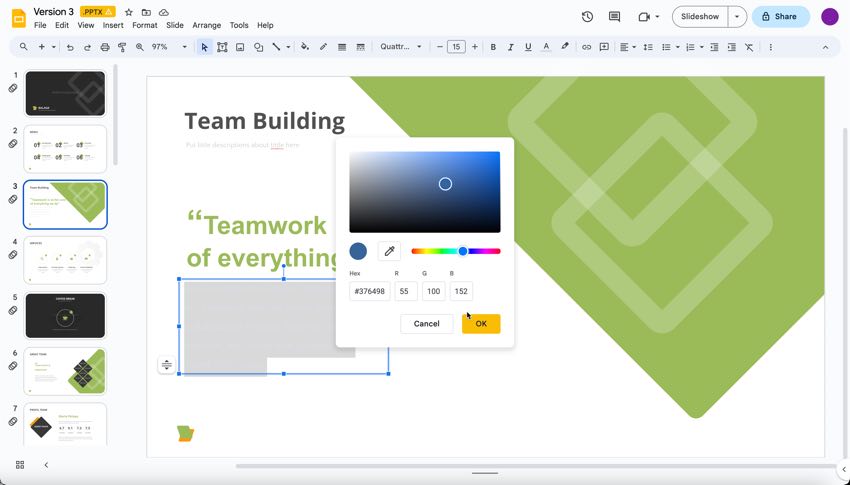
Navigate to the same color chooser we’ve already used but click Custom down at the bottom.
A full color display appears on the screen, along with a slider to vary the color. There’s also a box to enter a color hex code for a precise match. To apply a custom color to your text, do one of the following:
- Type in the hex code (often provided by a marketing department or art director).
- Click on the area of the color selector that has the color you want to apply to your text.
5. Finishing Up!
Changing text color in Google Slides is easy, thanks to the simple, intuitive user interface. It’s one of the fastest ways to call attention to text. It also helps to keep your slides aligned with your branding to ensure a consistent message.
Google Slides Text: Frequently Asked Questions (FAQ)
Here are some common questions and answers about Google Slides and its text features:
1. How Do I Curve and Wrap Text in Google Slides?
You can use several methods to add curved text to Google Slides. One of the methods is to use Microsoft PowerPoint to create the curved text and then import the slide into Google Slides. Here is an in-depth tutorial on how to curve and wrap text in Google Slides:

2. How Do I Copy Text on Google Slides?
You can use keyboard shortcuts to copy text, such as the ⌘ + C shortcut. You can also right-click and select copy to copy your text. To learn more, read this article:


3. How Do I Add Text and Bullet Points to Google Slides?
It’s easy to add text and bullet points to Google slides. To create a professional presentation, it’s important to know how to add multiple text types to Google Slides. For more information, read this article:
.jpg)
4. How Do I Quickly Add New Fonts
Fonts can change the mood of your slide and make your presentation look professional. You can add new fonts from Google or from Envato Elements. For more information, read this tutorial:

5. Are There Keyboard Shortcuts for Google Slides?
Yes! Google Slides has a lot of keyboard shortcuts that you can use. To select all, you press ⌘ + A on your keyboard. For more keyboard shortcuts and an example on how to use them, read this article:

Learn More About Google Slides
If you're interested in learning how to change text color in Google Slides, you probably want to know more about Google Slides. Here are some helpful tutorials:
.jpg) How to Add YouTube Video to Google Slides Presentations
How to Add YouTube Video to Google Slides Presentations
 How to make Google Slides presentations look good (15 cool effects for 2025 + video)
 20+ (Quick) Tips & Tricks to Use Google Slides Like a Professional in 2025
 How to Convert Google Slides to PowerPoint Presentations on Export
 How to Present Your Google Slides Slideshow Presentation
The Top Source for Premium Google Slides Templates
If you're thinking of changing font colors in your presentation, you'll want to consider premium templates.
Premium templates help you save time because you don’t need to create a presentation from scratch. With a premium template. It's already made for you.
Professionals make these templates look impressive and stylish. All you need to do is add your text and images in the placeholders.

Envato Elements is a subscription service that gives you access to more than just premium Google Slides templates. You also gain access to fonts, images, audio, and more. So, sign up for Envato Elements subscription to gain access to all these benefits.
Download a Premium Google Slides Template Today!
Now that you know how to change font color in Google Slides, test your knowledge on your next project! If you want a professional-looking presentation, then download a premium Google Slides template. Envato Elements is the best source for premium templates. Sign up to become a subscriber today!
Editorial Note: This tutorial was originally published in 2018. It's been reviewed for accuracy and updated by Sarah Joy.
 By
By



