


Are you having trouble staying on track as you give your presentation? PowerPoint speaker notes are a great way to add reminders of what you should say when giving your presentation.

In this tutorial, you’ll learn how to add speaker notes in PowerPoint. It's the key to keeping essential details nearby while presenting. When you know how to insert notes in PowerPoint, you can recall those key cues during a presentation.
Knowing how to insert notes in PowerPoint is a key skill that elevates your presentations. It makes you confident and helps you ensure that you remember key points. And it’s amazingly easy to do. Let's learn how to add speaker notes in PowerPoint - and use them to their max.
Add Speaker Notes to PowerPoint (Quickstart Guide)
A great way to learn how to insert notes in PowerPoint is with the help of a screencast. We've recorded all the steps you need to master this skill. Check out the screencast below to learn the art of adding notes to PPT.
If you want a written guide that teaches you how to add notes on PowerPoint, we've got you covered. Read on for an illustrated tutorial to master PPT with speaker notes techniques.
Jump to content in this section:
How to Use Speaker Notes in PowerPoint
Knowing how to add notes on PowerPoint is a great skill to have. Why?
Because it helps you present with more confidence. You can leave helpful PowerPoint speaker notes that only you can see. This way, you can refer to a “cheat sheet” without the awkwardness of reading off a printed page, for example.
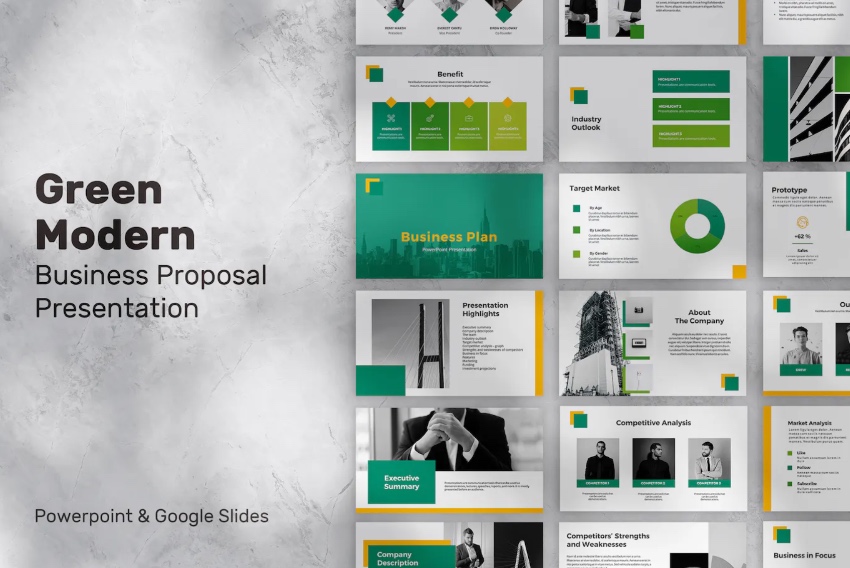
In today’s tutorial, we’ll use the popular Green Modern Presentation template from Envato Elements. Download it today to follow along.
Elements is an all-you-can-download service that offers great presentation templates. And it's the perfect supplement as we learn how to add speaker notes in PowerPoint.
Let’s learn how to add speaker notes in PowerPoint. Once you know how, you’ll be adding notes to PPT every time you present.
1. Open the PowerPoint Notes Panel
In PowerPoint, let's click on Notes on the bottom of the app to open the Notes Panel. These notes will show up only on your screen when presenting. Or you can have them on your slides when you print them.
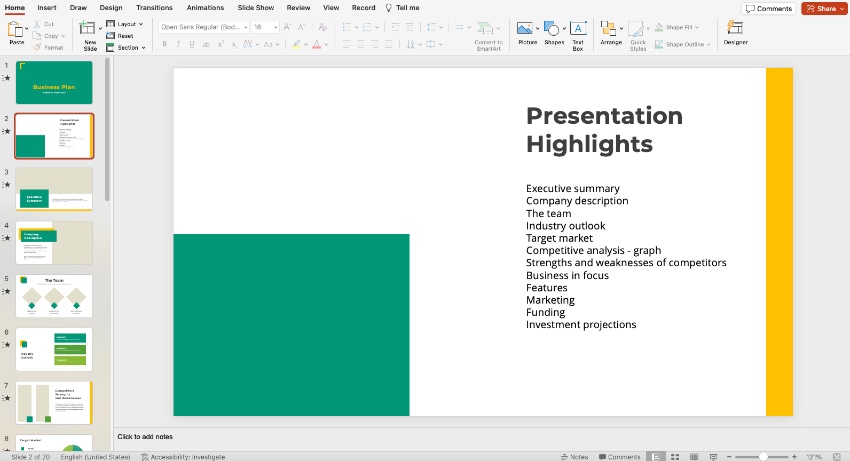
A PPT with speaker notes is the perfect way to ensure you never forget what to say. Think of speaker notes in PowerPoint as cue cards that remind you what to say.
2. Add Your Presenter Notes to Individual Slides
When you're adding notes to PPT, remember that they work on a slide-by-slide basis. In other words, every slide has its own set of speaker notes.
You can type notes down here as a reminder of what to say when you're presenting. The notes will be added to the slide when you're finished.
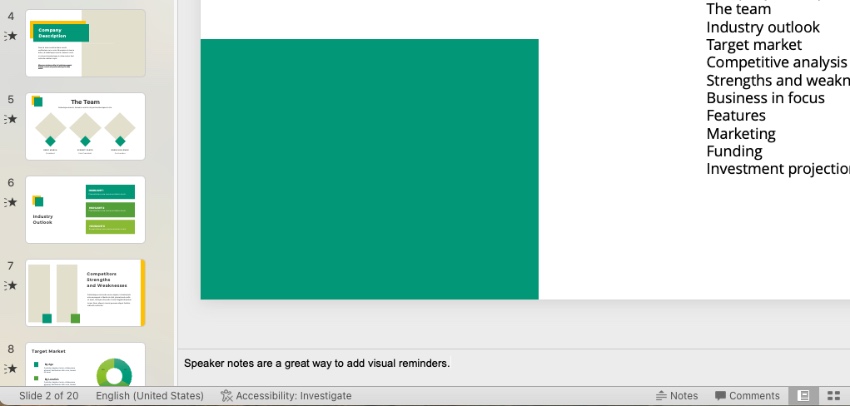
Add speaker notes when you need those important cues about what to say. I like to add my key talking points here to help me stay on message when speaking. That's how speaker notes in PowerPoint help you stay on track too.
3. Switch to Presenter View to Use Your Notes
A PPT with speaker notes really shines when you use Presenter View. To open Presenter View click on the Slide Show option in the ribbon. Then click on the Presenter View icon.
This works anytime you’re connected to a second display, like a monitor or projector. Because of this, learning how to add notes on PowerPoint gives you more confidence!
When you use Presenter View, you’ll see a different view from your audience. They’ll see only your slides in full screen. You’ll see your current and next slide. And, most importantly, your PowerPoint speaker notes will be on display.
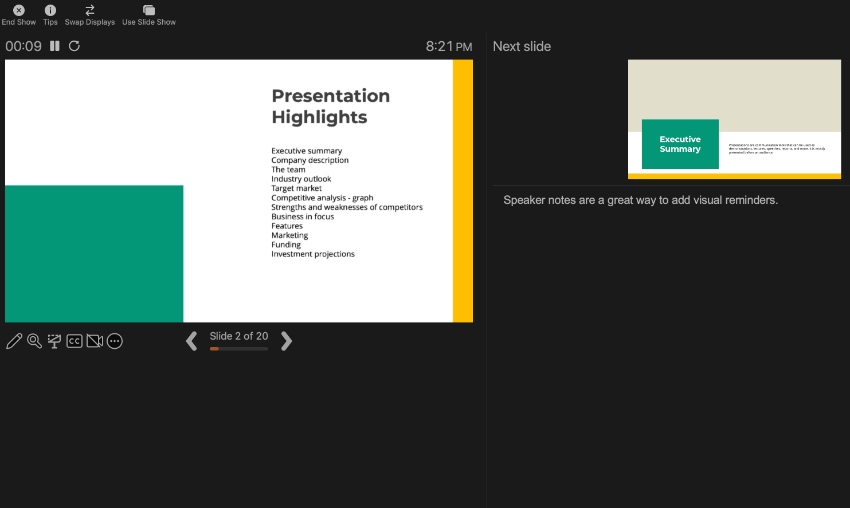
I love to use speaker notes in PowerPoint with Presenter View. It really keeps me focused, and I avoid forgetting key details in the moment as I share with my audience.
How to Use PPT With Speaker Notes
You can add speaker notes PowerPoint to all the slides in your presentation. That way, when you're giving your talk, you'll have handy notes to refer to if you get stuck. The audience won't see them. Instead, they're just available to help you stay on track during your presentation.
You can also print your slides and have those presenter notes at hand. That's great if you prefer to have a paper copy of your speaker notes PowerPoint to reference. Learn how in this quick video tutorial:

Learn More Great PowerPoint Tips and Tricks (For 2024)
Envato Tuts+ has a vast collection of helpful PowerPoint tutorials. With them, you can elevate your presentation skills in just moments!
 60 Effective PowerPoint Presentation Tips & Tricks (Giant List)
 How to Reduce Your PowerPoint (PPT) File Size Way Down (+ Video)
 How to Make a Very Good PowerPoint Presentation About Yourself 2025 (+ Video)
 How to Learn PowerPoint Quickly (Complete 2025 Beginner''s Guide + Video)
 What Is Speakers Notes View in Google Slides, PowerPoint, and Keynote?
More PowerPoint Templates (For Amazing Slide Designs in 2024)
You’ve learned how to add speaker notes in PowerPoint. But what slide designs will you choose? Envato Elements templates are your best bet. Here are several collections of the very best to help you choose:
 36 Best PowerPoint Template Designs (For 2025 Presentations)
 20 Marketing PowerPoint Templates: Best PPTs to Present Your Plans in 2025
 38 Awesome PowerPoint Templates (With Cool PPT Presentation Designs 2025)
 The Best PowerPoint Slide Templates of 2025 (Amazing Presentation Slide Designs)
The Top Source for the Very Best Speaker Notes PowerPoint Templates (For 2024)
Envato Elements is the top source for the best speaker notes PowerPoint presentation designs. The vast library has thousands of PPT templates to choose from, with more added every day.
You can add speaker notes in PowerPoint to any of them. It’s a surefire way to make a great impression when you present.
The Elements offer is powerful: unlimited downloads. For a flat monthly rate, you can download and use as many premium Microsoft PowerPoint templates as you want.
And that’s only the tip of the iceberg. Elements includes millions more digital assets. Among these are fonts, stock photos, music, and more. They’re the perfect companions to your next PPT presentation.
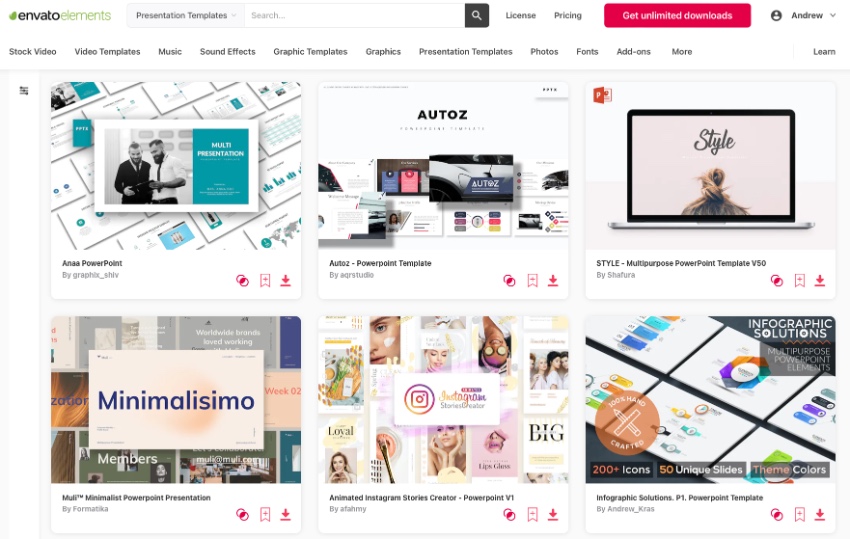
Choose a premium Elements slide deck and enjoy:
- Creative features and layouts
- Easy-to-use designs
- Drag-and-drop placeholders
- Sleek charts, infographics, and more
Envato Elements also has an AI-assisted search tool. So, you can find exactly what you're looking for quickly.
As you can see, Envato Elements is the best value for creatives in 2024. Join today and start exploring!
We have the perfect complement to this tutorial, which will walk you through the complete presentation process. Learn how to write your presentation, design it like a pro, and prepare it to present powerfully.
Start Using Speaker Notes in PowerPoint Today
In this tutorial, you learned how to add speaker notes in PowerPoint. Think of it as the ultimate way to ensure success when presenting. Gone are worries about forgetting key details or losing your place.
Speaker notes PowerPoint are a breeze to add, and you can place them on every slide in your deck. When combined with Presenter View, they’re your helpful companion as you share slides with your audience.
So, what are you waiting for? Choose a stunning PowerPoint presentation template today. Then, build out your slides and add speaker notes. Knowing how to insert notes in PowerPoint is the best way to stay on track and master your presentation content. Try it now.
Editor's Note: This tutorial has been completely reviewed and revised by Andrew Childress to make sure that it's accurate and relevant.
 By
By



