
- How to Combine Multiple PowerPoints Into One (Quickstart Video)
- How to Combine PPT Presentation Files
- The Best Source for Versatile PowerPoint Templates (With Unlimited Downloads)
- Learn More About Microsoft PowerPoint
- More Top Templates For Microsoft PowerPoint
- Make Great Presentations (Free PDF eBook Download)
- Now You Know How to Combine PowerPoints Like a Pro


Ever find yourself working with many slide decks at once? Chances are, you may want to use content from one slide deck in another presentation.
But, you don't want to recreate your work. That's why it helps to learn how to combine multiple PowerPoints into one.
Believe it or not, there are a variety of ways of combining PPT files. Some help you keep your slide styles separate. Other methods of how to combine PowerPoint's merge styles. You learn all these combining PPT techniques in this tutorial!
How to Combine Multiple PowerPoints Into One (Quickstart Video)
If you want to learn how to merge PowerPoints with a screencast, we've got you covered. The video below covers how to combine PPT files in a variety of ways. You'll learn that combining PPT files saves you time and avoids re-work.
If you'd prefer to learn how to combine multiple PowerPoints into one with a written guide, read on. You'll see how to combine PPT files with other methods below.
How to Combine PPT Presentation Files
Microsoft PowerPoint offers several ways to merge slides from several decks into one. This saves time and effort, giving you the ability to be creative without getting lost in the details. It lets you share content from across your presentation library.
When you know how to combine PowerPoints, you can use slides you already have to make new presentations. It’s a powerful way to pull in content from many sources to build a winning slide deck in 2023.

Let’s dive in and learn how to merge PowerPoints quickly. To show you, we’ll use the premium Aura PowerPoint Template from Envato Elements. It’s a sleek modern template with dozens of slides inside. With two presentations built using the template, we’ll explore many ways to combine them into one.
Here’s how to combine multiple PowerPoints into one, using several of my favorite techniques.
Method 1: Copy and Paste Slides
One of the simplest ways of combining PPT slide decks is to paste slides from one presentation to the other. Let's learn how to combine PowerPoints with copy and paste.
To get started, open both presentations in PowerPoint. If you can, this is a great time to use two displays to streamline the process of merging PowerPoints.
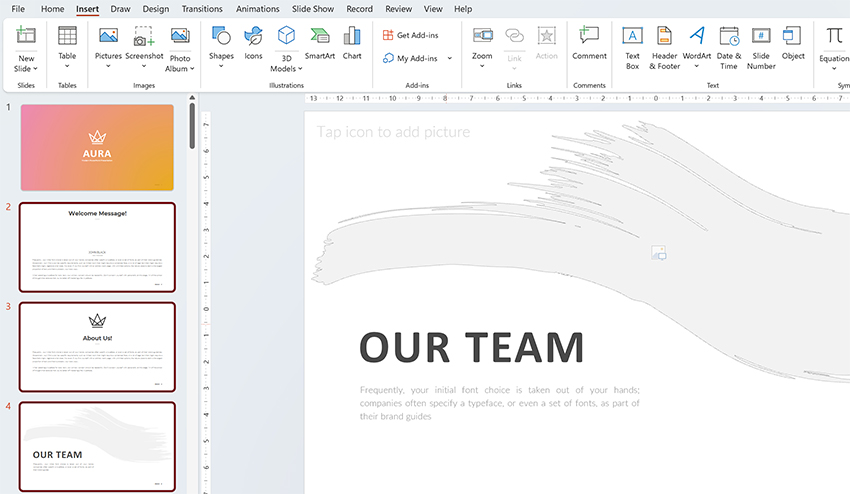
Navigate to the PowerPoint deck that you want to paste slides from. Notice the slide preview sidebar on the left side. In it, you’ll see thumbnails of each slide in the deck. To copy and paste slides, begin by clicking on the first slide that you want to work with.
Now, you've got three options as you learn how to combine PowerPoints:?
- To copy only a single slide, right-click and choose Copy.
- To copy several slides in a row, click on the first slide thumbnail. Then, hold down Shift on your keyboard, and select the last slide that you want to copy. All slides in the range are selected. Right-click and choose Copy.
- If you've got several slides to copy that aren't in a row, click on the first thumbnail. Then, select later slides by holding down Control on your keyboard, and clicking other thumbnails. Again, right-click and choose Copy when you’re done.
With a slide or slides selected, open the destination PPT deck. Return to the sidebar with the slide previews. Scroll until you find the location where you want to paste your selected slides. For example, here we’d like to place them between slides 3 and 4 in the deck.
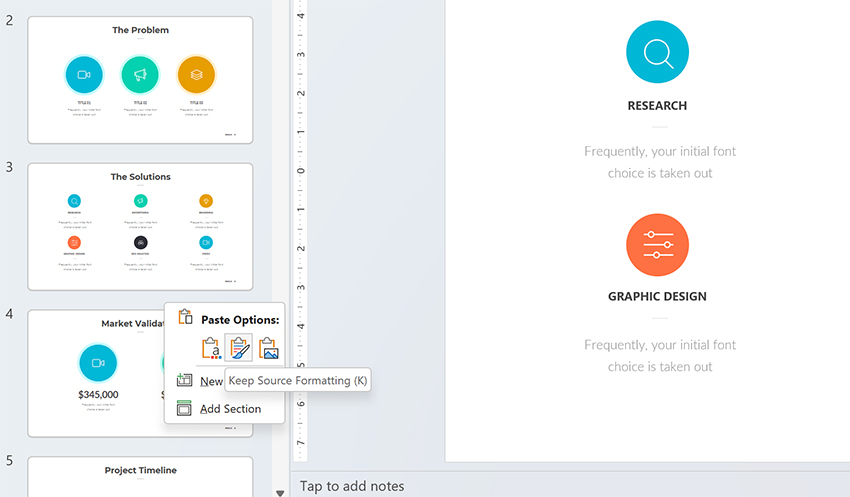
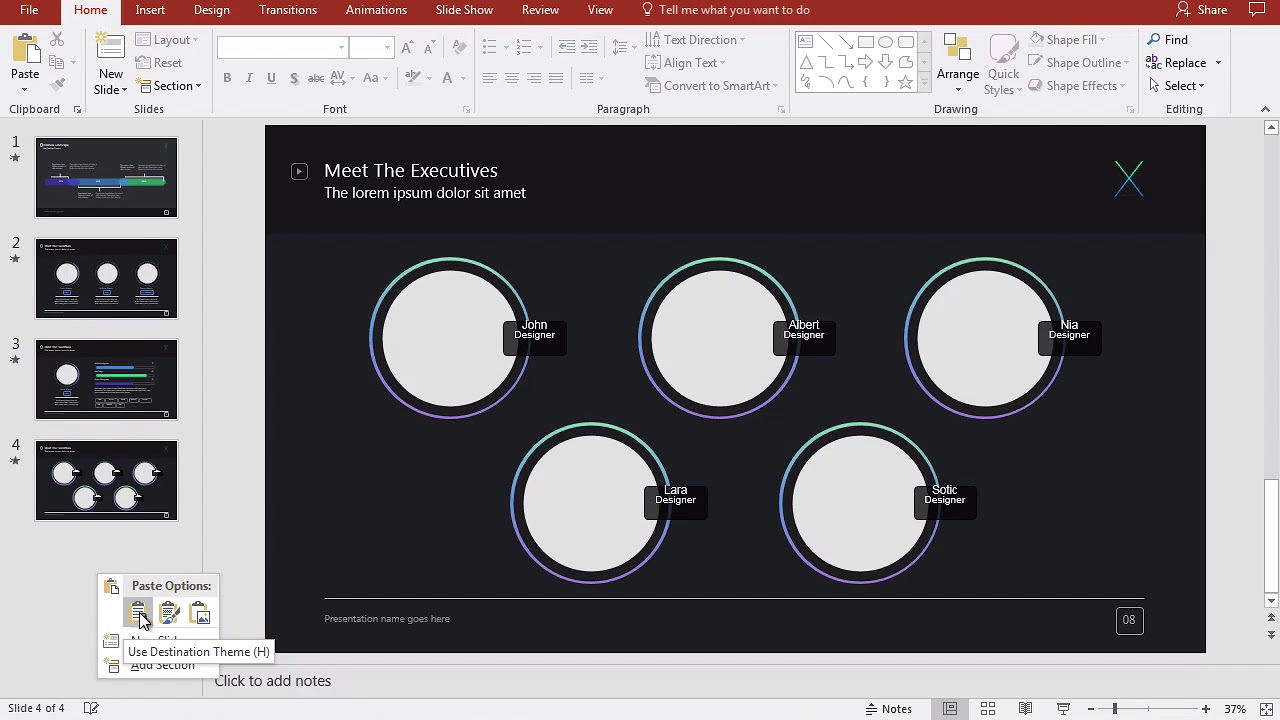
Click into the open space between the thumbnails for slide 3 and 4. You’ll see an orange line appear, indicating your selection. Right-click here, and you should choose from the first two key combining PPT options in the Paste Options group:
- Use Destination Theme. This converts the slides you're pasting to match the theme of your destination presentation. It’s a good way to ensure slides are stylistically the same, with an identical theme and appearance.
- Keep Source Formatting. This pastes slides into the deck, but keeps their appearance the way it was in the prior presentation.
Both of these are great choices. I like to choose Use Destination Theme, because it makes my slide deck look the same throughout.
Scroll through the pasted slides to be sure their layouts converted correctly. You may need to spend a few minutes rearranging some slides to ensure content is in the right place.
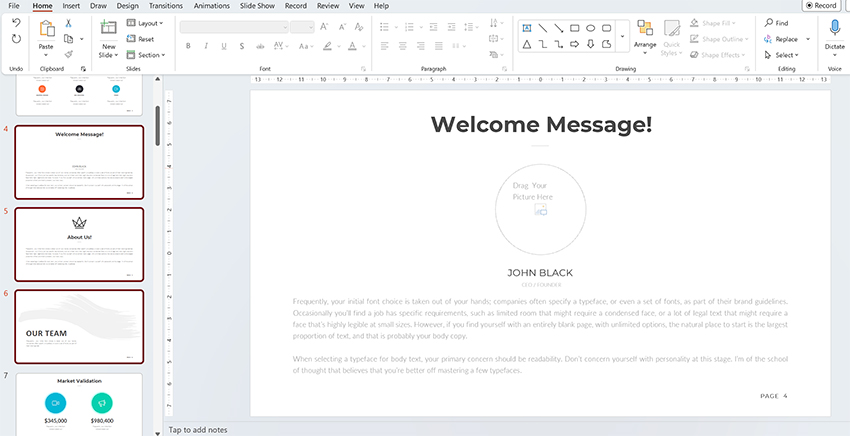
Copying and pasting slides offers several key advantages. It’s often your best bet. It’s remarkably easy to pick and choose exactly what slides you want to copy and paste into a new slide deck. Learning how to merge PPT presentation includes these style merge options.
Now, let’s move on and explore other ways of combining PPT decks.
Method 2: Use the Reuse Slides Menu
The Reuse Slides menu in PowerPoint is how to merge PPT presentation decks quickly, without having to open another file. To get started, be sure that you’re working in the presentation where you want to add slides.
Then, repeat the earlier step of choosing a position for new slides in the sidebar. For example, click between slides 8 and 9 to add slides to that spot.
Now, navigate to the Home tab on PowerPoint’s ribbon. You’ll find it at the top of your screen, between File and Insert. Click on the Home tab, and then choose the New Slide dropdown arrow.
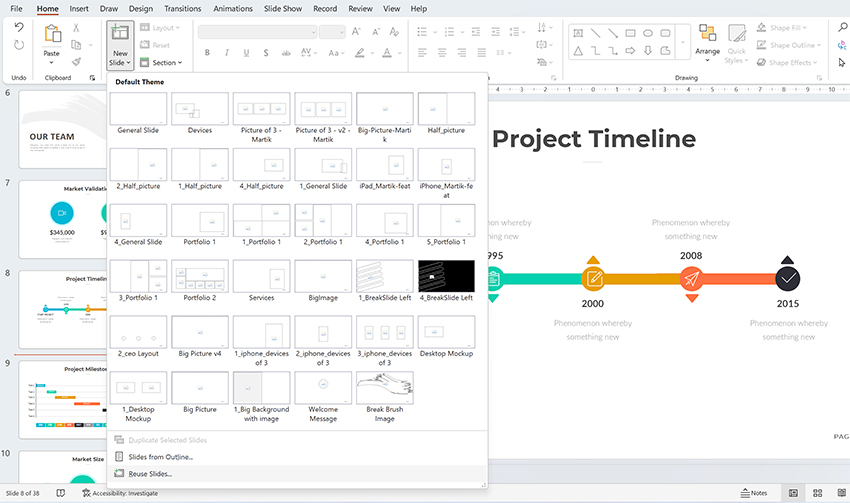
With the dropdown open, you’ll see a list of options. The one you want here is Reuse Slides. Go ahead and click on it.
PowerPoint opens the Reuse Slides sidebar menu on the right side of your screen. Click on Browse, then navigate to a stored PPT file on your computer. Click on it, then choose Open.
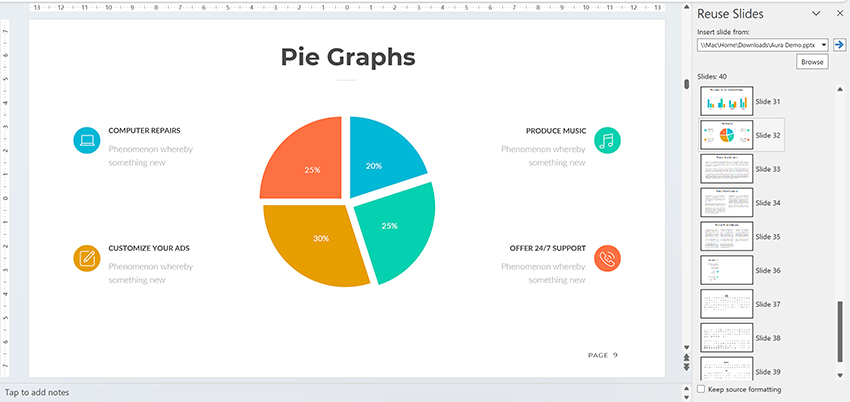
When you click Open, you’ll see thumbnail previews of each slide in the other deck. To add them into your combined PPT, simply click on their thumbnails. Watch as the slide or slides you choose appear in the deck.
By default, their formatting will be merged to match your new design. To change this, check the Keep Source Formatting box at the bottom of the sidebar menu.
This is how to combine PowerPoints using the Reuse Slides feature. It’s a top choice for 2023 and beyond, but let’s keep moving to explore even more great ways to merge PowerPoint decks.
Method 3: Compare and Combine PowerPoint Presentations
A third way of merging PowerPoint decks is the Compare and Combine feature in PowerPoint. This is a powerful tool that allows you to merge two presentations into one slide deck.
It stands out because it also highlights the differences between the original presentations. This is very useful when working with presentations created by multiple authors.
To use Compare and Combine, open the presentation that you want to merge slides into. Then, find the Review tab on PowerPoint’s ribbon and open it up. In the Compare group, find and click on the Compare button.
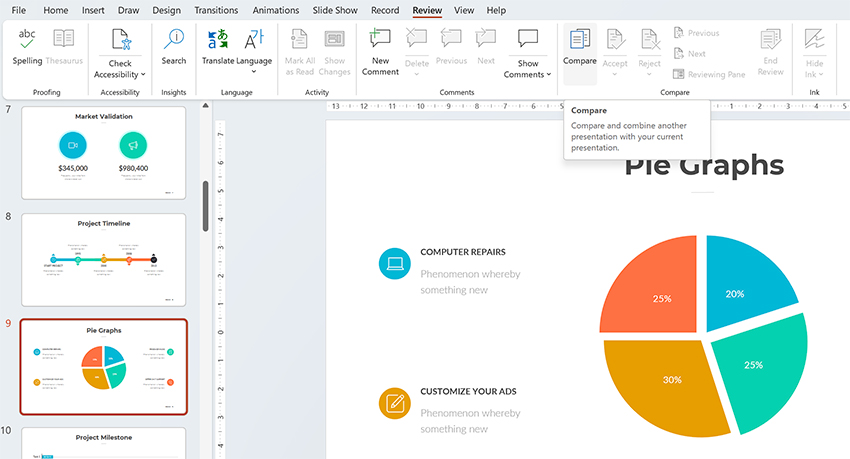
When you click Compare, the Choose File to Merge with Current Presentation browser opens. Find the PPT deck that you want to merge into your current presentation, click on it, and then choose Open.
PowerPoint merges the two presentations. You’ll see a new sidebar launch on the right, labeled Revisions.
This shows you any changes made by PowerPoint when the presentations were merged. These are grouped into the Slide Changes and Presentation Changes groups.
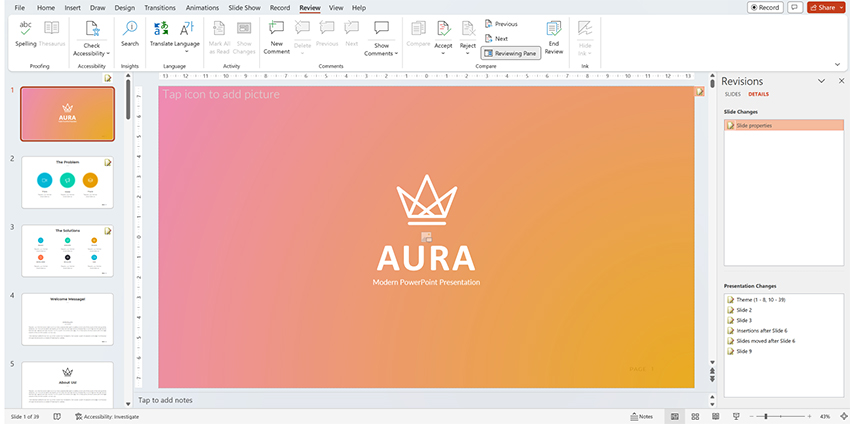
You can work through these, clicking Accept on the ribbon to approve changes made. You can also reject changes. When you’re finished, choose End Review. Just like that, you’ve merged two PowerPoint slide decks into one - fast.
The Best Source for Versatile PowerPoint Templates (With Unlimited Downloads)
Envato Elements is your best source for the very best premium PowerPoint templates. For a flat monthly fee, you can access and download as many PowerPoint templates as you want. Plus, Elements includes fonts, music, stock photos, and so much more. All these can combine to work in your next project.
Elements is the ultimate value for creatives in 2023. Unlimited downloads fuel unlimited possibilities. With the flexibility to try as many templates as you want, you’re sure to arrive at the perfect option for every project.
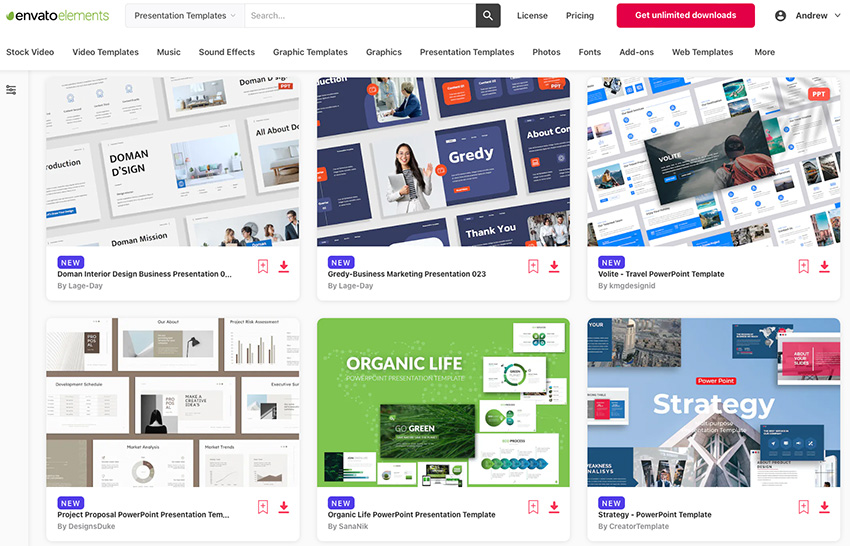
You may find free PowerPoint templates online. But these simply can't match the features and styling that you’ll enjoy with Envato Elements templates.
When you choose Envato Elements, you’ll enjoy:
- Designs built by experts. Choose your favorite premium layouts, and merge them together effortlessly, using PPT’s built-in features.
- Stylish layouts. Slide designs are studio-quality and easy to adapt to your own topics.
- Stunning charts and graphs. Lavish illustrations and data visuals help you bring ideas to life.
- Ease of use. Premium templates are incredibly easy to work with. Simply drop in your own content!
As you can see, Envato Elements is the best choice for creatives today. What are you waiting for? Join today and start downloading from the vast library of premium creative assets!
Learn More About Microsoft PowerPoint
Now that you know how to combine PowerPoints, you might be hungry for more knowledge. PowerPoint is a powerful app. That means you need resources that show you how to use it.
We've built a guide to help you do just that. Our resources will help you build on your new combining PPT skills. Check out a few favorite tutorials below from How to Use PowerPoint (Ultimate Tutorial Guide.)
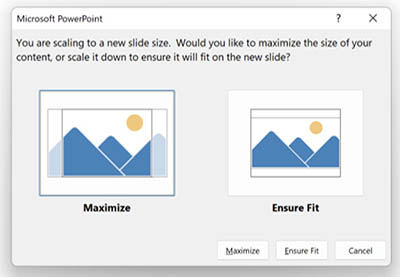 What Are the Right Dimensions (Size) for Your PowerPoint PPT Slides? (+ Video)
 How to Work With Images in PowerPoint (Complete PPT Picture Guide)
 How to Add Text to PowerPoint & Make Amazing Text Effects (+Video)
More Top Templates For Microsoft PowerPoint
In this tutorial, we featured a PowerPoint template. It illustrates that great designs save you time and give you great results. And best of all, now you know how to merge PowerPoints. That means you can use the best elements from more than one template.
We feature top PowerPoint templates on Envato Elements. Check out some of our favorites in articles below. You can use the best of all these templates now that you've learned how to combine PPT files!
 27 Best Mind Map PowerPoint PPT Templates for Creative Teams
.jpg)
 36 Best PowerPoint Template Designs (For 2025 Presentations)
 35+ Top PPT Designs (PowerPoint Premium + Free Templates 2025)
Now You Know How to Combine PowerPoints Like a Pro
Learning how to combine multiple PowerPoints into one is a time saver. Combining PPT files gives you a new presentation without building it from the bottom up. You learned how to merge PowerPoints in a variety of ways in this tutorial, and each method has its place.
Here's my challenge to you: practice how to combine multiple PowerPoints into one. Take two presentations you've developed about similar topics. Then, merge together the best of both files. You're sure to create your most informative presentation yet.
 By
By



