
 Lessons: 17Length: 39 minutes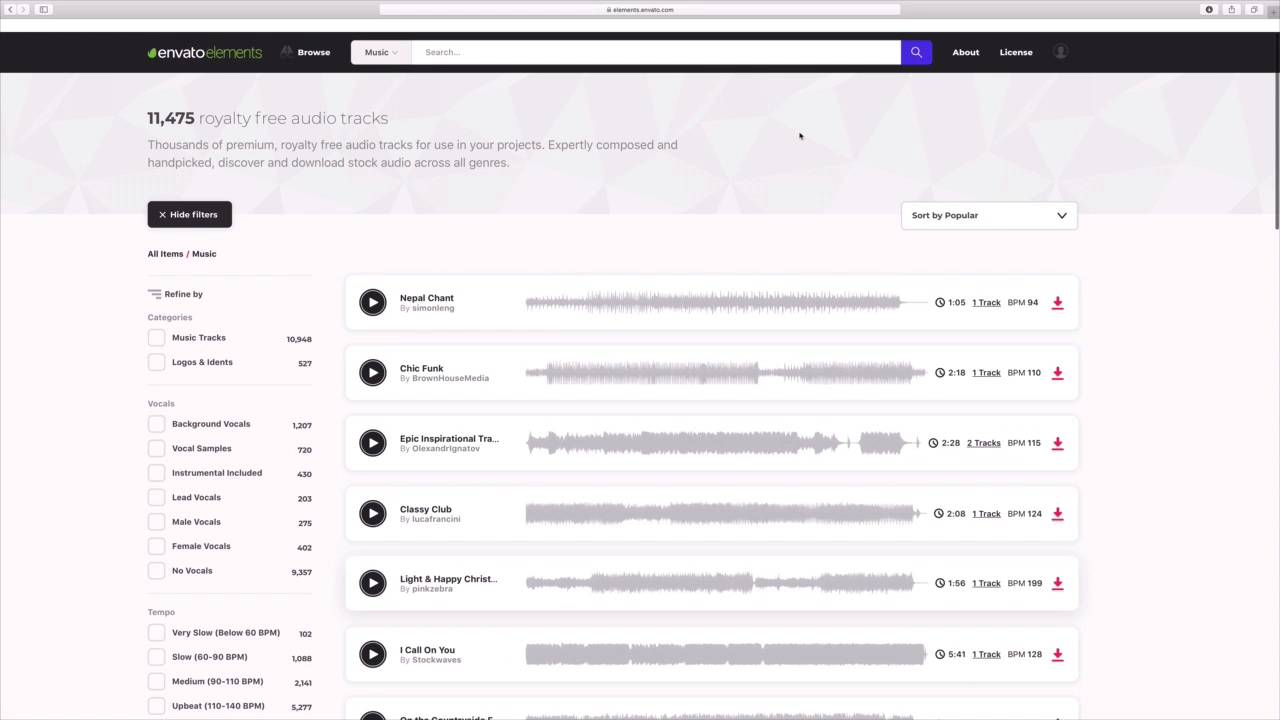
- Overview
- Transcript
3.1 How to Add Music to Apple Keynote
Whether you use it as background audio or for sound effects, adding audio is a key function of building a presentation. Learn to do just that in this lesson.
1.Introduction
1.1Introduction00:58
2.Working With Templates
2.1How to Choose a Keynote Template03:02
2.2How to Edit a Keynote Slide Layout02:54
2.3How to Edit Keynote Slide Masters02:37
3.Working With Multimedia and Animations
3.1How to Add Music to Apple Keynote02:53
3.2How to Add Images in Apple Keynote03:14
3.3How to Use Apple Keynote Magic Move01:41
3.4How to Make a Video With Apple Keynote01:58
3.5How to Add a Background Image in Apple Keynote03:18
3.6How to Use Keynote Animations02:26
4.Building Charts, Infographics, and Custom Visuals
4.1How to Edit a Keynote Chart02:23
4.2How to Edit Keynote Infographics01:55
4.3How to Create Device Mockups in Apple Keynote02:22
4.4How to Add and Use Custom Fonts in Apple Keynote02:38
5.Presenting With Confidence in Keynote
5.1How to Add and Use Presenter Notes in Apple Keynote02:14
5.2How to Broadcast Your Presentation With Keynote Live01:55
6.Conclusion
6.1Wrapping Up00:39
3.1 How to Add Music to Apple Keynote
When you think of giving a keynote presentation you probably picture yourself standing in front of slides and talking. Well that's a big part of it sometimes it can be really useful to add music to your slides. This can be for background music as you speak or as the only sound if you're sharing your presentation without narration. Whatever the purpose adding music to Apple keynote presentations is easy and a perfect way to make them memorable. I'm working in a keynote presentation here, as you can see, it's a marketing presentation for a property I'm trying to sell. My idea is supposed this keynote presentation online for potential buyers to view. I won't be standing in front of them and speaking, so I think some music would keep them engaged and interested in my pitch. Keynote will allow me to easily add music to play in the background, let me show you how. Before we get started, remember to always be careful when adding music to your slides, this is really for two reasons. First, it can be distracting if it's too loud and drowns out the slide content, but also you should avoid just adding music to slides because of copyright concerns. While your favorite song might go great with your slides, you probably aren't licensed to use it. That's where Envato elements comes in. Elements has recently added a library of music and audio that you can use in all of your projects. Let's jump over to elements here and browse in the music section. As you can see Elements already has thousands of royalty free music tracks to choose from, as I scroll you can easily recognize the diversity of sounds available. Remember my point earlier about choosing music that isn't overpowering. Soft piano music always matches that description, so I'll go ahead and type that up here in the search box and press Enter, elements were returned with some matching results. It pays to try the malt first and to do that all just click on the play button beside the file I want to try out. Elements will play a preview and if I like it, I'll go ahead and download it. To do that simply click on this download arrow on the far right side. Elements will ask for a licensed used essentially asking how you intend to use the music. Enter one in, then click Add and Download. Remember, even if you stop subscribing the elements, you will keep your licenses for all projects you have downloaded in the past. The file will download and now let's go ahead and extract it to make it usable. Okay, I will jump over to my key note presentation and now it's time to add the audio. I will start on the slide and then come up here and start tab, then on the drop down, I'll click on Choose. Next I'll browse to where the downloaded song is stored on my computer, click to select it and then choose Insert. Keynote will drop this audio onto the slide. I'll click on the sound icon on the slide and you'll see this audio sidebar open up over on the right. Here, I can make edits to the audio, there's a volume slider and these repeat options here at the bottom, specify if I want the file to play once, or over and over again. There are also options to trim audio, this is great if the song is lengthy and you only want to play a portion. To trim the audio, simply click on these handles and drag to select only the time window you want to play as you're seeing me do here. Finally, I can choose whether to start the music automatically or upon clicking by checking this box here at the bottom, that's it. You can see how easy it is to add great background music to your keynote presentation. Thanks for watching.


