
 Lessons: 17Length: 39 minutes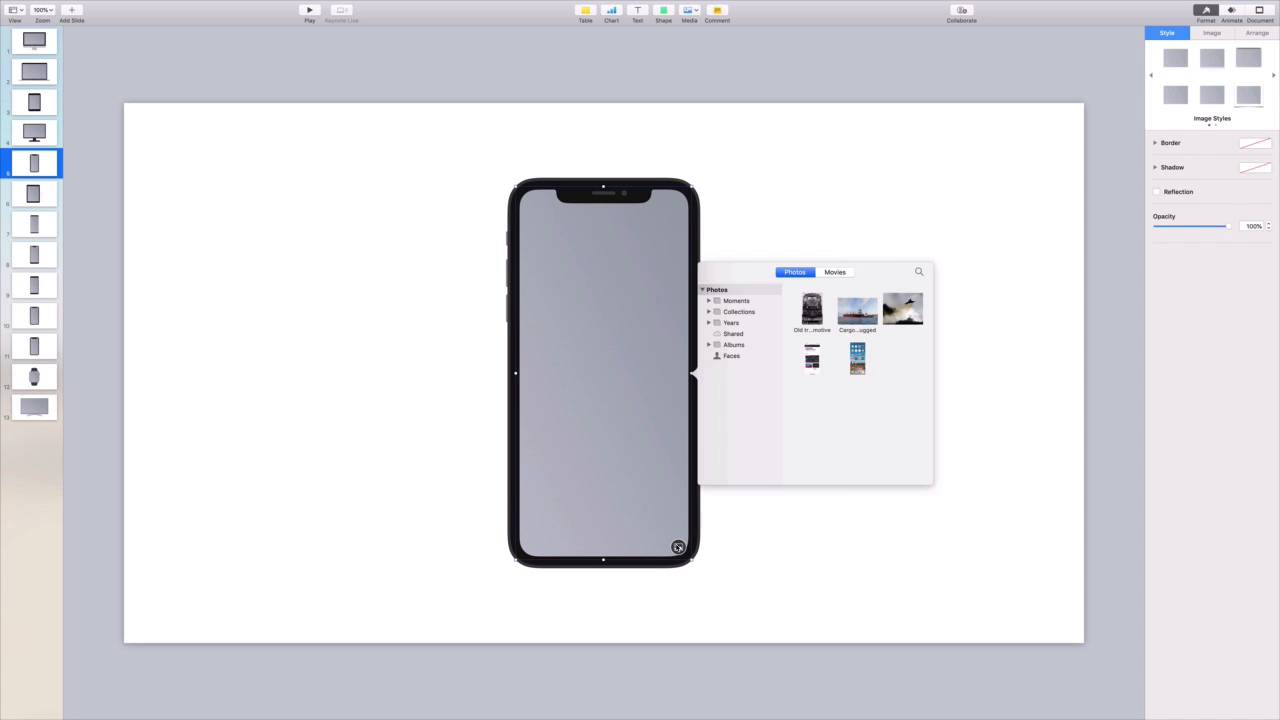
- Overview
- Transcript
4.3 How to Create Device Mockups in Apple Keynote
When you're promoting an app or service, you might want to include a screenshot. It helps to see those screenshots in real-life style, picturing them on devices like smartphones and tablets. Learn to mock them up in no time in this lesson.
1.Introduction
1.1Introduction00:58
2.Working With Templates
2.1How to Choose a Keynote Template03:02
2.2How to Edit a Keynote Slide Layout02:54
2.3How to Edit Keynote Slide Masters02:37
3.Working With Multimedia and Animations
3.1How to Add Music to Apple Keynote02:53
3.2How to Add Images in Apple Keynote03:14
3.3How to Use Apple Keynote Magic Move01:41
3.4How to Make a Video With Apple Keynote01:58
3.5How to Add a Background Image in Apple Keynote03:18
3.6How to Use Keynote Animations02:26
4.Building Charts, Infographics, and Custom Visuals
4.1How to Edit a Keynote Chart02:23
4.2How to Edit Keynote Infographics01:55
4.3How to Create Device Mockups in Apple Keynote02:22
4.4How to Add and Use Custom Fonts in Apple Keynote02:38
5.Presenting With Confidence in Keynote
5.1How to Add and Use Presenter Notes in Apple Keynote02:14
5.2How to Broadcast Your Presentation With Keynote Live01:55
6.Conclusion
6.1Wrapping Up00:39
4.3 How to Create Device Mockups in Apple Keynote
Keynote presentations are the perfect way to promote your website or app. Dropping in a full slide screenshot is one way, but it's better to show exactly how your design looks on a real device. That's where device mockups come in device mockups or visual representations of tablets, computers, smartphones, and more. You can simulate a screen image and how it looks on a real device. To find professional mock up templates. Let's turn to Envato elements. Elements offers professional device mock up templates for keynote and you have unlimited access to them with a monthly membership. I'm using one called 13 Mockups for Keynote. I have it open here. And as you can see most major types of device are represented. I like this template because it's easy to use with your favorite keynote templates. All you have to do is paste the mockup onto a slide. Let's say I want to showcase a website on a smartphone. The first thing I'll want to do is take a screenshot of the site on my phone. Then I'll copy it to my computer. I've already done that in the background. So now it's time to get to work building the mockup. Let's scroll through our options here until we find one that looks right for us. This smartphone mockup looks great, so I'll choose it. Now, down here in the lower right corner of the virtual screen. I'll click on this photo icon. Keynote will launch an Apple photos browser screen where I can find the screenshot. I've already imported it. So it's right here ready for import. I'll click to select it and keynote will add it to the mock up. That's it. In just a few clicks, I've created a spectacular visual representation of a website on a smartphone screen. Now, all that's left to do is to add this to an existing presentation. I'll go ahead and open up a second keynote window with my new presentation inside. This slide here describes the features of the website. I'd like to place a device mockup here in this open space on the left. To do that, I'll jump back over to the mockup slide. Transferring it over is as easy as copy and paste. Here, though, I need to be careful. Remember that the screenshot and the phone outline are actually two separate objects. I need to select both to ensure that everything transfers over. I'll start by clicking down here on the phone itself. This selects the mock up but not the screenshot. To fix that, I'll hold down command on my keyboard and then click on the screenshot itself. Boom both objects are now selected. To copy I'll press Cmd C on my keyboard then jump to my other slide. To paste it, I'll simply press Cmd V and the full mock up will drop onto the slide. With both objects still selected, I can click and drag to move the phone around my slide to fit it in perfectly. Now when I get my presentation, the audience will be treated to a beautiful look at the website, just as it would appear in their hand. Thanks for watching.


