
 Lessons: 17Length: 39 minutes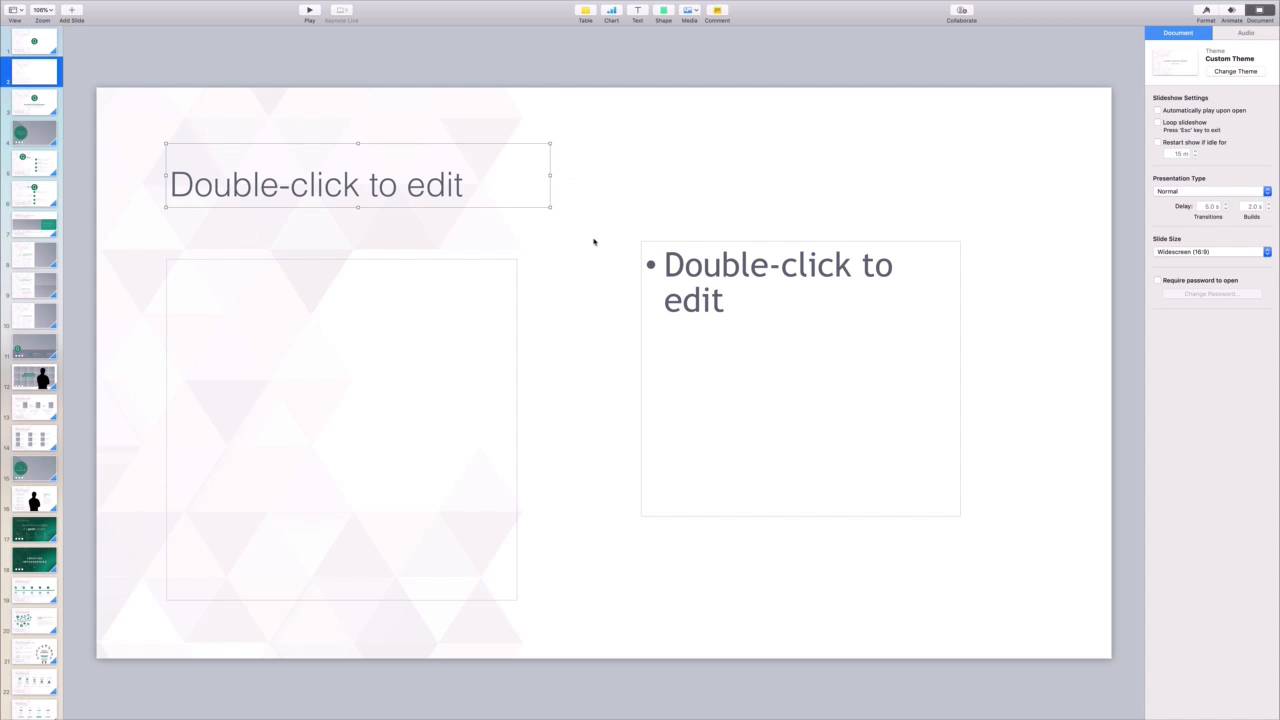
- Overview
- Transcript
2.2 How to Edit a Keynote Slide Layout
Slide layouts are the pre-arranged elements that build up a slide. Working with layouts is easy, and it gives you a head start on building slides from scratch. Learn to work with layouts to lay the foundation for your design.
1.Introduction
1.1Introduction00:58
2.Working With Templates
2.1How to Choose a Keynote Template03:02
2.2How to Edit a Keynote Slide Layout02:54
2.3How to Edit Keynote Slide Masters02:37
3.Working With Multimedia and Animations
3.1How to Add Music to Apple Keynote02:53
3.2How to Add Images in Apple Keynote03:14
3.3How to Use Apple Keynote Magic Move01:41
3.4How to Make a Video With Apple Keynote01:58
3.5How to Add a Background Image in Apple Keynote03:18
3.6How to Use Keynote Animations02:26
4.Building Charts, Infographics, and Custom Visuals
4.1How to Edit a Keynote Chart02:23
4.2How to Edit Keynote Infographics01:55
4.3How to Create Device Mockups in Apple Keynote02:22
4.4How to Add and Use Custom Fonts in Apple Keynote02:38
5.Presenting With Confidence in Keynote
5.1How to Add and Use Presenter Notes in Apple Keynote02:14
5.2How to Broadcast Your Presentation With Keynote Live01:55
6.Conclusion
6.1Wrapping Up00:39
2.2 How to Edit a Keynote Slide Layout
Slide layouts are the quickest way to change the look and feel of your Keynote presentation. Layouts are really just arrangements of placeholders that you can drop your content into. This can include text, photos, videos, charts, and more. As you build each slide in your presentation, think about the best ways to visually showcase the points you're making. Sometimes, a simple collection of bullet points will suffice. Other times, you really need a chart or photo to help clarify things. Keep this in mind as you choose a layout, and let's learn how. I'm working in the Quantum- Multipurpose Keynote Presentation, which is available from Envato Elements. In a pre-built professional template like this, there are really two ways to change slide layouts. The first is to use the layout designs already built into Keynote. I'm viewing this slide here and I want to add a brand new slide right after it. To do this, I'll come up here to the upper left corner of the menu bar and click Add Slide. This drop-down will appear, and as you can see, it shows off an assortment of pre-built layout ideas. Suppose I want to feature an exciting new photo with a quote beside it. A good option for this is content with caption, so I'll go ahead and click on that thumbnail. Keynote will instantly create a new slide using that layout. Now, even the pre-built layout can be changed. For example, I can make the image placeholder larger by clicking and dragging on the corner of the blue placeholder box. And I'll move the text boxes by clicking and dragging to rearrange them on the slide. These options are great for standard edits and changes, but with Elements Keynote templates, they aren't the only options. Each and every Keynote template from Elements includes truly unique slide layouts, pre-built and ready for use. For example, the quantum template we're using now includes 40 custom layouts. To view these, we can simply scroll down in the sidebar on the left to preview each design. For greater detail, simply click on a thumbnail and Keynote will open this slide for editing. I'll click through a few of these. And as you can see, this Elements template includes design options that simply aren't available with Keynote's built-in layouts. This template has a sleek agenda layout, a meet the team slide, and even a collection of charts and infographics. And every other Elements Keynote template you try out will include this same type of flexibility and variety. Templates with specific themes will include slide layouts built around that theme. This is why it's so important to outline and plan your presentation in advance. Once you do this, choosing themes and layouts that match is really a breeze. One other easy tip will make your presentation building process easier. Suppose you're using a custom layout and want to create another slide exactly like it. Rather than selecting or even building the layout again, you can simply copy and paste the slide. Let me show you how. On my sidebar here on the left side, I'll click to select the slide I want to copy. Then on my keyboard, I'll press Cmd+C to copy it. To paste, I'll click on this slide immediately above where I want it in sequence. For example, if I want to paste this in a slide seven, I'll click on slide six, then I'll hit Cmd+V to paste it. Keynote will paste in the slide with an identical layout, and I can start editing it. That's it. As you can see, custom Keynote templates from Elements offer a ton of amazing useful layout options that you can use in any presentation. Thanks for watching.


