
 Lessons: 17Length: 39 minutes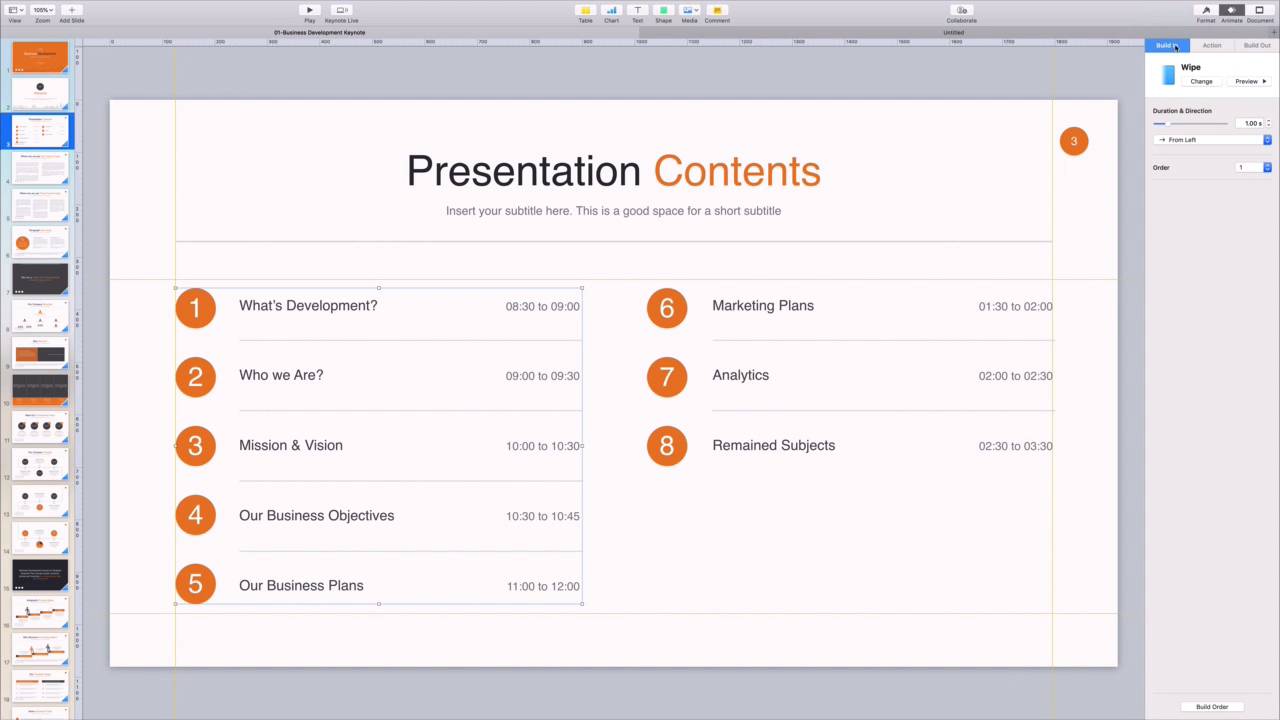
- Overview
- Transcript
3.6 How to Use Keynote Animations
Adding a bit of animation to your slides can capture and hold your audience's attention. Learn how to add animation to create motion in key objects in this lesson.
1.Introduction
1.1Introduction00:58
2.Working With Templates
2.1How to Choose a Keynote Template03:02
2.2How to Edit a Keynote Slide Layout02:54
2.3How to Edit Keynote Slide Masters02:37
3.Working With Multimedia and Animations
3.1How to Add Music to Apple Keynote02:53
3.2How to Add Images in Apple Keynote03:14
3.3How to Use Apple Keynote Magic Move01:41
3.4How to Make a Video With Apple Keynote01:58
3.5How to Add a Background Image in Apple Keynote03:18
3.6How to Use Keynote Animations02:26
4.Building Charts, Infographics, and Custom Visuals
4.1How to Edit a Keynote Chart02:23
4.2How to Edit Keynote Infographics01:55
4.3How to Create Device Mockups in Apple Keynote02:22
4.4How to Add and Use Custom Fonts in Apple Keynote02:38
5.Presenting With Confidence in Keynote
5.1How to Add and Use Presenter Notes in Apple Keynote02:14
5.2How to Broadcast Your Presentation With Keynote Live01:55
6.Conclusion
6.1Wrapping Up00:39
3.6 How to Use Keynote Animations
Animations in Keynote are a perfect way to make your slides more interesting. Rather than simply flashing content onscreen all at once, animations allow you to introduce things gradually. As I play through a simple presentation here, you can see that it's somewhat uninteresting. Part of this is because of the lack of animations. Viewers won't be sure where to focus first without knowing the proper order of the content in keynote, there are really two ways to add animations. The best option is to let the professionals and invado elements do the work, by using a pre built animated keynote template. I'm working in the business development theme now. Now, watch as I preview it. With animations already included, content flies on and off the screen in smooth motions. It's visually attractive, engaging, and ensures a good flow for the presentation. I can leave the default animations as they are, or I can fully customize them. Let's look at how I'm back on one of the slides here, and I want to mix up the animations. The first thing to do is select the slide object you want to animate. This number list is actually set up as two separate columns, and I want to edit each one. I'll start off by clicking on the left text column to select it. As you can see here, animations are controlled up in the animate tab, which sits in the upper right corner of keynotes menu. I'll go ahead and click on it, and you'll see three new tabs. Build in action and build out. Typically intro animations are built in. So I'll go ahead and click on this option. As you can see, wipe is already applied to the left text box. I want to add something with a bit more energy. So let's click Change here to explore some options. Keynote displays an entire list of different animations sorted by category. I know from experience, that the flip effect puts a new spin on animation, so I'll try that out by clicking the selected. Keynote will display a quick preview and apply the effect to the text. I can also refine the animation even more by pressing the duration and direction menu below. I'll slow down the animation a bit to 1.5 seconds, just by clicking on these arrows, as you can see here. I'll also changed the direction of the flip, by clicking on the drop down. Let's try right to left. I can also change the order animations appear and here at the bottom. When I'm finished, I'll click preview here, and Keynote will demonstrate all the changes I just made, to apply the same animation, so the other text column, I'll click down here to select it and then just repeat the same steps. I'll choose clip, match the duration and direction > press preview again. That's all it takes. As you can see, elements templates already included fancy animations, but you're free to customize each one to fit your own needs. It's hard to think of a better way to make a presentation more attractive. Thanks for watching.


