
 Lessons: 17Length: 39 minutes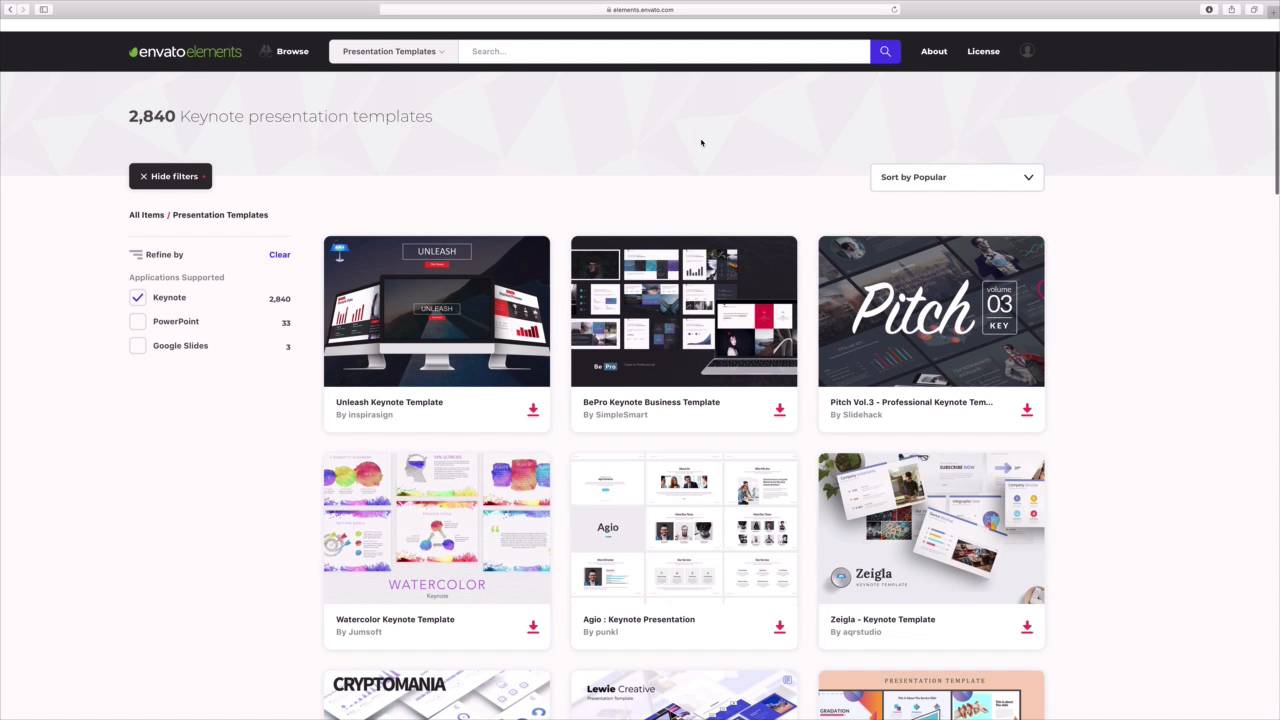
- Overview
- Transcript
2.1 How to Choose a Keynote Template
Using a pre-built Keynote template is the key to saving you hours of design and illustration work. This lesson will show you the best place to source Keynote templates and how you can use them to your advantage.
1.Introduction
1.1Introduction00:58
2.Working With Templates
2.1How to Choose a Keynote Template03:02
2.2How to Edit a Keynote Slide Layout02:54
2.3How to Edit Keynote Slide Masters02:37
3.Working With Multimedia and Animations
3.1How to Add Music to Apple Keynote02:53
3.2How to Add Images in Apple Keynote03:14
3.3How to Use Apple Keynote Magic Move01:41
3.4How to Make a Video With Apple Keynote01:58
3.5How to Add a Background Image in Apple Keynote03:18
3.6How to Use Keynote Animations02:26
4.Building Charts, Infographics, and Custom Visuals
4.1How to Edit a Keynote Chart02:23
4.2How to Edit Keynote Infographics01:55
4.3How to Create Device Mockups in Apple Keynote02:22
4.4How to Add and Use Custom Fonts in Apple Keynote02:38
5.Presenting With Confidence in Keynote
5.1How to Add and Use Presenter Notes in Apple Keynote02:14
5.2How to Broadcast Your Presentation With Keynote Live01:55
6.Conclusion
6.1Wrapping Up00:39
2.1 How to Choose a Keynote Template
Just like any other project, when you're building a Keynote presentation, preparation is key. That's why it's so important to choose the right template. The goal is to find a pre-built slide deck with layouts and designs that are built to support your message, then all you have to do is drop in your own content and get ready to deliver a great presentation. Most of us are too busy to build slides from scratch and it isn't always easy. Fortunately, using custom Keynote templates, you don't have to do all the hard work. Keynote includes a collection of pre-built custom themes to help you get started. For simple presentations, these are nice. But if you're looking to truly master Keynote and build professional presentations, you should check out the amazing templates available on Envato Elements. Envato Elements is a resource for creatives that features presentation templates, photos, video, audio, and more. For a low monthly fee, you're granted unlimited downloads as you browse thousands of high quality options. Let's jump over to Elements here. And as you can see, they offer a huge library of thousands of Keynote templates. There are actually so many choices that they can be a little overwhelming at first. But not to worry, all it takes is a little planning. When I'm building Keynote presentation, I find that it's super helpful to outline my key points and ideas in advance. You don't have to get really detailed, but having an idea of where you're going, truly does help you get there. Once you have an idea of your main topics and ideas, you'll find that choosing a template gets much easier. For example, if you're trying to pitch potential investors on your new start-up company, a Pitch Deck Keynote template would be right for you. Or if you're sharing data and want your audience to visualize it try an Infographic template. The goal is to match messaging with the visual aide you choose to support it in the form of your Keynote template. If you have specific categories and keywords you want to browse, type them into the search box at the top and press Enter. That will then narrow down your results by keyword to help you find exactly what you're looking for. Let's say for our purposes, I just want to use a general purpose template suited for a simple intro. I'd like to find an option with diverse slide layouts that I can use for multiple topics. So instead of searching, I'll scroll down through these options here, elements offers countless design options as you're seeing here. Okay, this Keynote presentation sounds like it might work. The title fits with my goals and the thumbnail image here looks good. To see more detail, I'm going to go ahead and click on the thumbnail image. Elements will take me to a new screen with a detailed description and additional preview images. I can browse through these and decide if I'm ready to download the Keynote template. When I'm ready to download, I'll go ahead and click on this Download option here in the top right corner of the screen. This window will pop up asking me to enter a license use for the file. This box is a reminder of how I licensed this template for use. Remember, even if you stop subscribing to Elements in the future, you can still use files you've downloaded for their original purpose. I can enter a custom license usage or choose an option I've used before as you're seeing me do here. When I'm done, I'll go ahead and click Add and download, Elements will download the Keynote template typically as a zip file. Once it finishes downloading, let's go ahead and extract the file and open it up. I'll click on one and then Keynote launch, and just like that, we're ready to start building our Keynote presentation with our own custom theme. Thanks for watching.


